
Hey everyone!
I've been dabbling in Blender for a few years and realized I have a lot more to learn, so I started with the fundamentals. I want to get as figured out as I can so that I can start making game-ready assets! First the basics.
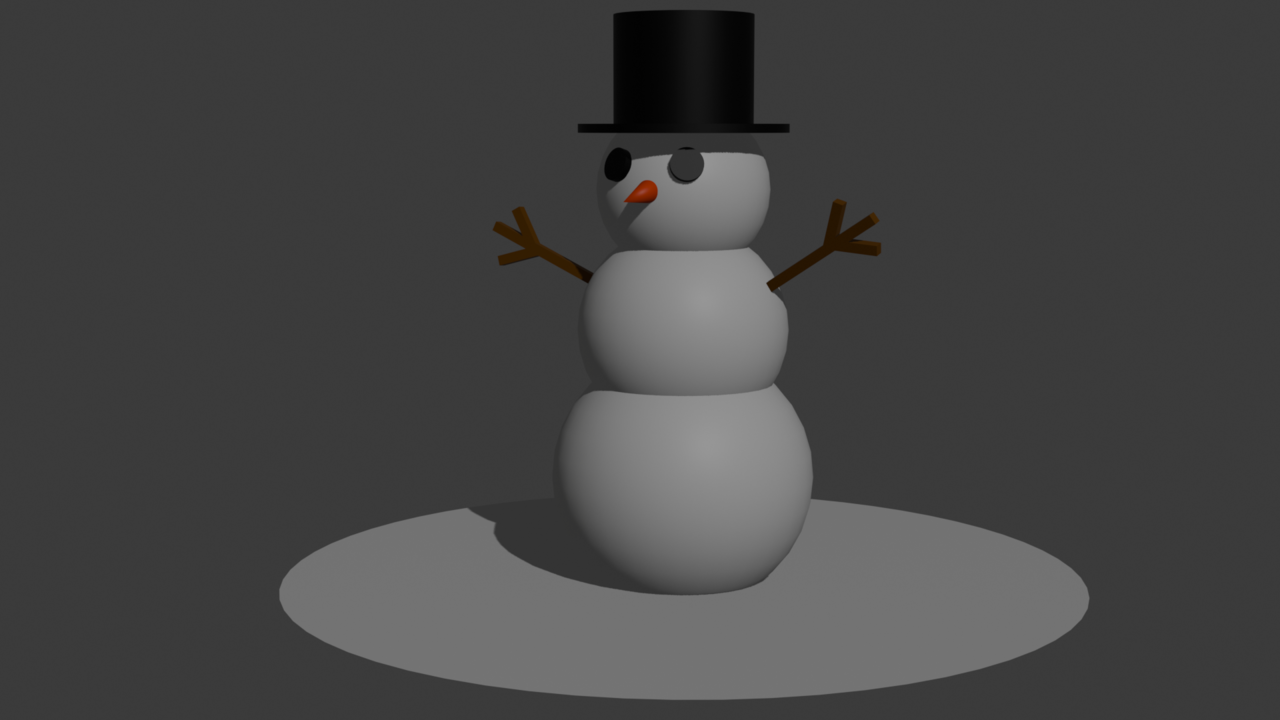
Here is my Snowman:
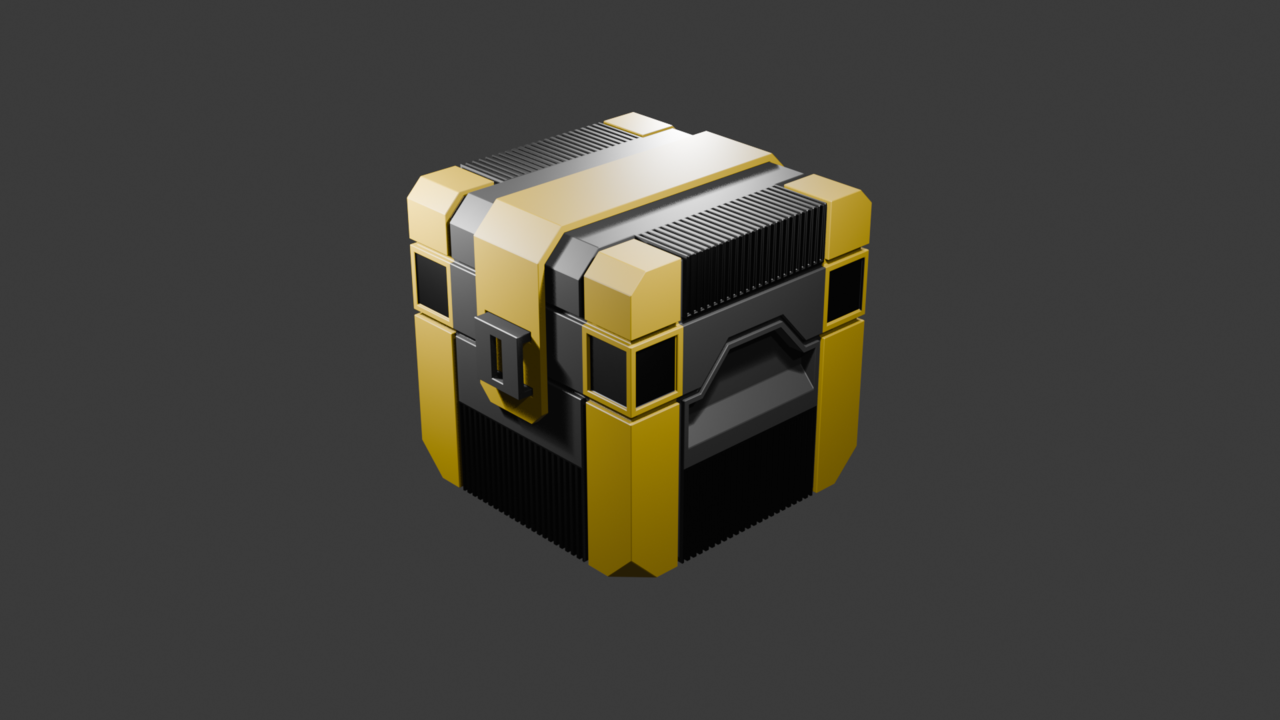
And here is my sci-fi box, I added the black inset squares on the corners and put a hole in the latch. I also added some color because it really felt like it needed some!
Thanks for reading, I hope to hear some tips from all of you who have them!
I worked through the Lighting course today. The course was good, I learned a lot about properly lighting scenes, especially those with a focus on a single object. When the instructor walked through the lighting for the scene in the final project, I got a bit confused. Adding all of the additional lighting to the scene to make rim lights and fill lights that ignore objects resulted in a look that felt overexposed to me. Like most things in an artistic endeavor, though, it's probably something that's closer to personal preference rather than a hard science?
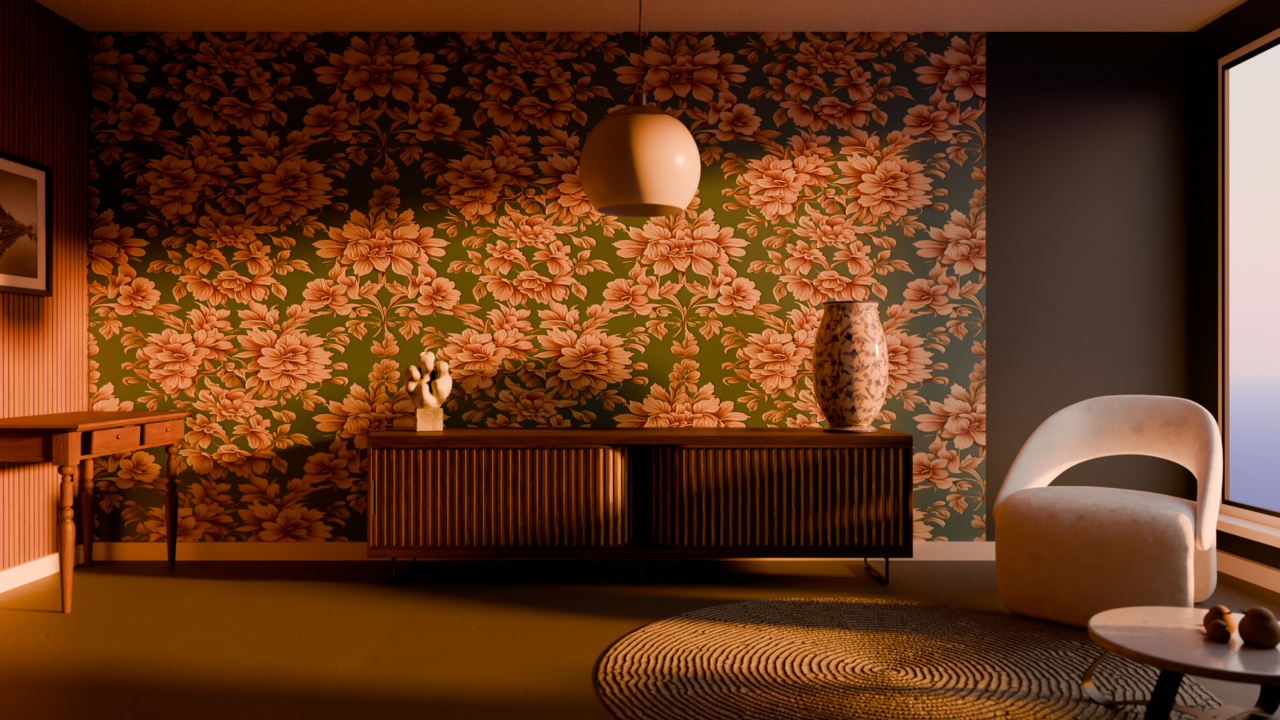
I wanted to light this room so that it is warm an inviting, so I used a Sky Texture to make the sun set a rich, orange color. This is what the scene looks like with only the sun filtering through the window, which I like a lot.
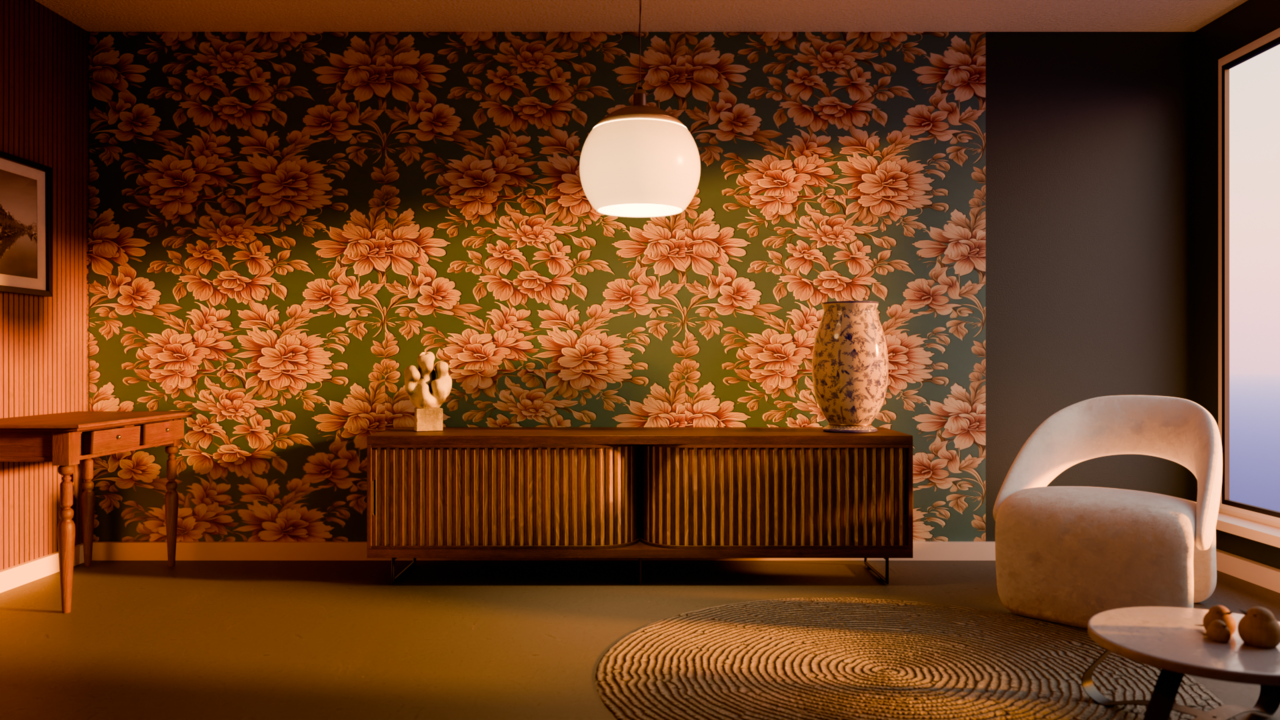
I think the warm theme I wanted is nearly achieved at this point. The long, harsh shadows cast by the chair and table near the window made the scene less inviting, so I made the ceiling light a warm color to push those shadows into a more inviting tone. The rest of the fill and rim lights for things like the statue, vase, cabinet, and sparrows were variations in power and value from the original light. All of that means the final scene is lit with a monochromatic orange lighting scheme, which I think turned out nice. It achieves an inviting atmosphere with the warm tones even though I might like the more dramatic lighting from the window-only lighting. The rim lighting on the left of the cabinet helps to show the leg of the cabinet better and the details of the front of the cabinet is better defined with this new lighting setup, using two fill lights and the center ceiling light to ensure the front of the cabinet is lit enough to see. I wanted to maintain the dark shadows from the cabinet to sell the fact that the sun is setting.
Things started to click into place for me as I lit this scene. The really dark shadows from the sun obscured the scene and made it difficult to see the features on the center cabinet. The lights added help define the scene, and while I still think the original lighting setup for the scene in the tutorial is a bit harsh, I understand the concepts and look forward to applying them in the future.


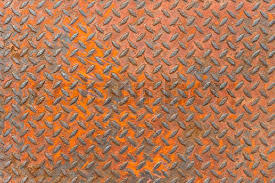
During the Texturing course, they request rusted metal. I wanted to make this metal into Diamond Plate, which was done easily with the Brick Node.
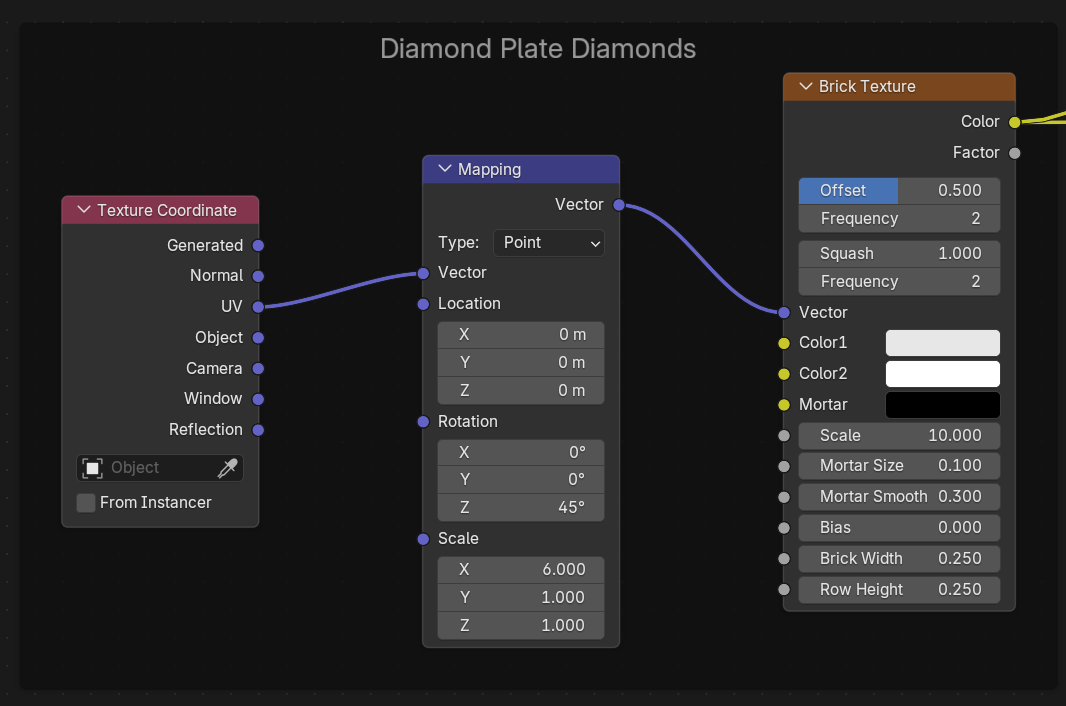
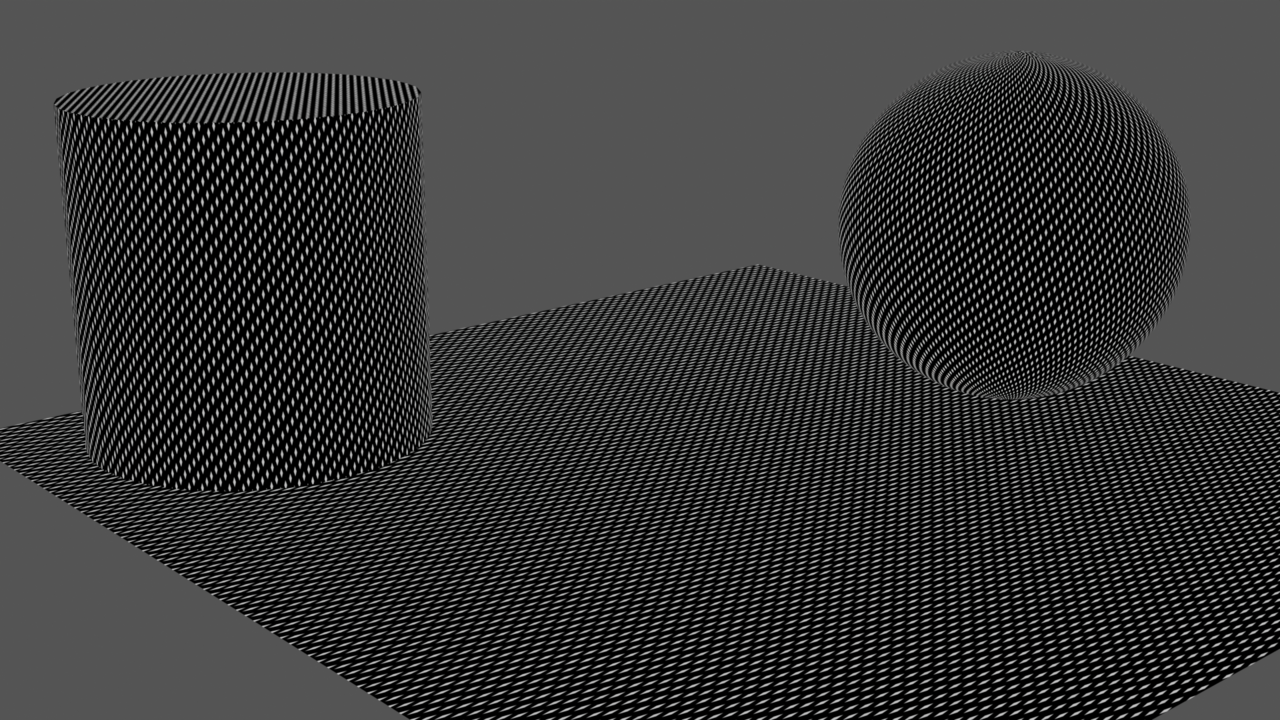
The diamonds use the custom UVs because I had to do a UV unwrap on the cylinder to make it look right. The result is a black and white mask that I used to create the normal map and make the tops of the diamonds shiny even in the rusted spots due to wear. This is useful later, but for now, I needed to make the rust. This is the result so far.
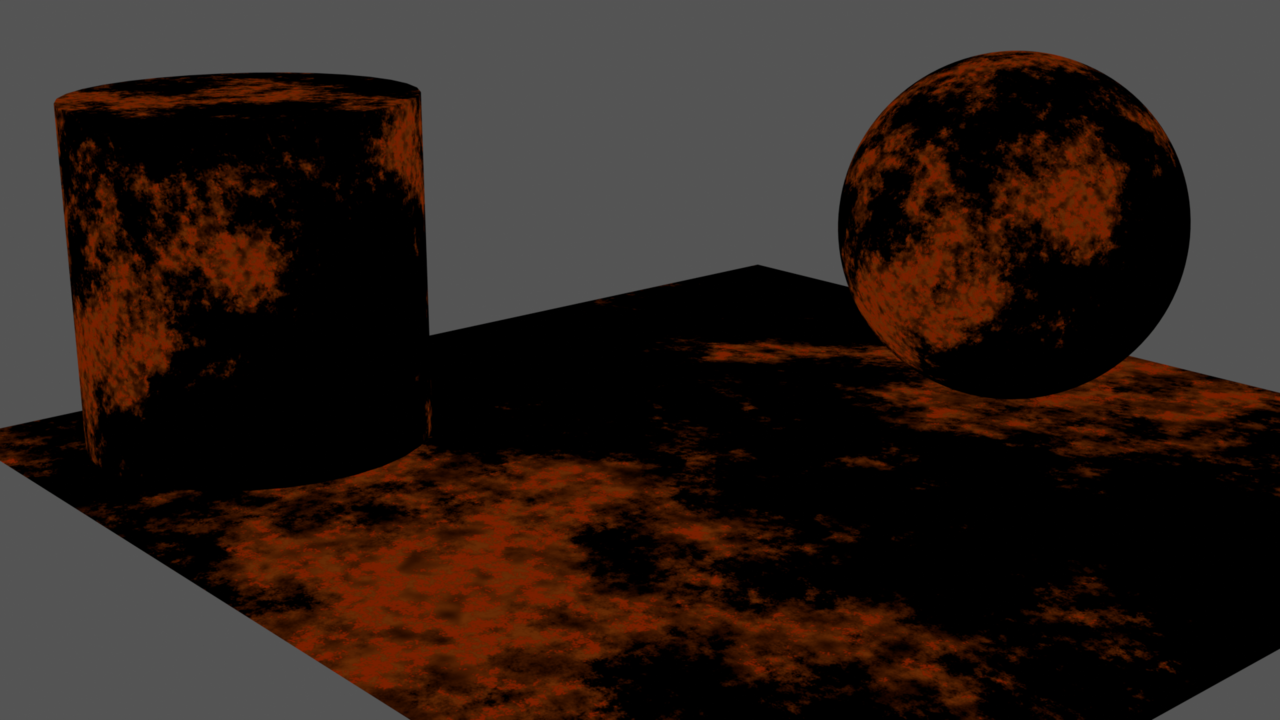
The next step was to create some rust splotches using Noise textures. I started with a single noise texture, but that wasn't enough and I wound up using a few of them. I wanted the edges of the rust to be rough and chaotic, so I mixed a small texture in with a larger texture to give it that texture. The result here was few large splotches, but they were too sparse, so I combined a third noise texture with it to finally land on the shapes of the rust.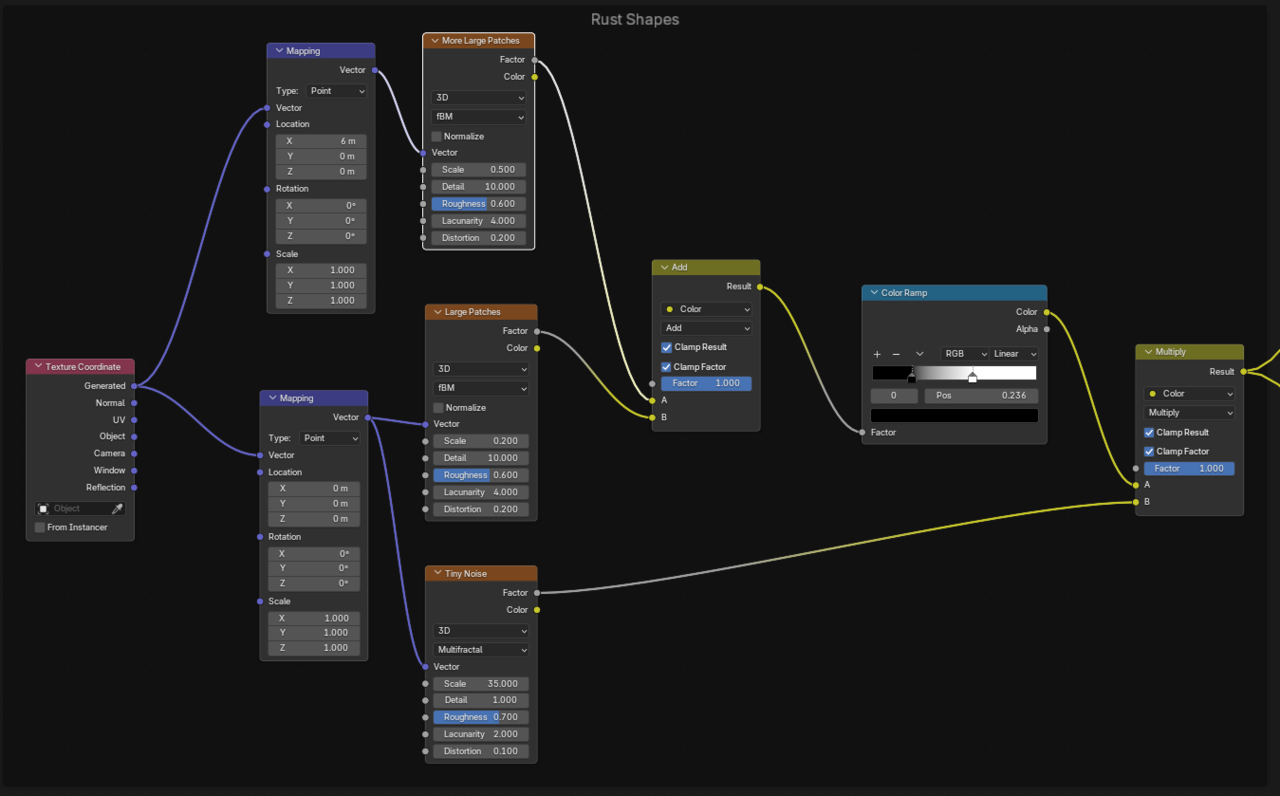
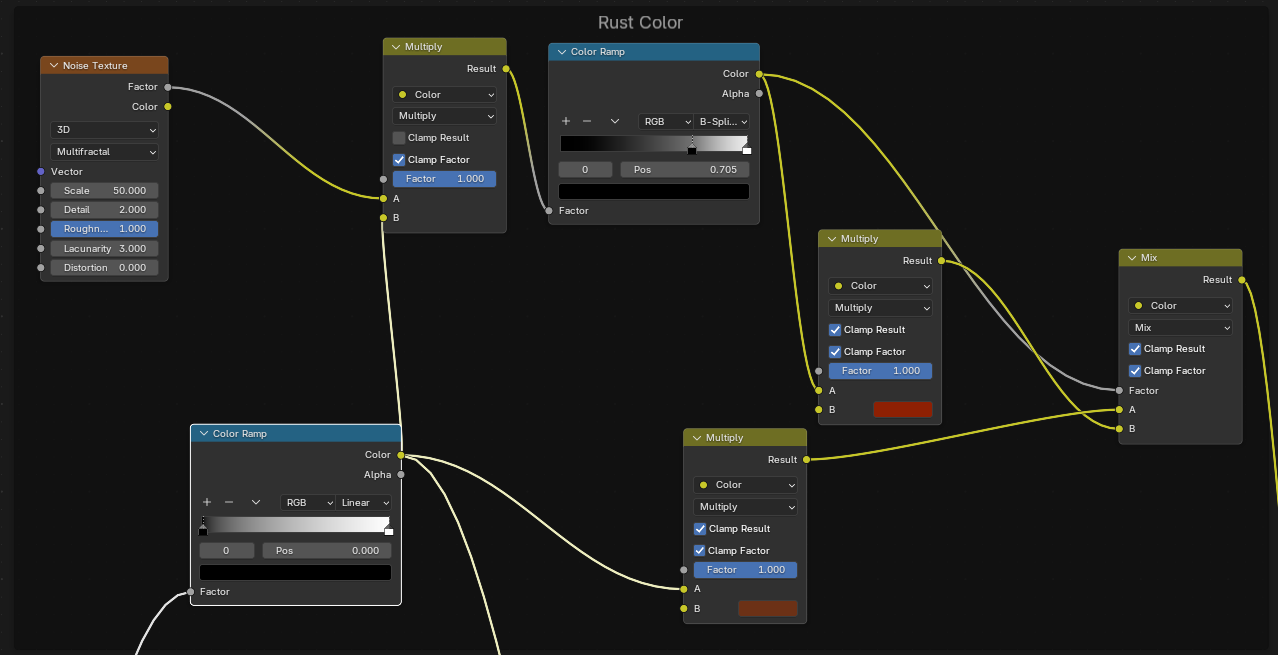
With the rust shapes out of the way, I needed to color it. I settled on a dark, reddish brown for most of the rust. After messing around with it a bit, I wanted some smaller pieces of it to be a little more red. I used yet another noise texture to add in that rust red color randomly within the brown. I had to experiment here with the blend modes a lot and found that multiply resulted in the colors I wanted. I can adjust which parts of the rust are brown or red using the color ramps and the color ramp for the red is used as the factor for the final mix node that brings it all together.
This is the resulting rust splotches so far:
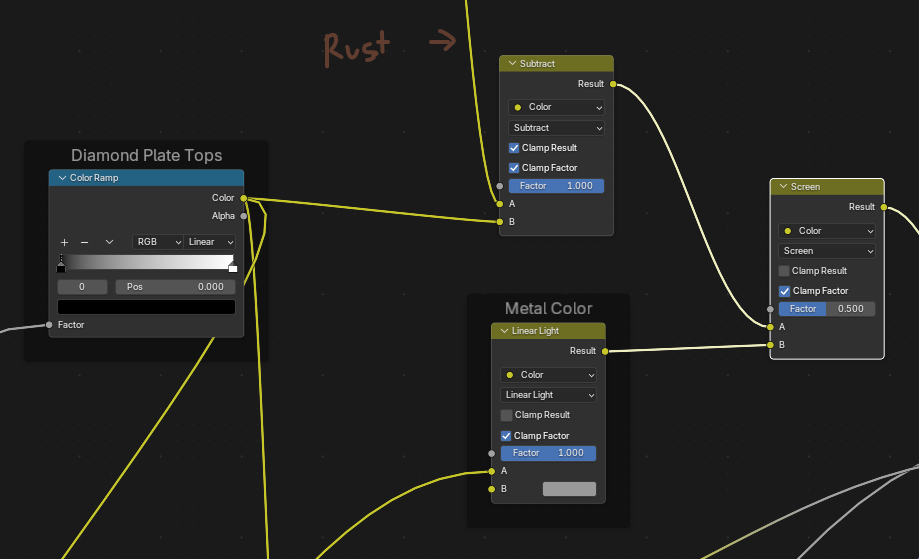
The metal coloration was simple enough to add, but at this point the rust needs to be adjusted to let the gray of the metal through wherever the diamond plates are. This was important to me as both a challenge to learn from and how the metal needed to look for me to be satisfied. The effect is fairly easy, we need to cut a hole in the rust coloring using the Diamond Plate mask from before. I did so here.
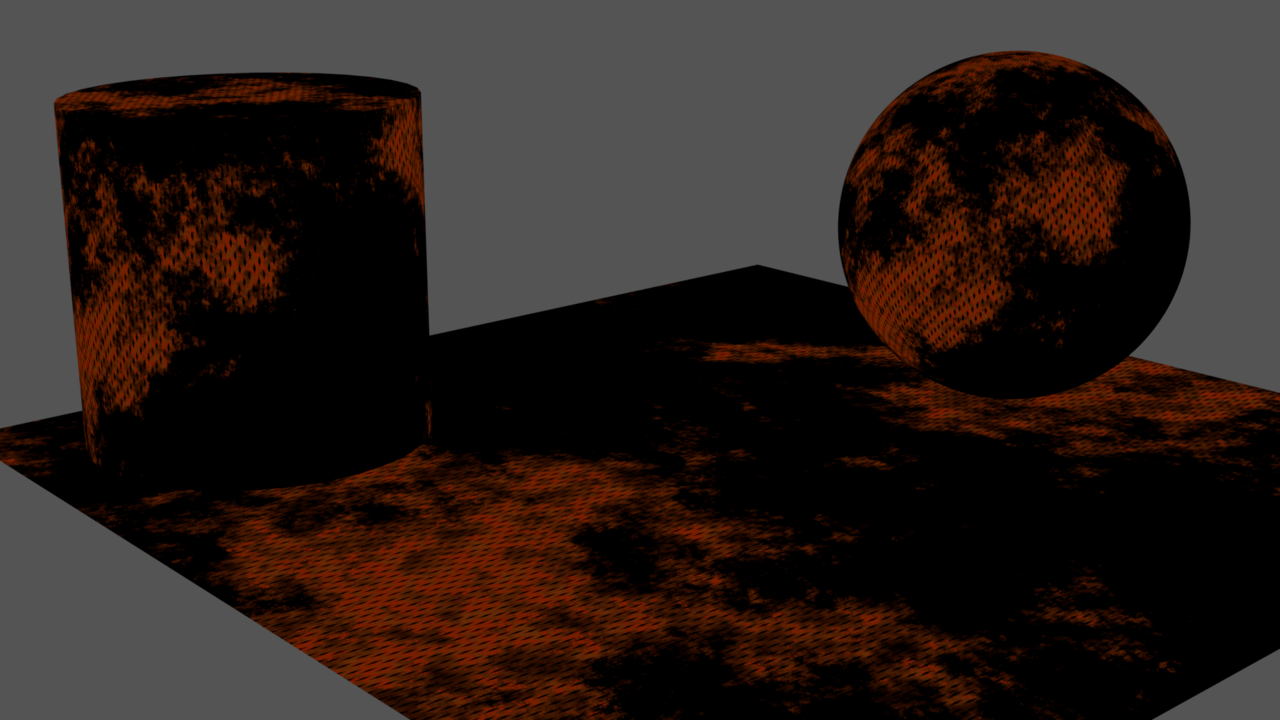
This is the small change to the rust map this made. Notice how there are now black diamonds in the Rust.
For the desired effect, the rusty parts need to be rough while the diamonds and rust-free metal are shiny. That means I needed to do the same thing with the roughness map as I did with the Metal Color above to make the diamonds shiny.
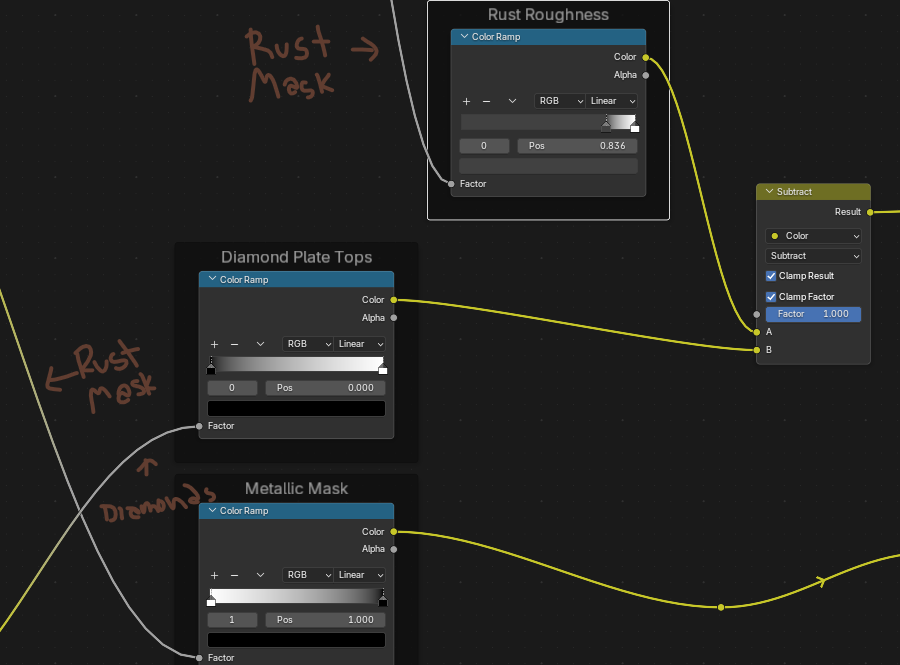
The result is a roughness map that looks like this, where the shiniest parts (black) are the diamonds, the metal is a mid-tone, and the rust is the most rough (white).
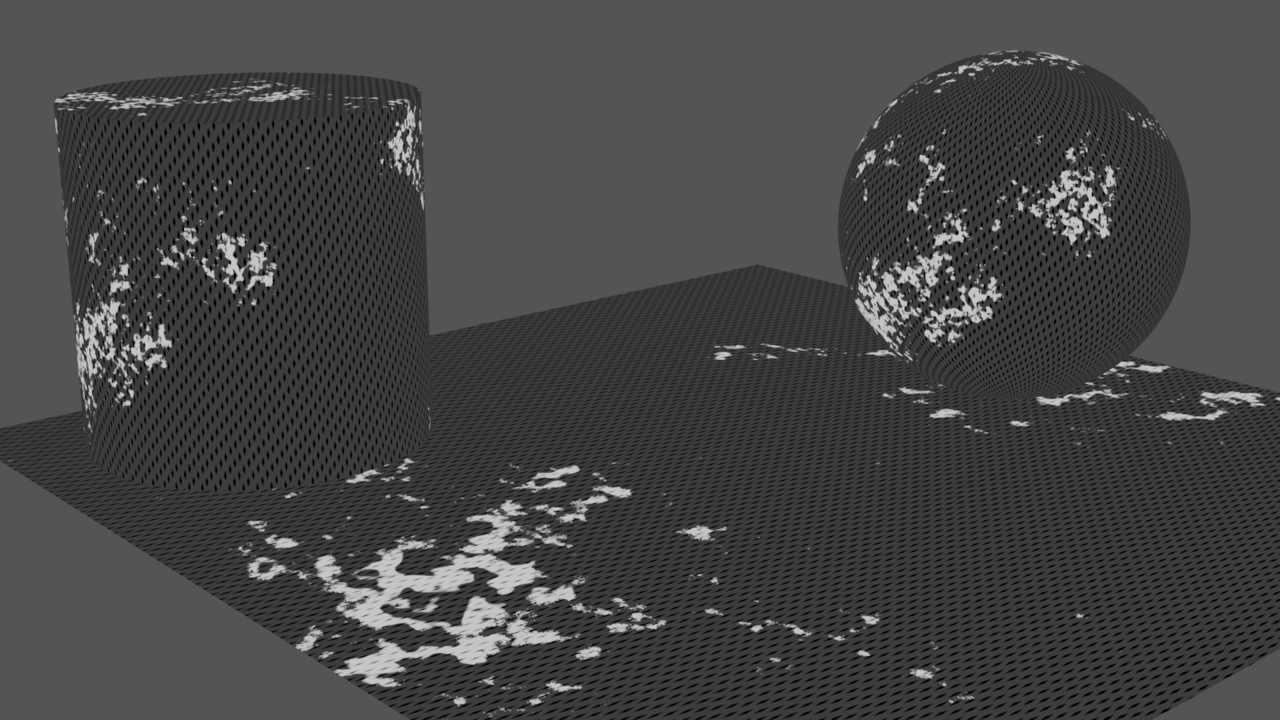
Depending on the needs of a project, it might make more sense to have the diamonds actually displaced or model them with something like an array modifier. I wanted to have a fully procedural solution to this problem, though so I'm happy with the results. For a real-time application like a video game (which will eventually be my focus) this approach using less geometry is easier to render. For me, the hardest part was getting a decent lighting solution for this setup. Eventually I settled on this one, which uses a separate rim light for both the sphere and the cylinder and a single fill light for both. There are two key lights to light the area, resulting in them being visible on the sphere due to their reflective nature.
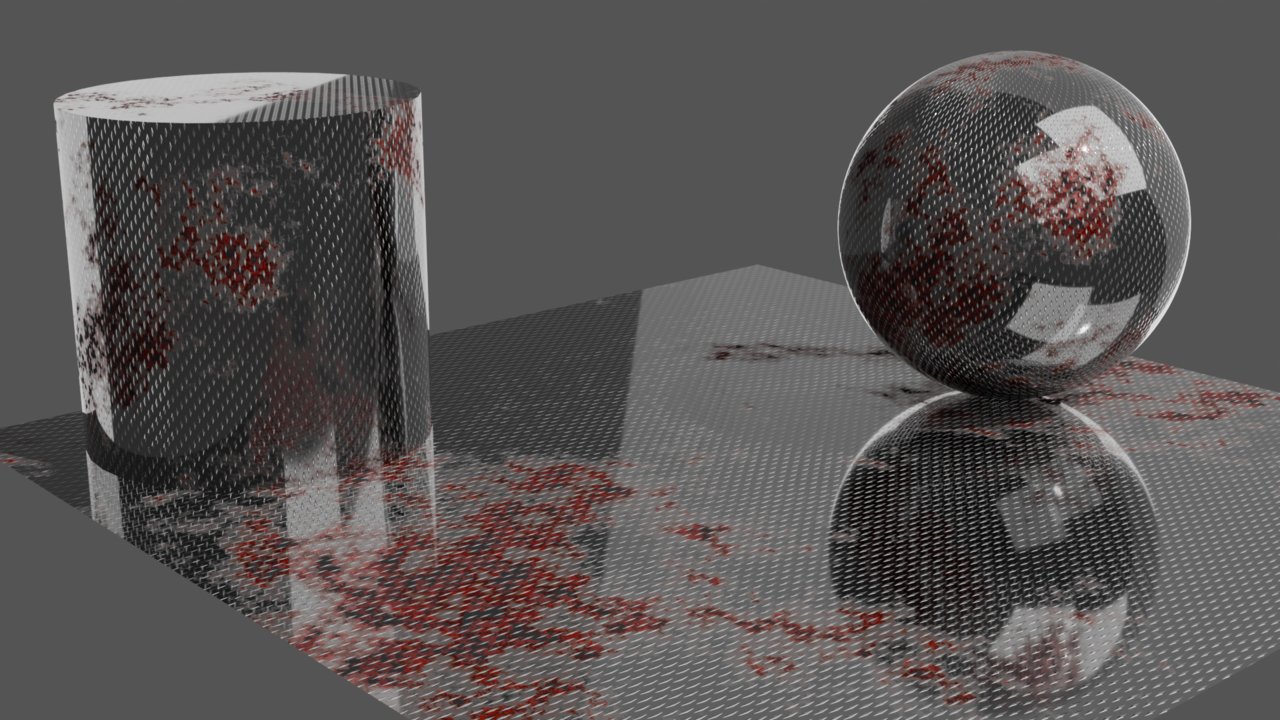
Very nice, Collin!
The only thing I'd say, is that the surfaces look too smooth; some Bump would certainly improve the result (you already have all your Masks, so it should be easy enough to implement). But then again, maybe this is just the (stylized) look you are going for.
That's a good idea, Martin! I was torn between these two reference images, either making the sheet incredibly smooth or incredibly rough. I probably should have given it a little bit of noise and roughness to make the metal a less perfect mirror.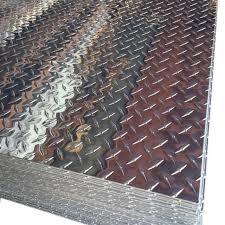
While doing the relic course, Chunk asked that we post a different version of the handle here. The basic rundown of the first video is that this handle is created by using a curve, then converting the curve to a mesh to get the basic shape. Then the mesh is "sculpted" using a few displacement modifiers to give it texture that will later be baked onto a low poly model.
I found that using a tiny Voronoi Crackle texture for the distortion resulted in these meandering lines. This could either be the grout lines from a cobblestone version of the handle, or the little bug trails left behind on trees that are lived in by bugs.
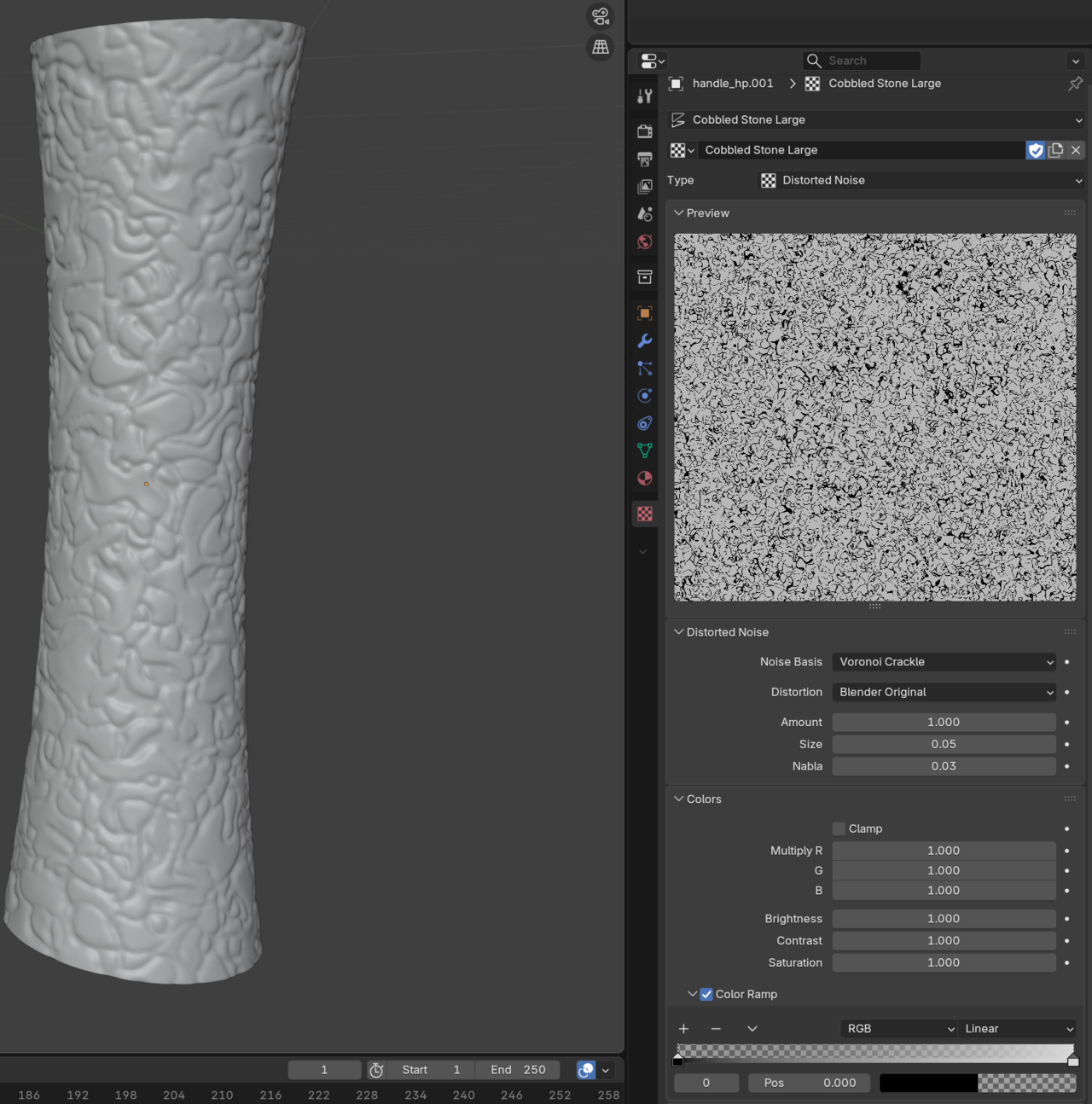
After that, to make it a little more interesting, I added a perlin noise distortion to give it a more stone look. I thought stone might be an interesting handle for a magic item, how often has glued-together stone been used as a handle? Rarely, for a lot of practical reasons like tensile strength and weight, I am sure.
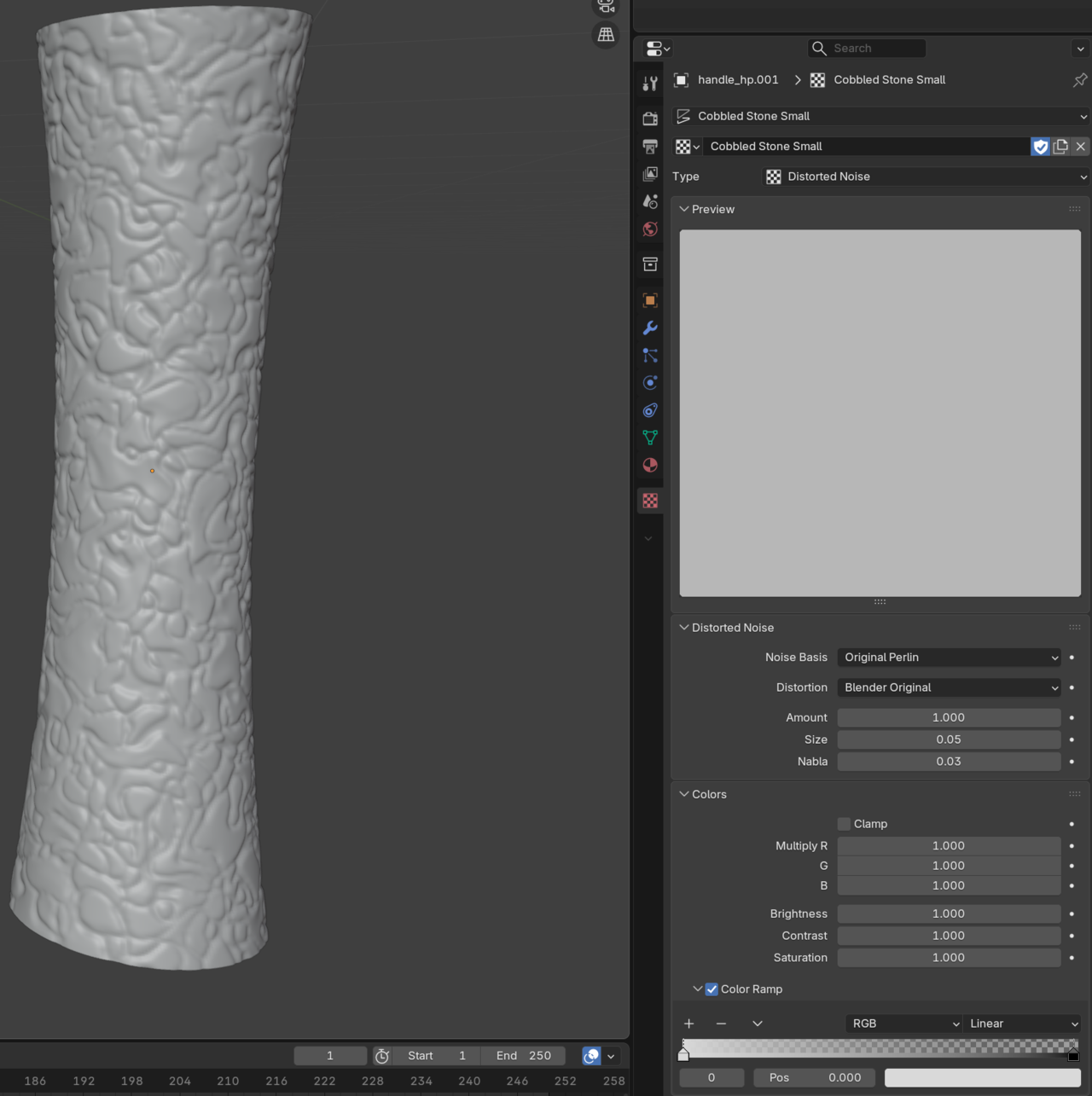
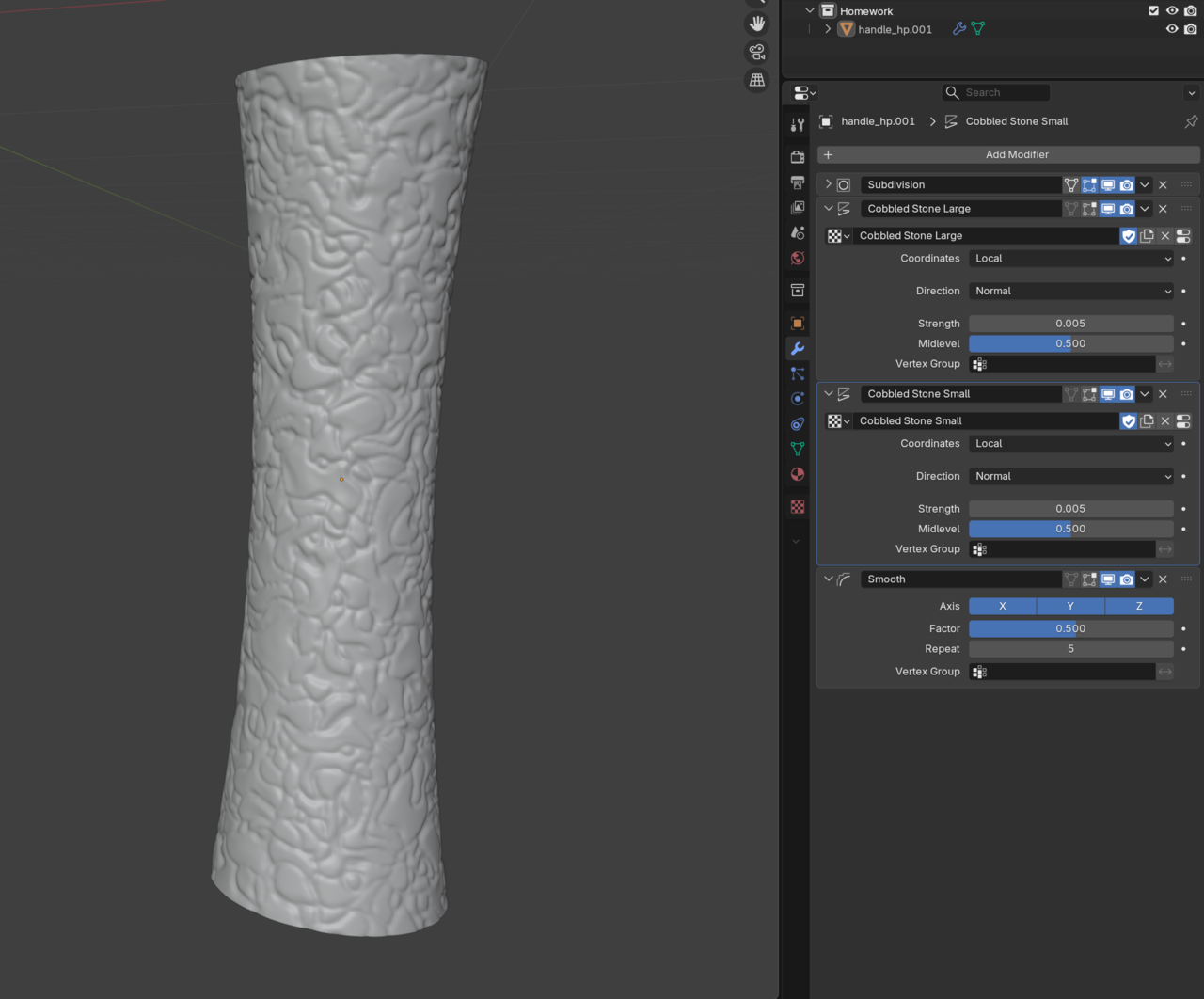
With these two distortions combined, the texture starts to look a little bit more like a bunch of misshapen stones glued together. Here is the final modifier stack.
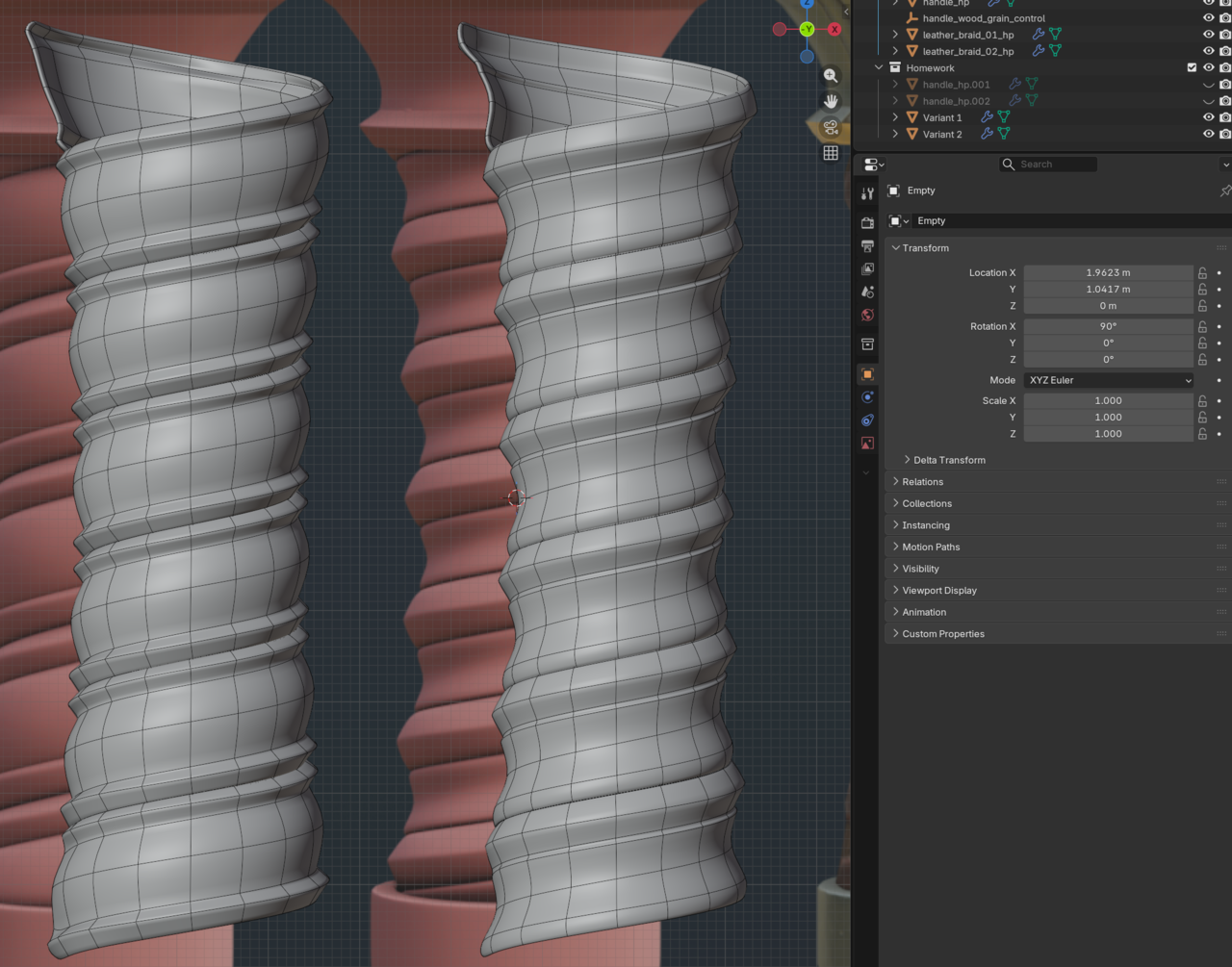
The second homework task was to recreate the other two handles included in the source material. Using the same Screw Modifier + Shrinkwrap Modifier + Solidify Modifier workflow, I was able to come up with these results. Changing the basic shape of the handle is fairly straightforward, because we can control the shape using Alt+S to scale along the normals. To make the sharper edges after the Subdivision Modifier, I used Edge Creases, although I suspect that the really sharp edges in the reference were created by having separate objects. I opted to use a single screw object, which means my shapes are a little bit different when it comes to shading.
I really enjoyed this Relic course. I learned a lot about baking, retopology, and how to apply a lot of the concepts from the CORE courses I have taken so far! Things like Checker Deselect, Select Similar, Subdivision Modelling, and a little bit of texturing. Spending some time using Blender's texturing solutions really makes you appreciate using a dedicated software like InstaMAT or Substance Painter. Where to even begin to describe this journey?
I followed the High Poly > "Mid Poly" > Bake > Low Poly workflow to the letter and found this to be the missing link I had in my baking workflow. I was jumping from High Poly straight to Low Poly (game ready) and was getting the strange shading artifacts that Chunk mentioned. I never knew how to get those to go away, now I do. The High Poly mesh reports 1.32 million triangles, the Mid Poly is 16,700, and the Low Poly is 13,530. I may have gone a little too far reducing the poly count because some of the curves in the "chalice" piece have visible planes in the final render. Thankfully going back and correcting it would be a breeze because we can duplicate the mid poly and retopo from there.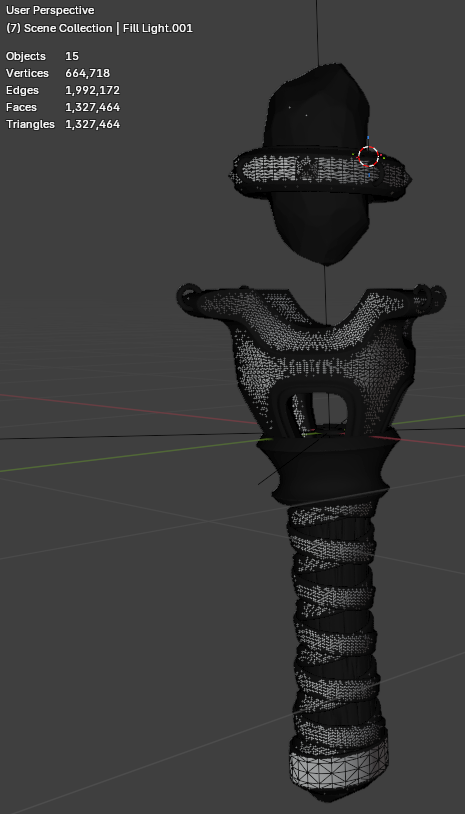
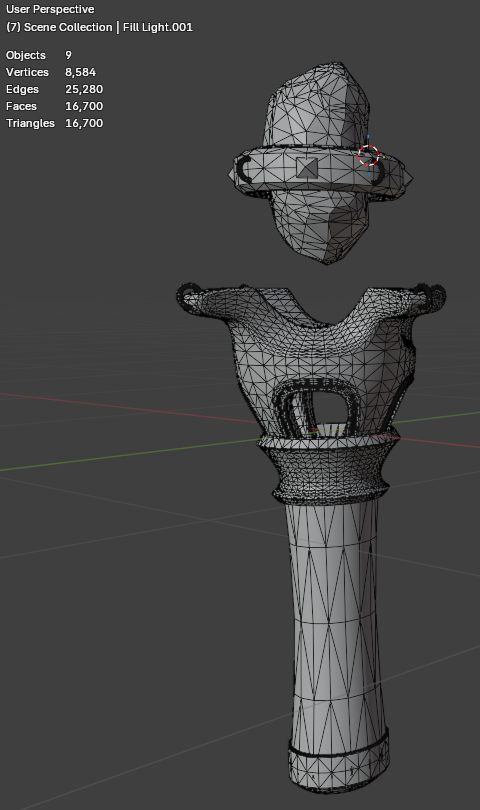
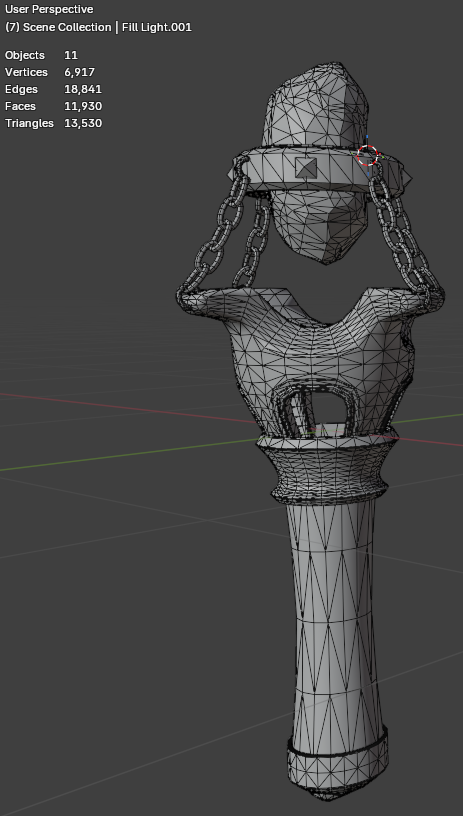
The key takeaway I have from this portion is that the process of retopology is not as hard as people make it out to be. In fact, I find that even the Gem retopo was fairly painless. It's a perfect opportunity to pull up a YouTube video on another monitor and push vertices around. For a video game asset, this retopology is critical to meet rendering targets smoothly, even with powerful solutions like Unreal Engine 5's Nanite, why make the GPU do all the work when this process is so easy to do? I suppose it comes down to time.
I was hesitant to install InstaMAT, because I didn't want to rely upon another subscription-based software. I've already abandoned the Adobe suite across the board for this reason. At any rate, the texturing process was incredibly simple because of InstaMAT, and sometimes the dollars spent to save time are worth it (obviously there were 0 dollars spent for this tutorial because of the Pioneer license).
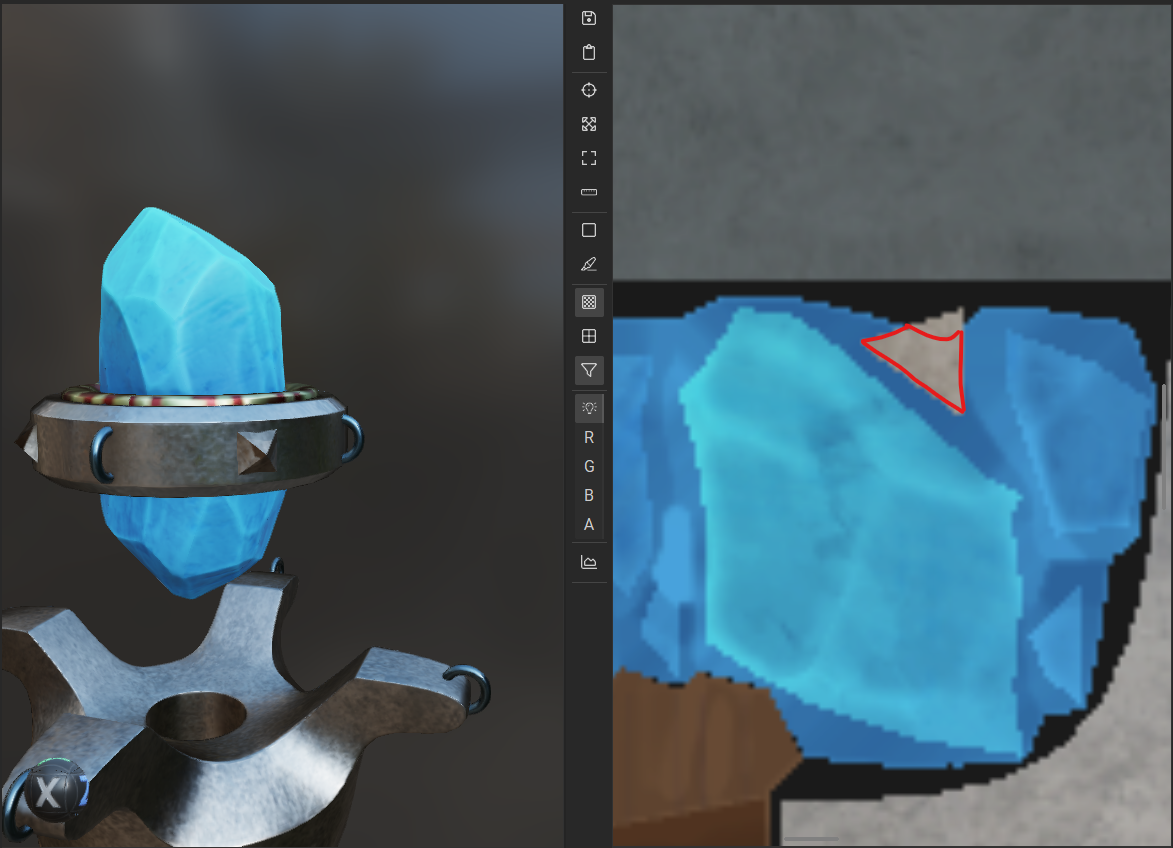
I did have a strange issue where the Bake in InstaMAT caused parts of the Gem to show up on the spikes, which caused masking using the Material ID to not function properly.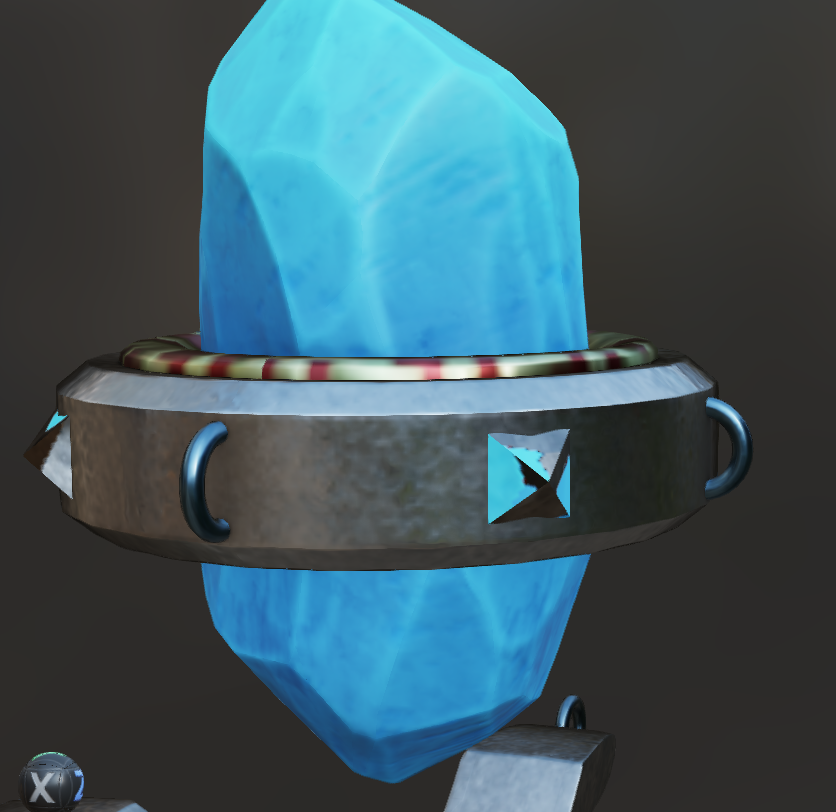
I decided to create another mask from Blender to mask off the spikes like we did for the leather straps. This was accomplished the same way, using the emission of the object to bake a black and white mask. Then, in InstaMAT, I used it in a Mesh Project Mask in Subtraction mode on the Gem to remove the gemstone bits from the spike. I then used the Mesh Project Mask with the Default mode to mask off the spikes and apply the metallic surface to it. Putting the Spike texture above the Gem means that the mask on the gem should be largely irrelevant, as far as I understand the layers. You will notice that it still isn't perfect, and I'm not exactly sure why. The color map even looks like it should be correct. This probably has to do with the bleed settings on the color map, since the blue is clearly bleeding over the triangle of the spike when it shouldn't and is causing problems.
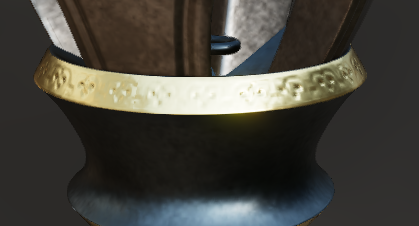
I also decided on a more frosty look than the tutorial, so I have a gray metal instead of the gold Chunk used and the blue crystal. Aside from that, I opted to add an engraving to the top of the collar on the gold. I did this in the same way Chunk made the vertical lines along the collar.
I chose to make my background orange to make it a complimentary color to the blues in the wand. I added a three-point lighting setup from the lighting course earlier to provide a nicer lighting setup. I used lights that fall on the cooler side to further sell the frosty vibe.
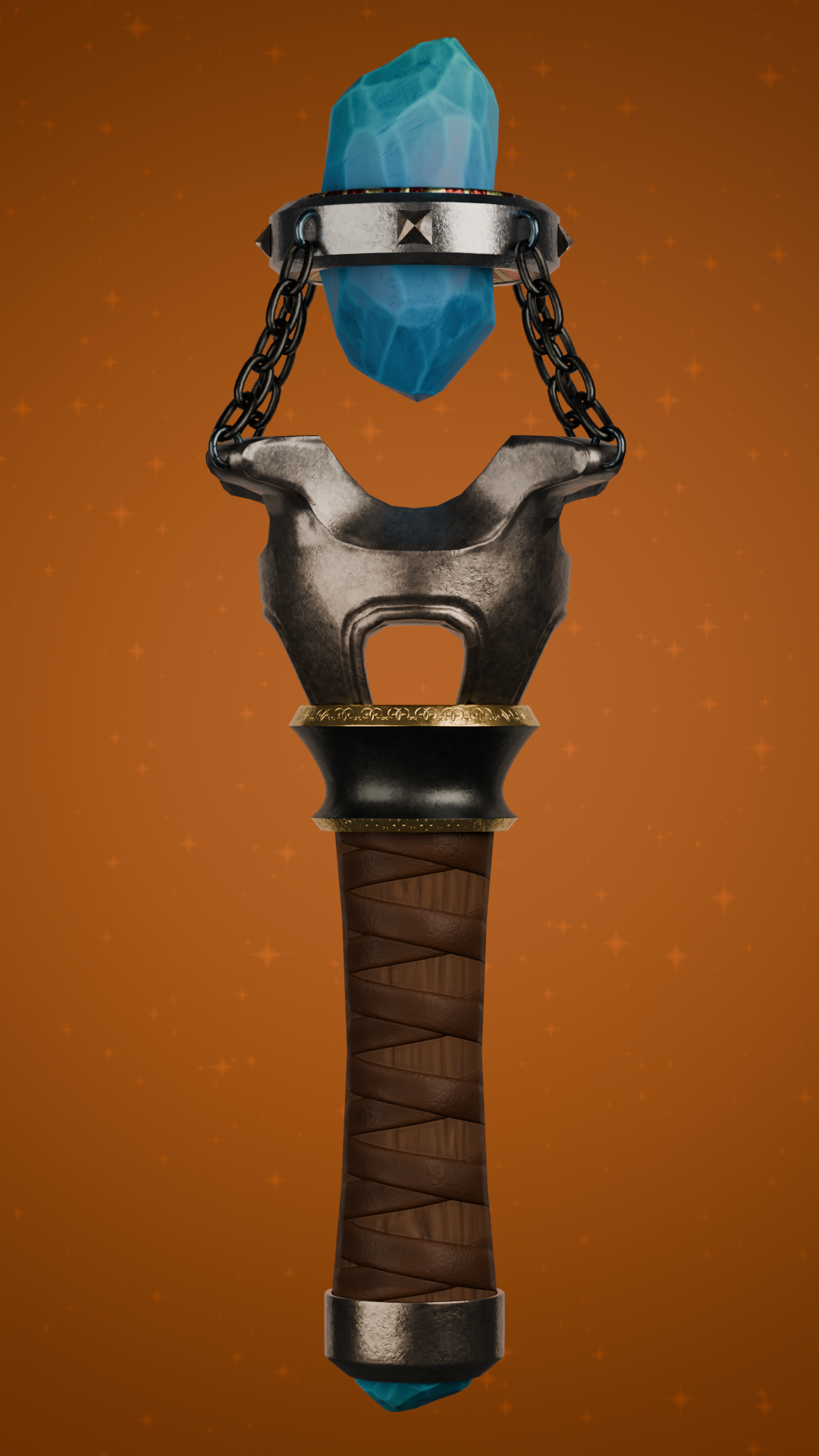
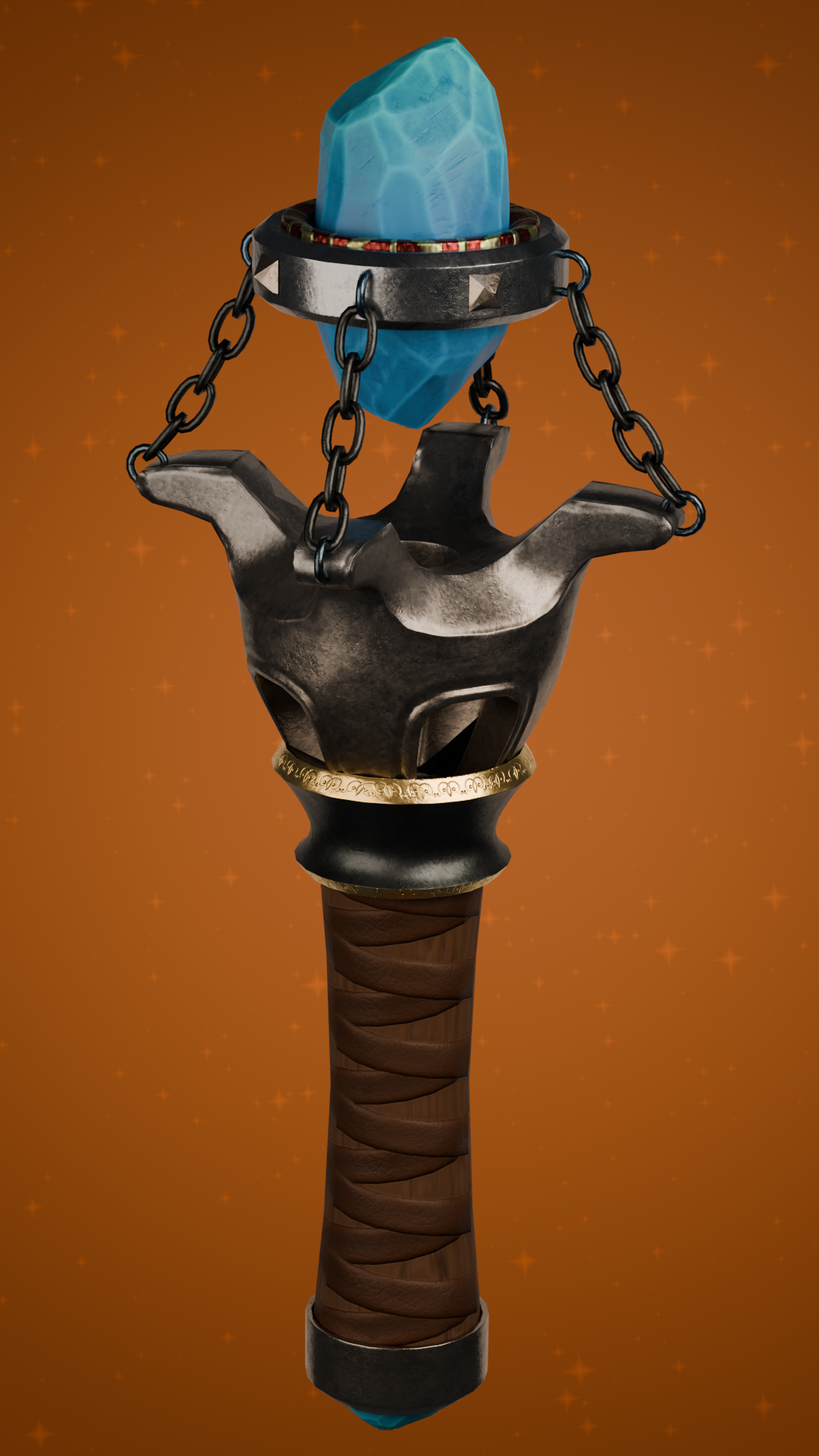
Now it's time to move on and create something of my own and use this course for reference. I am really satisfied with the result here and hope to apply these concepts to future models.
