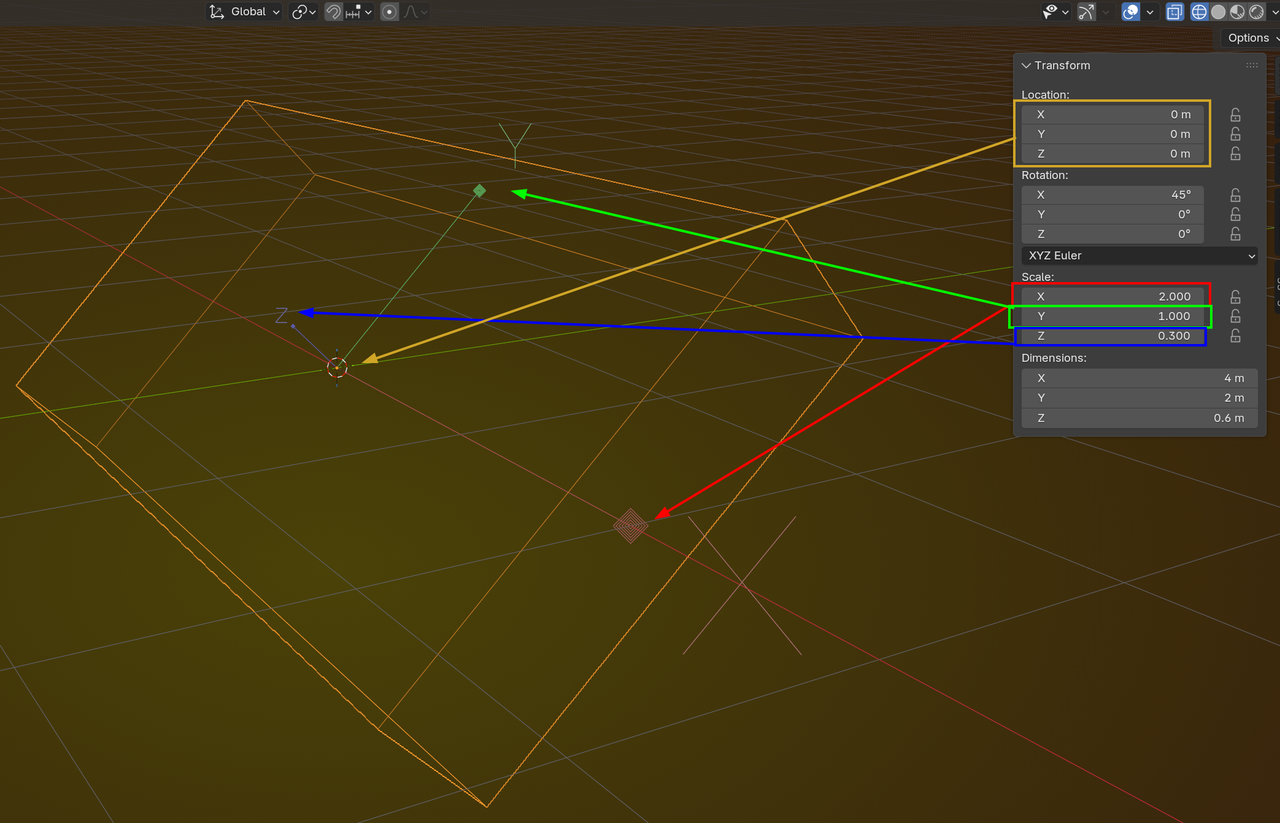
Hi there! Very confusing topic and its explanation indeed... I guess one of the reasons is that the explanation lacks view settings of the instructor. For instance how do I get to view X and Z axis after enabling "affect only origins" (3:14 - those big X and Z letters)? It would really help if instructor tells us just a little bit about his interface settings with all of these billions view settings options...
the big XYZ letters is probably something in preferences that makes it easier to show up in videos (though on a quick look I'm not seeing that specific one to adjust). But the letters are still there when you do the things he says, just smaller and closer to the size of the spherical gadget.

He didn't change anything settings. He's just zoomed in on the plane.(Numpad period key or Tilde->View Selected or View menu->Frame Selected). You can also scale the Origin axis(S while in Origin only mode), but make sure that you clear it(Alt+S) before going back to normal mode, because your transform scale will now reset to the origins scale which can be really confusing even for advanced users.
***Edit** Alt+s clears scale. Thanks, Martain for the correction

Thank you for your help! That was a scaling issue - I work in mm and the unit scale was 0.001 - that was the reason I guess, I changed to 1 and rebuilt the whole scene. Seems like the axis gismo view is somehow correlates with length unit and unit scale, but I just can't figure out the logic here. I still can't figure out to how to set up UI - unit scale and scale in viewport overlays so that I can comfortably work in mm... If I work with 100-200mm objects and add say another cube it adds 2mm cube... so frustrating... I actually watched Basics and other beginner tutorials... can't find the one which helps with this UI viewing matter... Thank you again!
The origin's scaled is based on objects dimension. For MM scale work.
1. 3D view Port overlays change grid scale to 0.001.
2. In properties editor->scene tab->Units panel->set unit system or it may be scale. It's right below where you set metric or imperial. Set it to 0.001. optionally under length you can set it to Millimeters. I usually use adaptive, but it's a preference thing.
Hi Philip,
Those Axes, when enabling Affect > Origins Only, are 1 Blender Unit long. Always.
A Default Cube in Blender is 2 Units long, wide and high.
When you are using the Metric System, a Default Cube is 2 meters long, wide and high.
When you then change the Unit Scale to 0.001, that Default Cube will be 2 milimeters long, wide and high. I would not recommend changing the Unit Scale, unless you are working on microscopic or astronomical Scale (as suggested by the Tooltip).
The rest is just how things are displayed:
Changing the Grid Scale, just changes how the Grid is displayed (how far the Grid lines are apart, visually).
Changing the Length from Meter to Centimeter will change the Default Cube from 2m X 2m X 2m to 200cm X 200cm X 200cm.
Changing from Metric to Imperial will convert Meters to Feet (or Inches...) and the Default Cube will be 6.56' X 6.56' X 6.56'.
I hope that takes away some of the 'mystery'.
The origin axis shows based on the objects dimension. I'm pretty sure of that. As for the other gizmos like for tools and such that can be adjusted in the preferences->viewport->Gizmo size. If you are talking about the navigation widget that is the size setting under 3D Viewport Axis. I believe it is just labeled size.
"The origin axis shows based on the objects dimension"
No they're always 1 Blender Unit long, Dwayne:
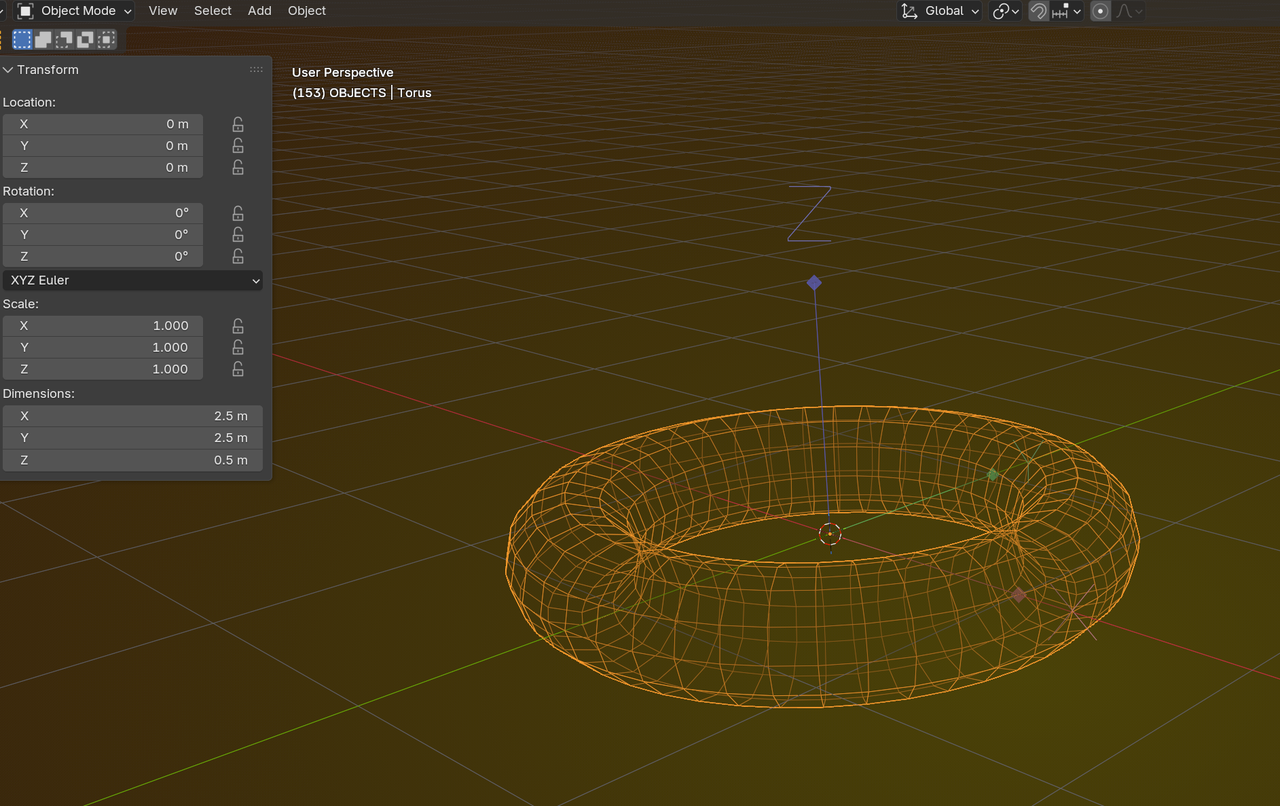
Although that's not very important.
It's just a visual clue and shows that the Object's Origin is not just a point in 3D Space (which I used to think before this was introduced), but the Origin (0, 0, 0) of the Object's Coordinate System.