I want to learn/texture in Substance Painter. As a way to learn I thought I'd use the Luminor course camera model first and then do my own camera model.
I am a bit stuck on the .fbx set-up and hoping someone can help.

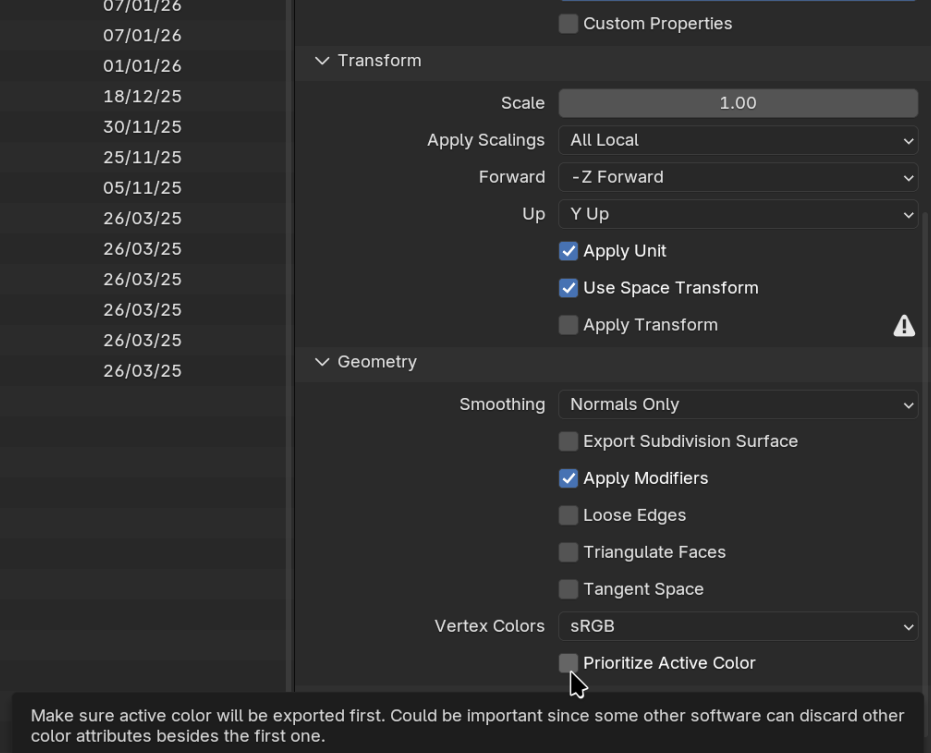
Exported .fbx with default settings and import to SP with Blender template at 4k

Then bake and set colour ID to Vertex colour

However when I now Ctl drag a material onto the camera I only have the 2 material options available and not the 4 vertex colours I was expecting

Same when I apply a mask by colour ID - only 2 options. Also where are there 2 colours coming from? They don't match either the material or vertex colours I set.

Questions:
1. Am I approaching this correctly? I'm not sure if importing using material AND vertex colour like this is expected and therefore if it's not working as a result
2. If it should work in the way I want/expect then why isn't it? Will the UV unwrapping and/or topology affect this? The mesh geo is a horrorshow
3. Blender question. I've never vertex painted before. Is there a way to apply vertex colours to multiple objects at once? I had to select each part in object mode, then edit mode, then go to vertex paint and apply. Couldn't seem to do a Link Vertex colour like you can with materials.


I have tried that checkbox already Martin and it didn't work. I can work around this but I would like to understand what I'm getting wrong. Trying to see if I can @Chunck
Martin/Omar. Any answers for question 3 about vertex painting multiple objects at once?
Hmmm...
I found this tutorial and have got it working. I think the only thing I did differently was turn on the "use low poly mesh as high poly mesh" checkbox in the baking. Still not really sure of the use/need between a high poly mesh and a low poly mesh but I can kick that can down the road for now.
The Control Drag textures to the model I think only locks on to texture sets and so that confusion was my misunderstanding.
I think it's probably worth doing Tread as a side quest anyway

Hi Charles,
As far as I know, Vertex Panting multiple Objects at once is not (yet?) possible in Blender. Only multi-Object Editing is supported.
Once you have all Objects in Vertex Paint Mode, you can click on any of those Objects to make it Active and Paint on that one. (Disable Edit . Lock Object Modes, if you haven't already.)
Alternatively, you could Join the Objects, before Painting (but that may not always be easy, because of Objects having different Modifiers, for instance).
When you disable lock object modes, it's used to be that you needed to hold Control before you click to change the object, it isn't like that anymore? You just click and Blender changes to the object immediately?
EDIT: Just tried it, seems like it's with ALT now and it remembers which mode the object was on.
Have since discovered that you CAN vertex paint multiple objects at once via the UV layout with the TexTools add on
4 objects selected in Object Mode

In TexTools
ColourID
Mode: Select Vertex Colours dropdown
Select colour and click save

IMPORTANT
Initially it kept painting black and I found out that you need to turn off unified colours in the vertex paint N-panel