

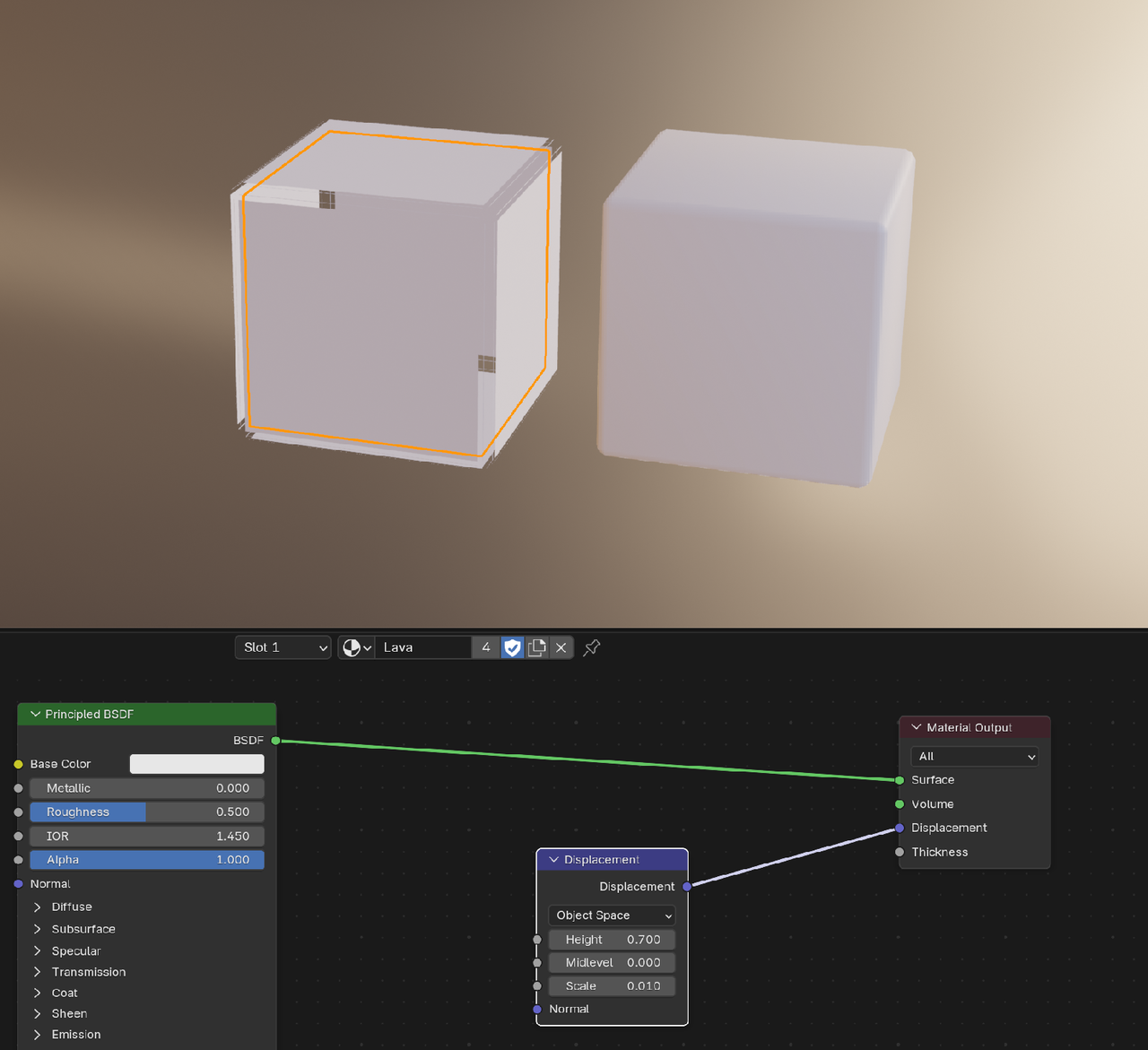
I'm going for a rough surface look, and I know it's set way to high but why is this splitting apart? I'm guessing because its a right angle and it doesn't know where else to pull geometry from, but I have the sub surf mod on and the bevel mod, so the geometry should be there.


what do your subsurf and bevel settings look like? And is that the only modifiers in the stack?
With "splittig apart" you probably mean the visible seam at the top left corner. You can use the texture node "generated" instead of "uv" to get rid of it. Alternatively, you set the seam elsewhere an unwrap again.
With regards to your modifiers, Why do you use bevel and subsurf together? If you bevel with a tiny radius this will act as support cuts and suppress the subsurf with dead geometry at the edges. Better do either a subsurf set to "simple" if the flat appearance is intended, or bevel with a larger radius.

Hi dbro0808 ,
You mean the holes in the Mesh along the Edges?
I'd really have to see your exact set-up for this.
I think I've seen this before, in my own (early) Blender adventures, but I can't remember why that happened and don't seem to be able to reproduce it now.
Anyway, you deifinitely don't need a Bevel Modifier, just a Subsurf, set to Simple, as ddadim mentions.
I'm using the file that was supplied with the course that already had a bevel and subdivision modifier applied to them. All I did was add a displacement node to it. It looks like it's already using generated coordinates by default. Using different mappings doesn't appear to help fix it. No transparency or anything.
These are the modifier settings:

I made it as simple as possible with this node setup and result:


All that said, this is more of a secondary problem that only shows up here. My main issue that I am currently struggling with is figuring out the map range better. I would like it to take the "from" range and just scale it to the "to" range basically normalizing the output so that I can use the same "to min and to max" on different map range nodes to make mixing easier. The problem I have is that I go to mix in another noise texture, and one doesn't show at all because it's range is too small compared to the other input, or the opposite, it's all that shows because it's too big compared to the other. Then I'm stuck trying to mess with the values and everything gets messed up. Then adding a third one in means I have to mess with all of them again. I guess I could just use a strategy for tackling using mix nodes with map range nodes.
This is EEVEE, it's the material view. And I guess it's hard to explain what I mean, I am just finding it hard to get the different textures to mix well. More specifically with the normals which I know is more finicky. My guess is that, for instance the max value coming from one texture is very small compared to the max value of the other texture so it doesn't show up when mixed. So say I set the bump settings to my liking for the first texture, but then mix in another texture that needs different bump values to look the way I want it to. Wait, I think I just thought of the answer, use 2 bump nodes and mix after?
It is a known Limitation of EEVEE. If you set the Object to Shade Smooth, the Displacement will work correctly:
https://docs.blender.org/manual/en/dev/render/eevee/limitations/limitations.html#shader-nodes
Let us know, if you got any more trouble with mixing the Textures.

