
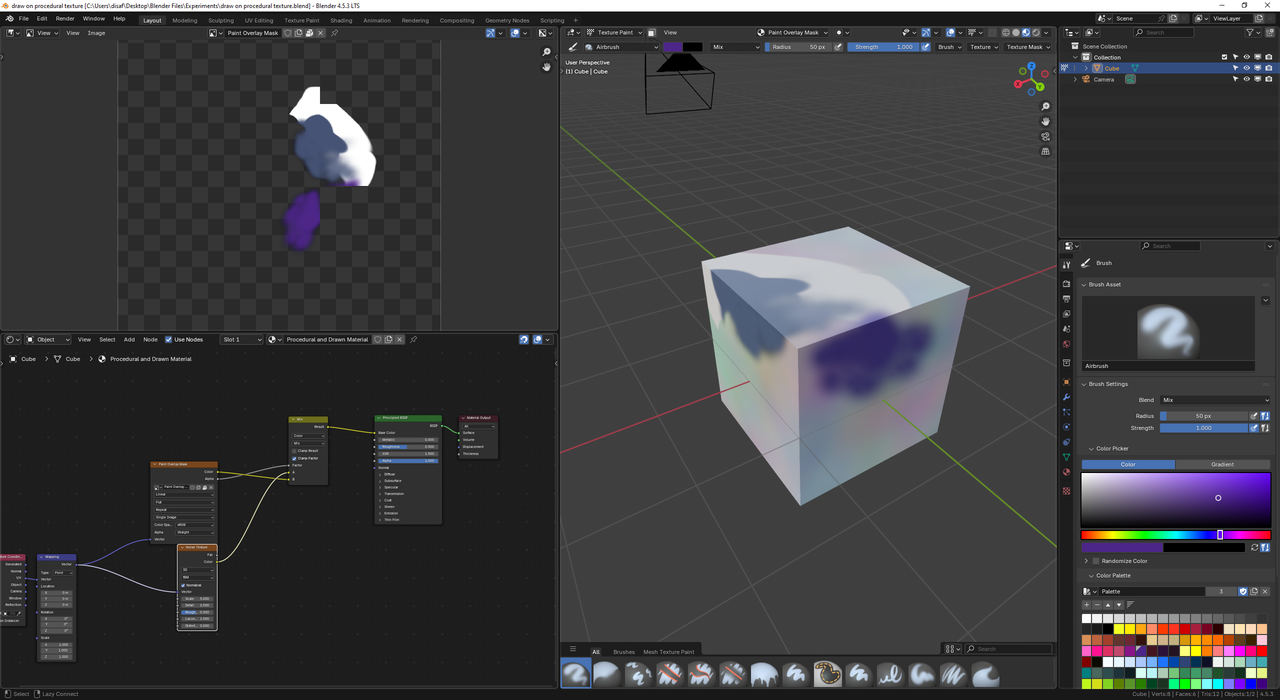
My object has two image textures overlaid on top of one another. An opaque base texture and a transparent overlay that I want to paint on. In places where the overlay is transparent, I want to be able to select the underlying color. I can do this by manually clicking on the Eyedropper tool from the color swatches at the top of the screen and then clicking on the desired part of my object in the 3D viewport.
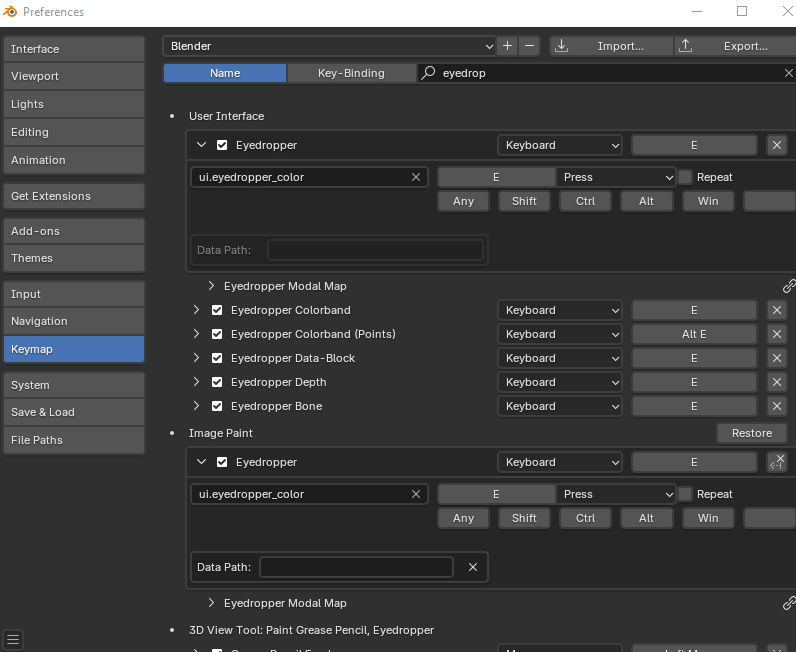
However, unlike the Color Picker (Shift X), hotkeying the eyedropper doesn't seem to do anything, nor does adding it to my quick favorite. It maps fine in either location (no errors or warnings), but does nothing when I either press the associated hotkey or use the item in my Quick Favorites.
Unfortunately, while the Color Picker shortcut does execute (unlike my Eyedropper shortcuts), it selects the color from the topmost layer, and in places where that's transparent, that means it ends up picking pure black from the unpainted, fully transparent surface, so it's not going to be what I need here.
If you have any ideas, please let me know. I feel like this is a niche case, but with a simple tool, and that I'm likely just missing something basic to connect the last dots.
Thanks in advance!

Hi DDrakmire ,
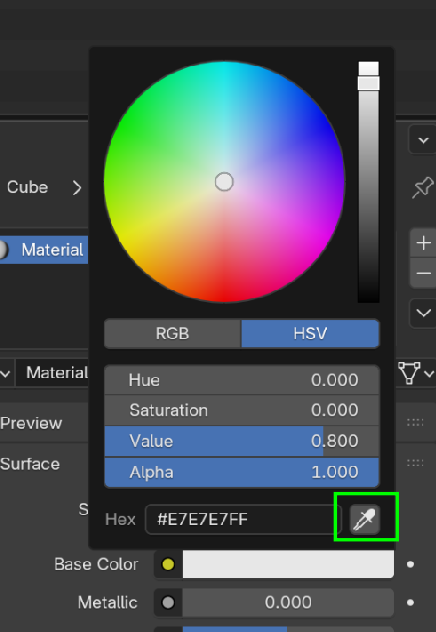
If you click on a Color that you can change, you get this:
 ,
,
and now you can choose the Eyedropper. If you just hover over that Color, you can press E to activate that Eyedropper. That is what the shortcut does.
The Eyedropper uses what Color it 'sees', so in Rendered Mode, what you want should work (if I understand you correctly).
Thank you for your response! That's a little further than I was getting on my own, so your insight is appreciated. If possible, I'd still like to hotkey that tool for use in the 3D Viewport, rather than having to mouse over into the Tool properties window of the brush before I can use E to bring up the Eyedropper tool. Do you know of any way to do that?
Hi DDrakmire ,
That is probably not possible. Blender's Hotkeys are context dependent, meaning it depends on where your Mouse Pointer is. Makes sense, how would Blender Know where to put that Color you pick with the Eyedropper:
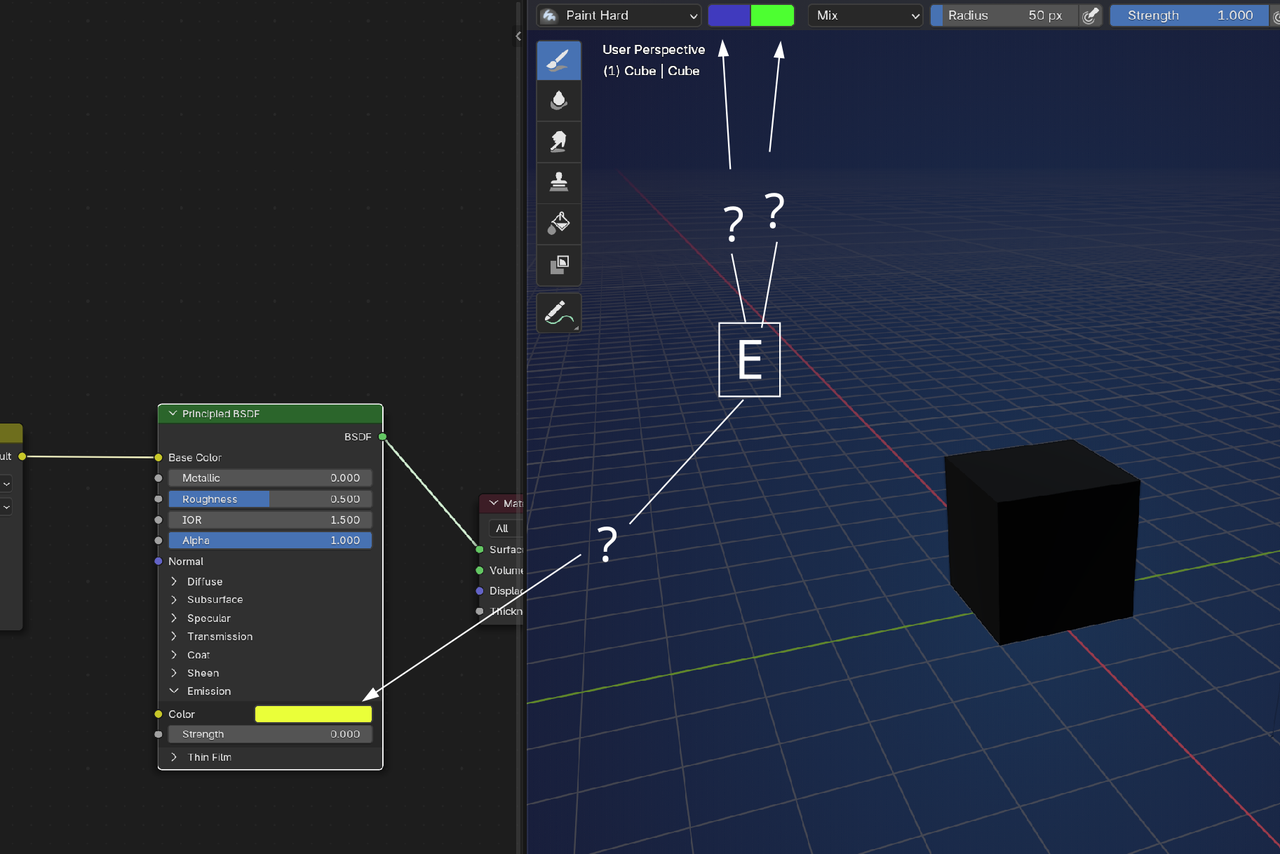
This is just how Blender works.
As a sidenote; You seem to make a distinct difference between the Color Picker and the Eyedropper.
In this Context, they are the same. The Eyedropper can also be used to pick an Object, for instance:
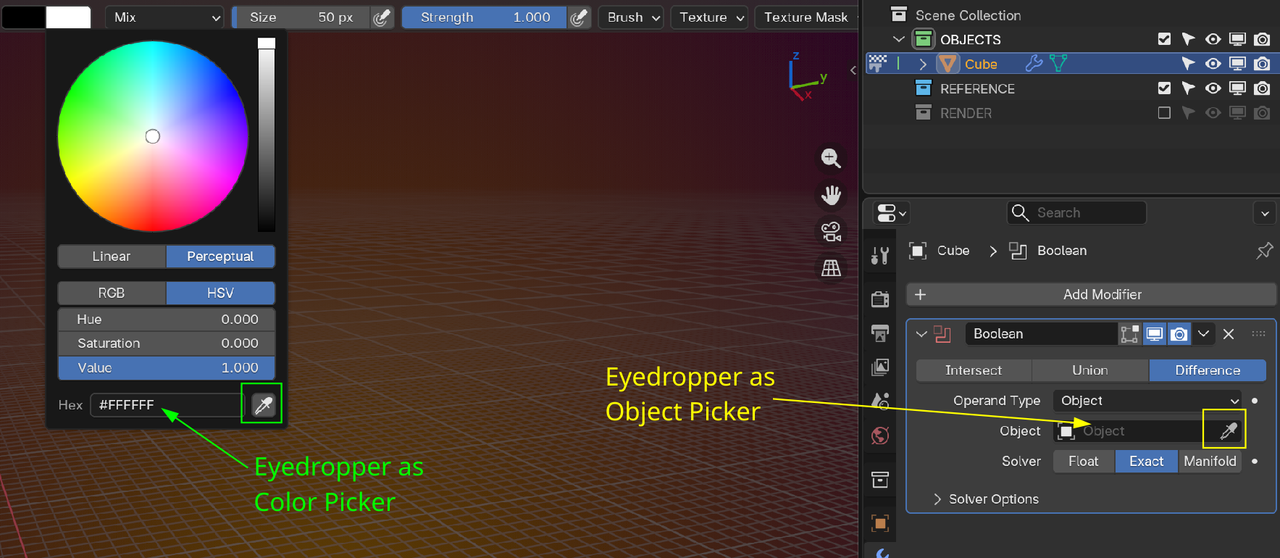
(another case of why using E in the Viewport wouldn't work.)
The title of your questions suggests that the two (Color Picker and Eyedropper) are fundamentally different.
My apologies. I used the term "Color Picker" when it should have been "Sample Color" (Shift X), which has a similar, but not equivalent function as the Color Eyedropper. Sample Color works within the context of the 3D Viewport in Texture Paint mode specifically (paint.sample_color), so I would expect the Eyedropper hotkey/quick favorite to work in the same Context. That is, if I'm in Texture Paint mode and my mouse is in the 3D viewport, I would expect the hotkey/quick favorite item to assign the current color to the same place as Sample Color since the hotkey is the color-specific eyedropper (ui.eyedropper_color), and the quick favorite assignment is very specifically the color picker eyedropper too, so the object eyedropper in the sidebar is not relevant here.
"...so the object eyedropper in the sidebar is not relevant here."
But it is, because it has the same Shortcut:
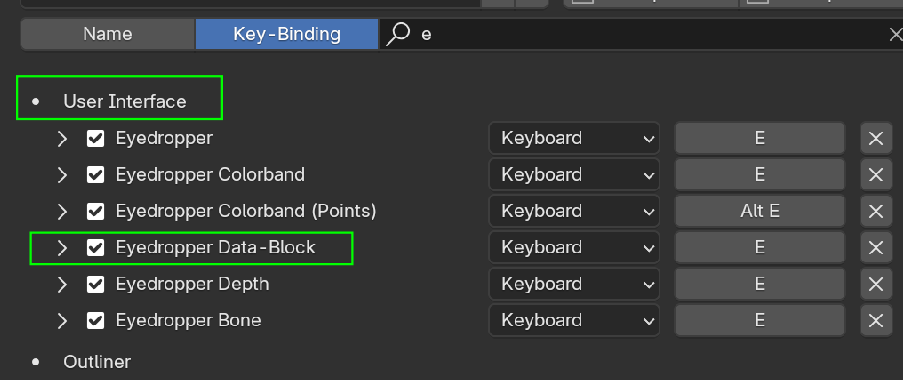
Anyway, yes the Sample Color is different than the Eyedropper.
Also, if you have the Mouse pointer over the 3D Viewport and then use SHIFT+X, it Samples the color under the Mouse Pointer.
If you have the Mouse Pointer over the Image Editor and hold SHIFT+X, it only samples colors when you're over the Image Editor and gives black outside of it.
But Texture Painting is not Blender's forte....and I haven't used it a lot, so I am no expert.
Maybe what you want is possible, but I wouldn't bet on it.

I think what you want is ctrl+shift+x which samples merged. Shift+x depends on the slot you have select in the header or sample active. Also you can access the color and other setting thru the right click( W if you're using right click select) menu.