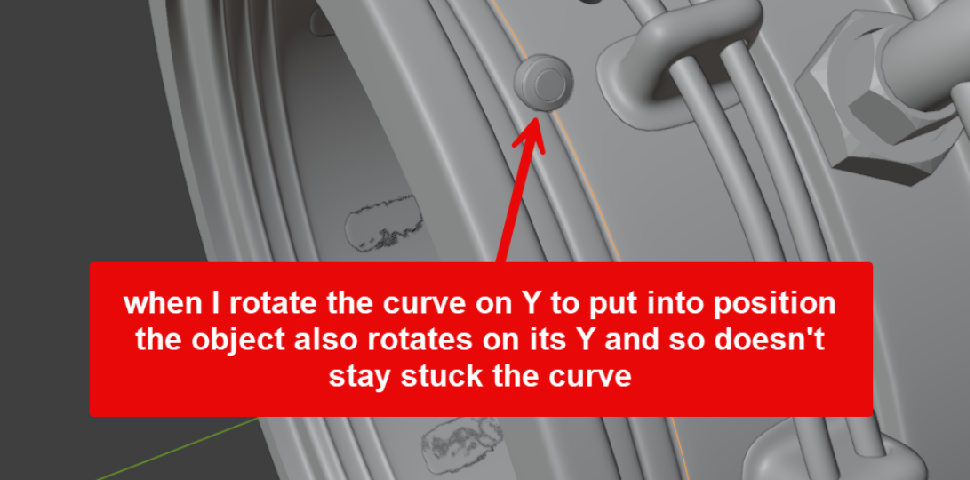
So this is something i thought would be simple (& have achieved) but I'd appreciate some further input/clarification on if there's a better way to do this.
All I wanted to do was bend this controlbox and its buttons and screws to fit the cylindrical shape of the engine. 
I took an edge loop from the engine, turned it into a curve and added a deform curve modifier to the control box expecting the box to fit to the curve and then that the most I would need to do was simply adjust the axis or rotation of the curve to get the controlbox into position. Cue a lot of experimentation, moving the control box in global space, applying scale and rotation, scaling controlbox on x-1 so it faced in the correct direction and editing orientation points of both the controlbox and the curve. I finally got it to fit but concluded that curve deform isn't meant for this sort of task and more for distributing objects along a curve path? ( I watched the CGC modifiers course)
Changed tack and used the simple deform which worked but my issue is that I am left having to eyeball the bend to the engine. I feel like I should be able to set the bend based on a curve to be more precise. I also had to apply my array and mirror modifiers to the buttons and join them to a single object and would prefer to be able to leave them and still apply the deform.
So although I've done it I'm left wondering if there's a better way to bend one or more objects to another based on a precise curve cos it feels like there must be but maybe there isn't.

HI Charles,
I think that the Curve Deform is the best option in this case, but, you need to do everything correctly. For instance:
If you need to adjust the size of the Curve, Scale it in Edit Mode, Do not Scale the Curve in Object Mode and then Apply the Scale! In fact, do all your Curve Edits in Edit Mode.
So, take your Edge Loop, P > Separate > By Selection. Object > Convert > Curve. Add Curve Deform to your controlbox.
There might be an issue with mismatched Origins: you want both Origins in the same place,. So what you can do, is Select the Curve and CTRL+A > Location and CTRL+A > Rotation. Then Select the Controlbox and (maybe Set Origin to Geometry, depending on where its Origin is and then) ALT+G.
Switch the Curve to Edit Mode and do whatever Transforms you need to do.
The Simple Deform is great in a lot of situations, but here you have indeed the problem of getting the Angle right, to fit the Cylinder.
There might also be situations (depends on how things are modeled), where you can use the new (5.0) Array Modifier to your advantage.

Ahh ok. Not the answer I was hoping for, I've not downloaded 5.0 yet.
I have some similar tasks so I will try again and will document here bearing in mind your advice above.
Strikes me that a project like this would make for a great mini tutorial for teaching this stuff as there's so much scope to do your own thing within the general structure

Personally I would use a lattice and the shrink wrap modifier. You shrink wrap the lattice to the canister and use it to deform the control box. Blender 5.0 makes this even easier because you have the option in the add menu to set lattice to selected.


I'm not sure what sets it to this position - presumably this is the start vertice of the curve?
BUT and this is where I came unstuck in my previous attempts


So I think I had some Z rotation on the curve in object mode. I cleared that to 0. Set the object to -Y.
Selecting the object and moving it's Z location rotates it around the engine such that it sticks correctly.
So I've got it working but it feels so, SO unintuitive 
Also make sure that the Object that gets the Curve Deform doesn't have its Rotation Applied!
Curves are different than Meshes and it's easy to get things wrong when using Meshes and Curves together like this.
And it can't harm to re-watch; https://cgcookiecom/lessons/lesson-3-curve-modifier
Modifiy is, partially, meant as reference.
Ha yes... I'm glad it's not just me that thinks it's unintuitive. I do sort of see that it's logical it's just that it's so diametrically opposed to every established way this is done in 2d / vector apps and even I think in some 3d apps. I seem to remember this sort of thing was completely straightforward in C4D. It sounds like they've maybe realised and tried to fix it in 5. I shall carry on now and no doubt get stuck on something new
"I would use a lattice and the shrink wrap modifier. You shrink wrap the lattice to the canister and use it to deform the control box. Blender 5.0 makes this even easier because you have the option in the add menu to set lattice to selected. "
I am not sure I fully follow this but I'm curious so will do some experiments. I had no idea you could shrinkwrap a lattice!
And when you like Shrinkwrap, you can also use a Surface Deform Modifier and a Plane:
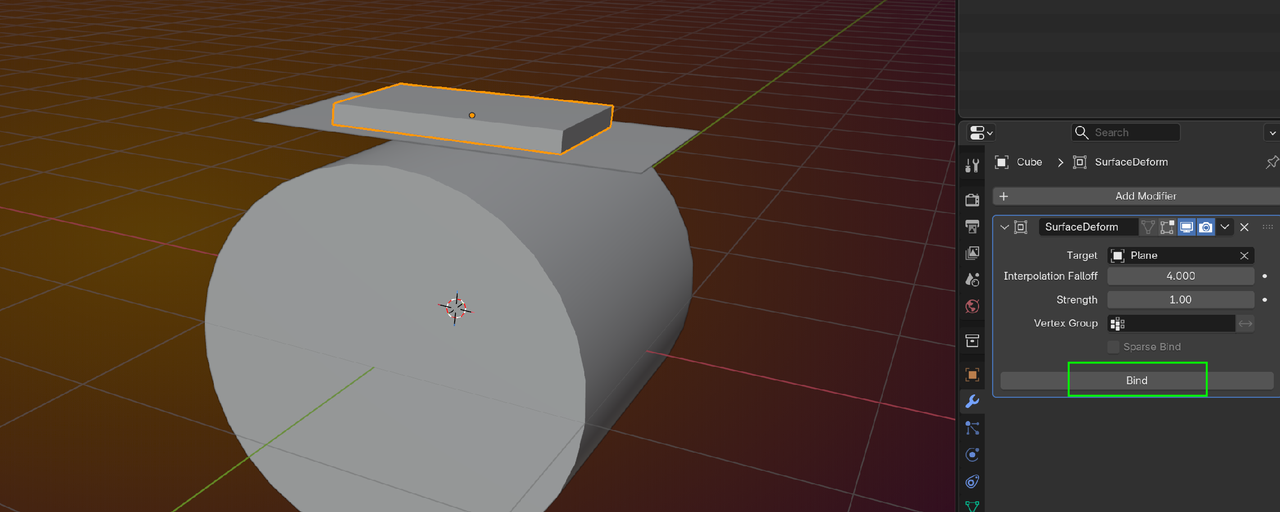
Bind the Mesh to the Plane and after that, you can Shrinkwrap the Plane to the Cylinder:
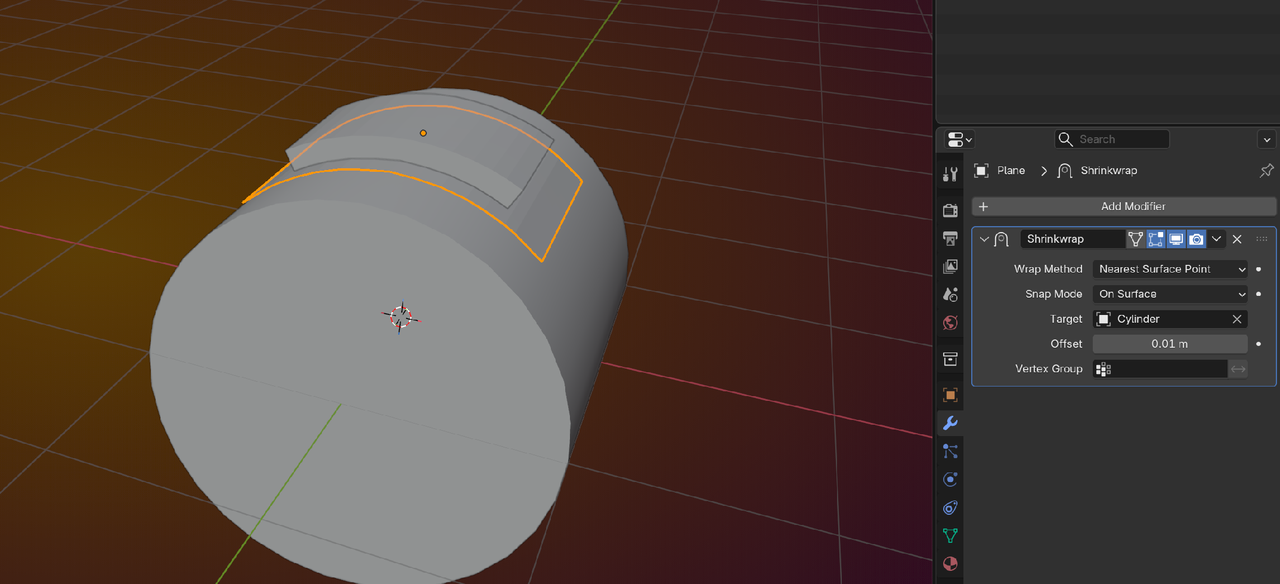
Wouldn't be my first choice, but it's good to know the possibility exists (the Surface Deform Modifier is not very well-known and might be a bit under-used).
Yeah I've had issues with keeping multiple objects aligned and surface deform method. That's why I recommend the lattice method.