Hi Keswick kchow ,
If you have Rendered out an animation with Motion Blur in images (for instance PNG's), that Motion Blur already exists in those images (just look at 1 of those images).
When then Rendering that Image Sequence to (for instance) an MP4 (which mostly comes down to changing the File Format in the Output Settings from PNG to MP4, after loading the Image Sequence in the VSE)), you don't need another Motion Blur on top of that. But then again, I don't think it would be used anyway if you'd (still) had it enabled.

I don't think there is a course specific to rendering out and making PNG sequences and rendering them, but usually at the end of a course all o that gets set up. Maybe specially in the Composition course by Sean Kennedy. In Compositing there is a lot of file set up going on all the time.
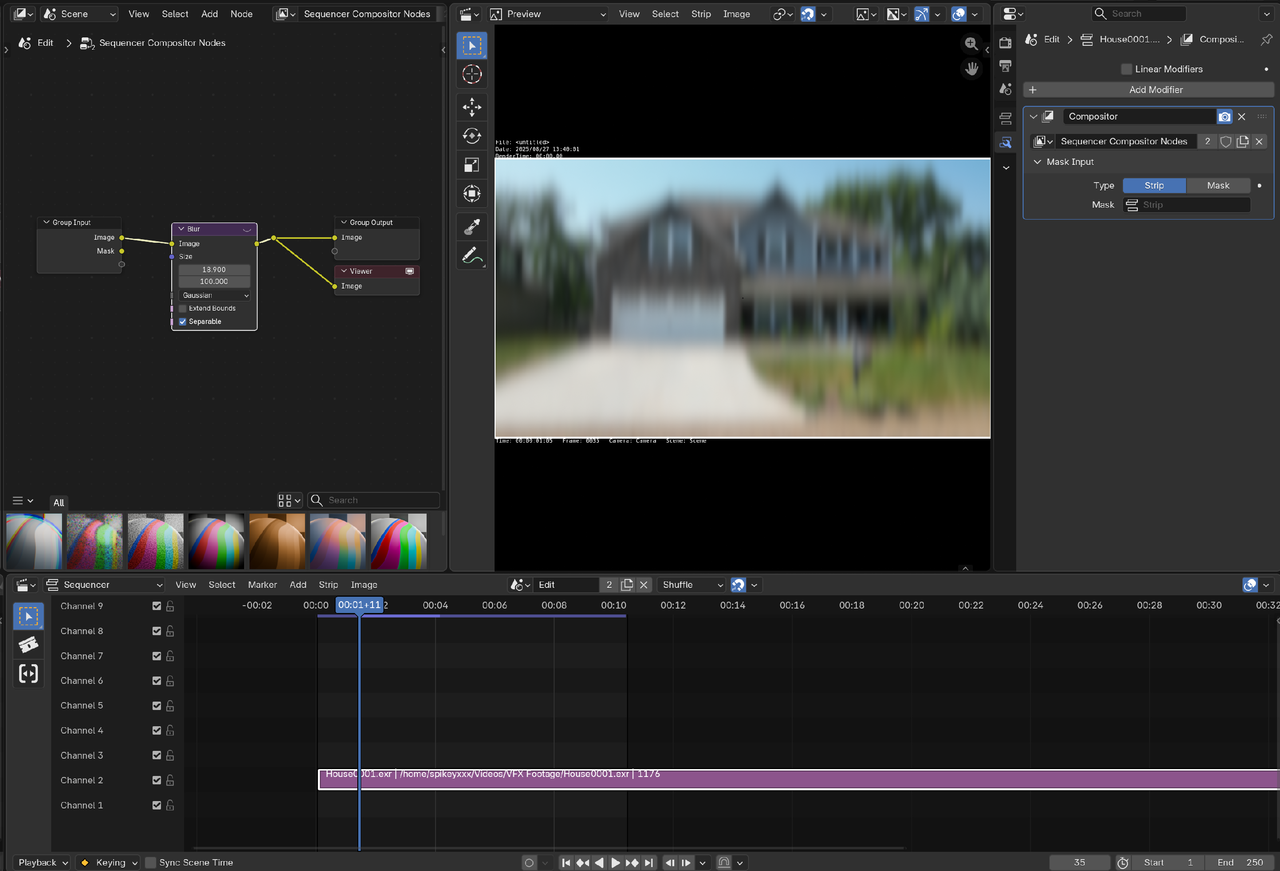
You can add post processing motion blur via compositing nodes as well if you like. So maybe watching CORE compositing is a good idea.
Thanks Martin and Omar for the reply. I will definitely work through the Composition course to learn more about Composition and hopefully learn more about post processing PNG sequences.🙂
Hi Martin, In regard to composition and post process, there are still much to learn for me. There is still a very long road in front of me. I will keep an eye on Blender 5 and Compositor Modifier. At present, I need spend more time to understand the basics and foundation of composition. There are compositing after rendering but before saving to PNG. And compositing after sequences of PNG and before producing clips! Take motion blur as example, one can choose to add motion blur during render, motion blur in compositing but before output the still image. And motion blur before final movie clip in any of the three stages? I seemed to have deviated from my original question.🤔.
PS: I will look at the Compositing course next in CORE.🤓

First, let's clear up the terminology. Motion blur is only in the 3D rendering process. Blurring effect in compositor can be used to fake motion blur. This can be done during rendering or after.
Second, you don't really need a course to convert Image sequence to a video.
1. Render out the image sequence.
2. Open blender, on the splash screen click video editing. This setups color management for you and gives you a workspace ready to start video editing.
3. Add your image sequence to the VSE(Video Sequence Editor). You have 2 common ways to do this. I prefer the hotkey because it adds it right at the play head(the blue line) position. Shift+a->image/sequence->in the file browser select all the images in the sequence and click add or just press enter. The other method is to use the file browser(top left area) select all images in the sequence and drag and drop it on the channel in the VSE.
4. Goto video output set the directory and change format to FFMPEG. Under encoding panel you can set video settings like choosing MPEG-4 preset. If you have audio added then under audio panel choose audio codex.
5. Render it out.
Hi Dwayne dillenbata3,
Great, the steps are simple enough. I can use your advise. Thank you.