

1. When you create a new brush and texture. Tap (1) which opens the Texture Properties (2)
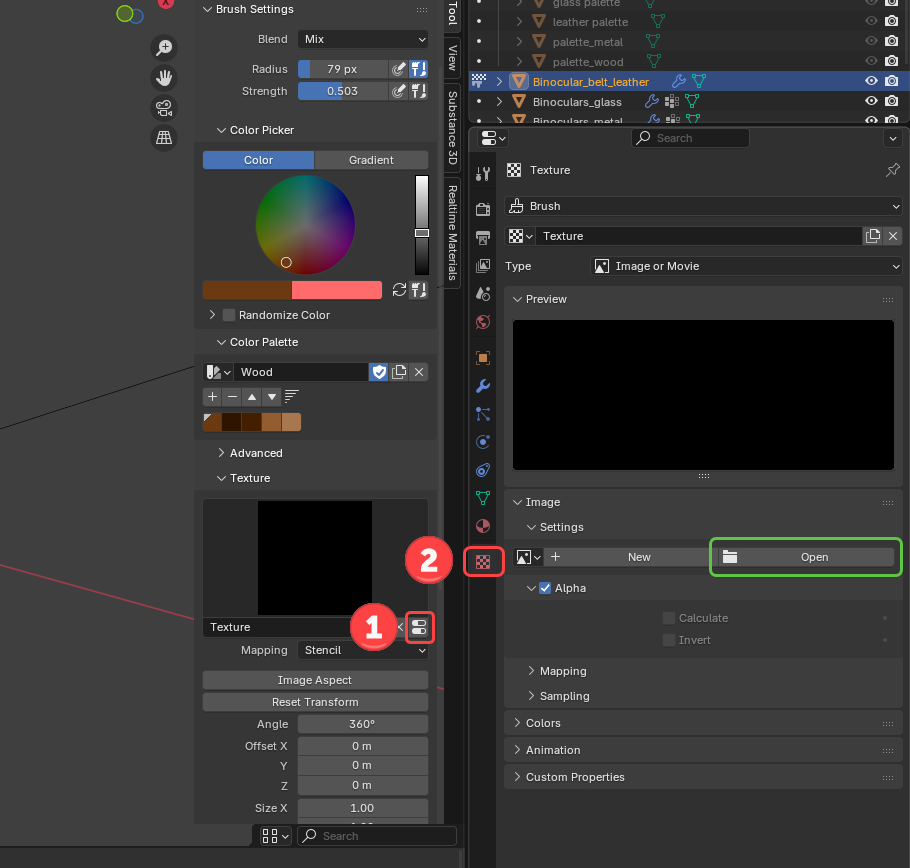
2. For each texture you load in - check the Alpha, Calculate & Invert checkboxes. This is what I had to do to (in 4.5) to paint just the texture

3. I prefered to use only one brush and just swap the texture
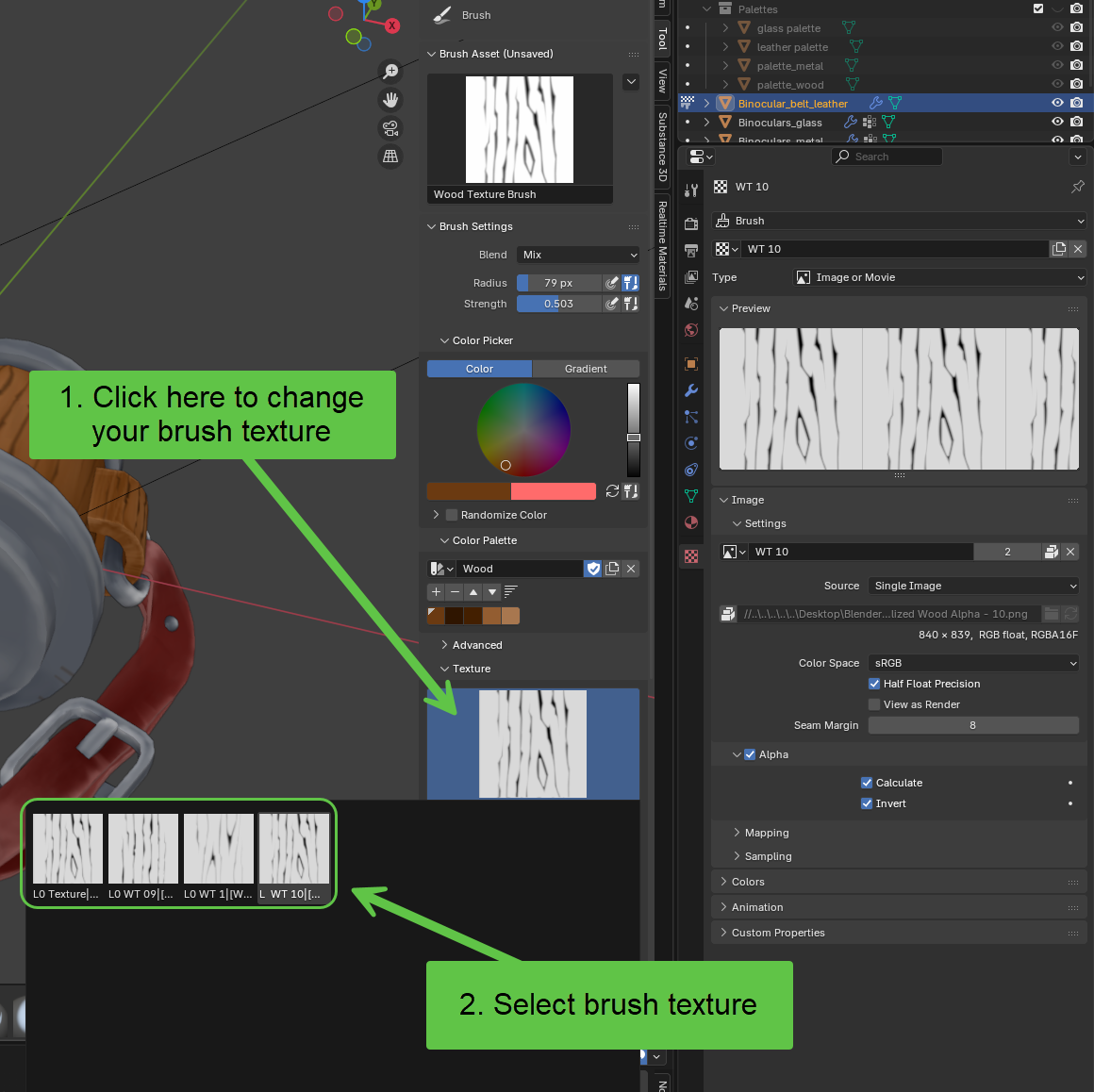
I am just struggling with this part. It seems like your advice helps, but mine still doesn't look as good as the teachers. I do have a bit of a brown stroke around the wood cracks. Is there a way I can fix this in Blender 4.5?
It's hard to say without seeing a screenshot. I found that if I flooded the stencil too much I got a kind of ring outline from the greys in the alpha. Lessen the strength of the brush setting and also double check the blend type is set to mix. What shading mode are you using? Best to preview with Material Preview active
I got you a screenshot. The center is as it used to be before I read your solution. The side is after I applied your settings. But I still get a rim of colour around it. Anyway it is much better now. I can soften this by choosing a darker brush colour.

For every one person that posts to say thanks, there's 10 more that just sees the solution, get their issue resolved and move on without saying anything. Which is fine, it would be cumbersome to have a thread filled with thank you's all the time. So is nice when you actually see a thanks, and you can be sure to multiply it by 10.