
Hello, I would like to know how to make a line or fill, when it passes over another, to add a vertex to the line or fill. How would I make the green line have a vertex exactly where it intersects with the blue line?

Hi TTry ,
I'm not sure if there's an easy way of doing that in GP.
It is possible in Mesh Editing, you'd have to enable the tinyCad Addon:
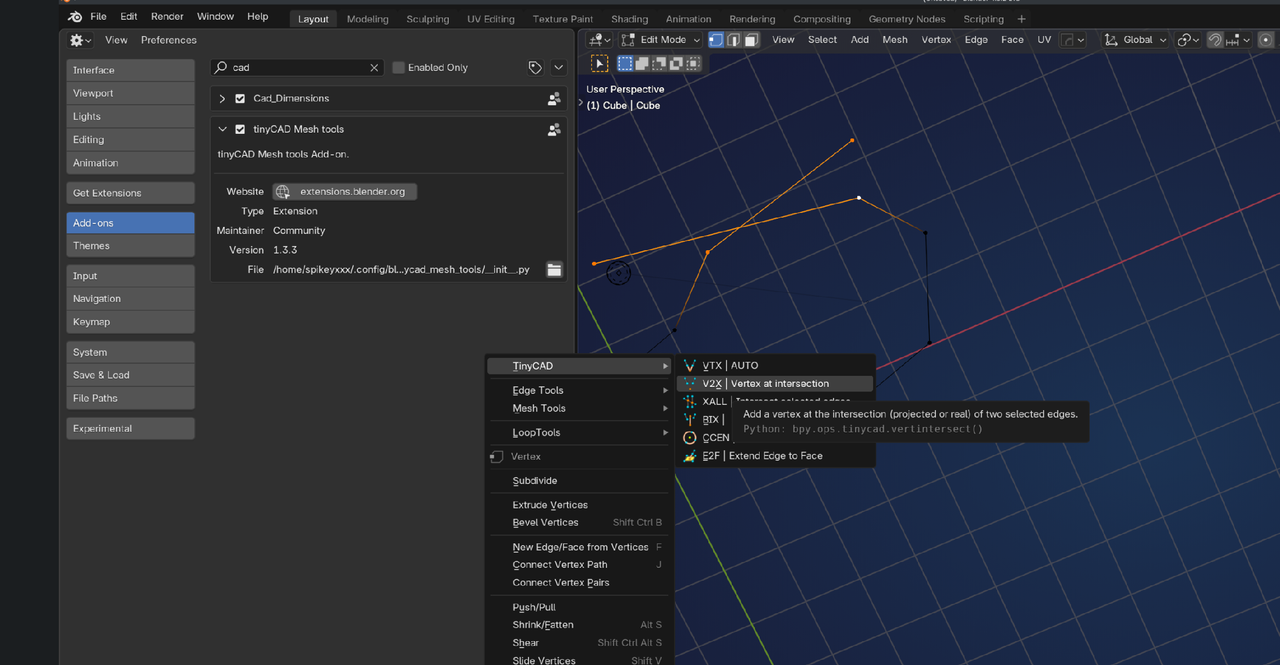
So maybe, if you Convert the GP Object to a Mesh...
There is also an Auto Merge Option in GP, but I'm not sure how that works and how to set the Merge Distance.
It really depends on why you'd want to do that, what the best way would be.

You usually snap it into place. So you add a vertex, be it with a loop cut or maybe the knife tool or you subdivide it, whatever the method, you add a vertex in one place, then the vertex in the other place, and then you snap them to one another by using the Control key in your keyboard of by turning on snapping. But you can't really tell Blender to add vertices exactly one over the other, you have to do it manually. But that is mesh editing, I'm not sure about grease pencil either.

You can select the one point and move it or you can select the 2 points and right click->Subdivide to add a point between the 2 points and then move that one. You could also use the subdivide-dissolve method if you don't think you can move it into position on your own. So you select the 2 point, right click->Subdivide. Either press F9 or open the adjust operation panel in the left hand corner. Change the number of cuts to something like 5 or 10. Then press ctrl+numpad minus or use select menu->Select less so that the 2 original points are no longer selected, but all the new point are still selected. Then subdivide them as many times as you need to get a point at the location you want. Then Shift+select on that point so that it is no longer selected. The only thing that should still be selected is all the extra point you don't need. now press ctrl+X->Dissolve or X->Dissolve to get rid of the extra points not needed.
***Edit*** The number of subdivisions you need in the first part is determined by when you have a new point on each side of the line that you're trying to get a point on. This way you can unselect the original point so you don't dessolve them by accident.
In Mesh edit mode you can press G twice to move along an edge. In grease pencil I haven't found a way.