
At 16:21, when the tutor makes a loop cut, the loop goes throughout the box model, but when i am making a loop cut, it doesn't go throughout.....why so?
I m still a newbie so take it with a pinch of salt:

When a loop is not going through, usually that means you have an Ngon in your path. Loops will go all the way if you have continuous quads. Or maybe you have double vertices, so try selecting everything and M to merge by distance.
I like to explore my mesh and start hiding faces that are occluding my view, you hide with H and ALT _ H to bring them back. That way you can see in which face your loop stops and so you can try finding a solution more easily.

Yes,
When a Loop Cut stops, you have either an N-Gon, a Triangle (but those are less likely to be missed, I mean, they are very obvious), or a hole.
That last one might be hard to notice, but it's something like this:
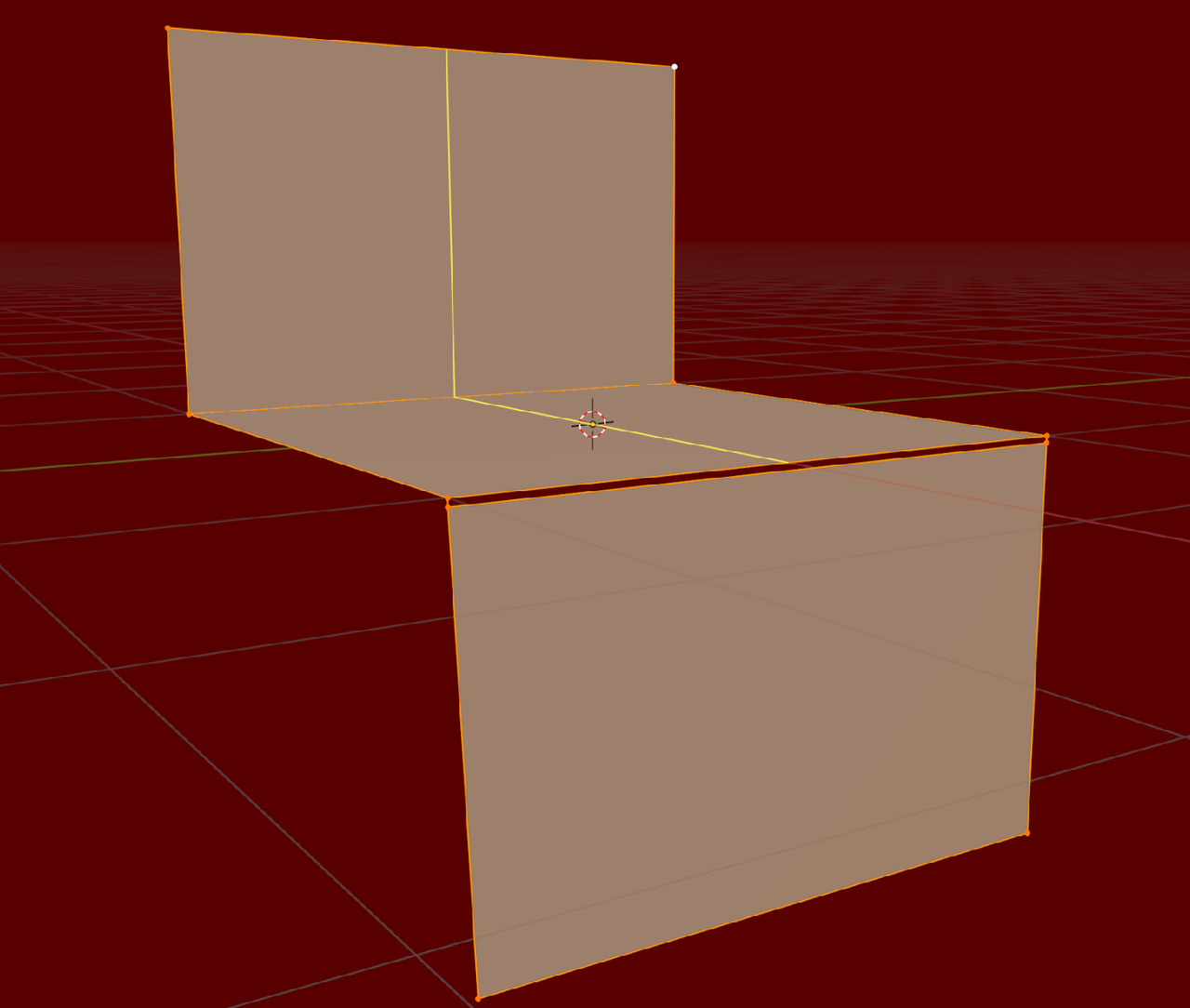
Imagine that thosed horizontal Edges are really close together, you can't see the hole and can't understand, why the J Loop Cut stops.
As Omar mentioned, a simple M > Merge > By Distance would solve that (make sure you Select everything (A), because Merge, like most Tools work, based on what you have Selected).
The fact that the Loop Cut stops, gives you the exact part of the Mesh, where you need to look.
If you, for instance Select that area (in Wireframe Mode!) with Box-, Lasso- or Circle Select, you can Hide the rest of the Mesh with SHIFT+H. That helps a lot with the confusion.
There's the 3D printer addon that helps a bit with finding trouble areas in the mesh. 3D Print tool box I think it's called. There's also other addons in Superhive that you can buy, but I don't know of any specific one, just that there are. But as Martin says, the fact that a loop stops is the first and best indicator of something gone wrong.

A quick way to find problems like this is to use the select tools and visual tools in blender. For example: to find holes in the mesh like 2 edges connected to different faces on top of each other and are not connected together by a face.(This is one example of double vertices.) You can find these with Select menu->Select by Trait->Non Manifold. To find N-Gons and Triangles Select Menu->Select by Trait->Faces by sides. Then press F9 or go to adjust panel in bottom left corner. Change the Number of vertices to 4 and set type to not equal to. You can also check for poles. Select->Select by Trait->Poles by count. Set Pole count to 4 and change type to great than. You could also use not equal to, but in hard surface models it's common to have 3 edge poles. Like the corner of a box.
You can also use the mesh overlays(Overlays in older version of blender) and check Mesh Analysis and set it to sharp. Note: Technically you should be in material preview shading mode, but newer version will show the info. Set Min to 0. It takes a little getting use to what you are seeing, but can give information pretty quickly once you know what to look for. For example if you started to extrude and cancel and now have double vertices the faces will show grey among the other colored faces.
***Edit*** On the poles it's better to be in vertex select mode in my opinion.