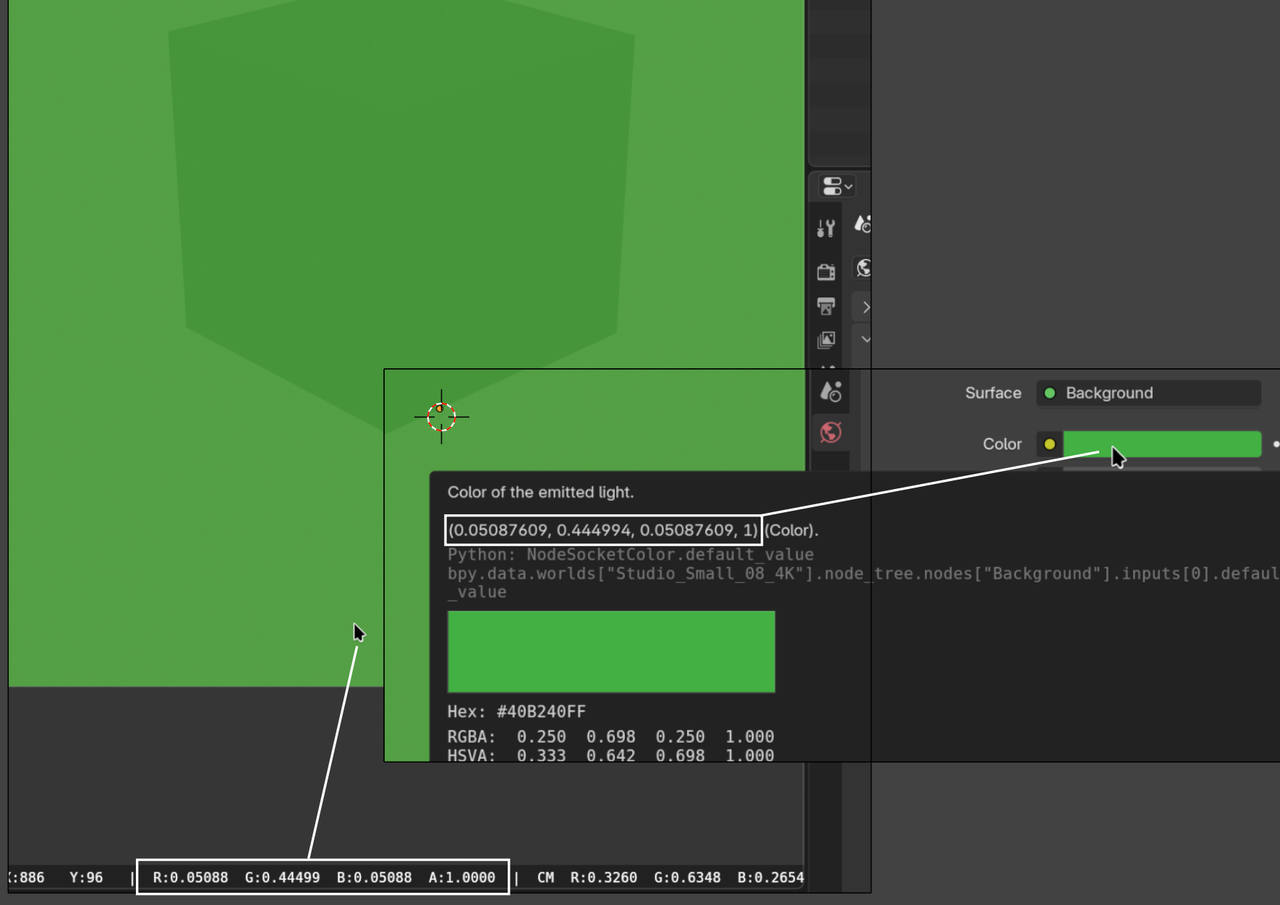
I want the ambient world background to be the exact RGB color I set it as. But, it's not, it's always off by a little bit, I confirmed this in photoshop's color picker.
How do I make the background world color actually be the color I set it as at a strength of 1.0?
I'm using RAW with "none" look. This should be accurate, it's close ,but I shouldn't have to screw around with the exposure for each and every different color, that defeats the purpose of having ambient light in the first place, the ambient light should be the color I set it as.
Yeah when I use RAW with "none", and I change the ambient world color at an exposure of 1, the color is always just slightly off, and I'm unsure why. It would be nice if the color was exactly what I set it to, rather than being off. This might be a color management issue though too, I'm unsure.

Photoshop uses 18 bit color and Blender 32 bit, that might be the issue. To be clear, in the above example they are the same, the bottom ones (in sRGB) are just rounded.
The question is, if it's visibly different; in ComputerGraphics, it usually best to trust your eyes, not numbers.
I still have no clue what the issue is, but thanks for your insights. I'll see what my eyes tell me playing around with difference settings. Preferably though I wouldn't have to "play" with the settings and there would be a good known setup to achieve the right color.

1. Photoshop edits the data of an image that is already created. Blender actually creates the image(Renders).
2. There are many factors that can cause shifts in the color such as camera sensor setting, color management, light objects, and object materials to name a few.
3. View transform of Standard with a look of Medium contrast will give you a closer look to the color you set than RAW will.
4. Did you remember to turn off denoising? I probably should have made this the first one since when people complain about color shifting this is usually the main culprit. Especially when doing video editing.