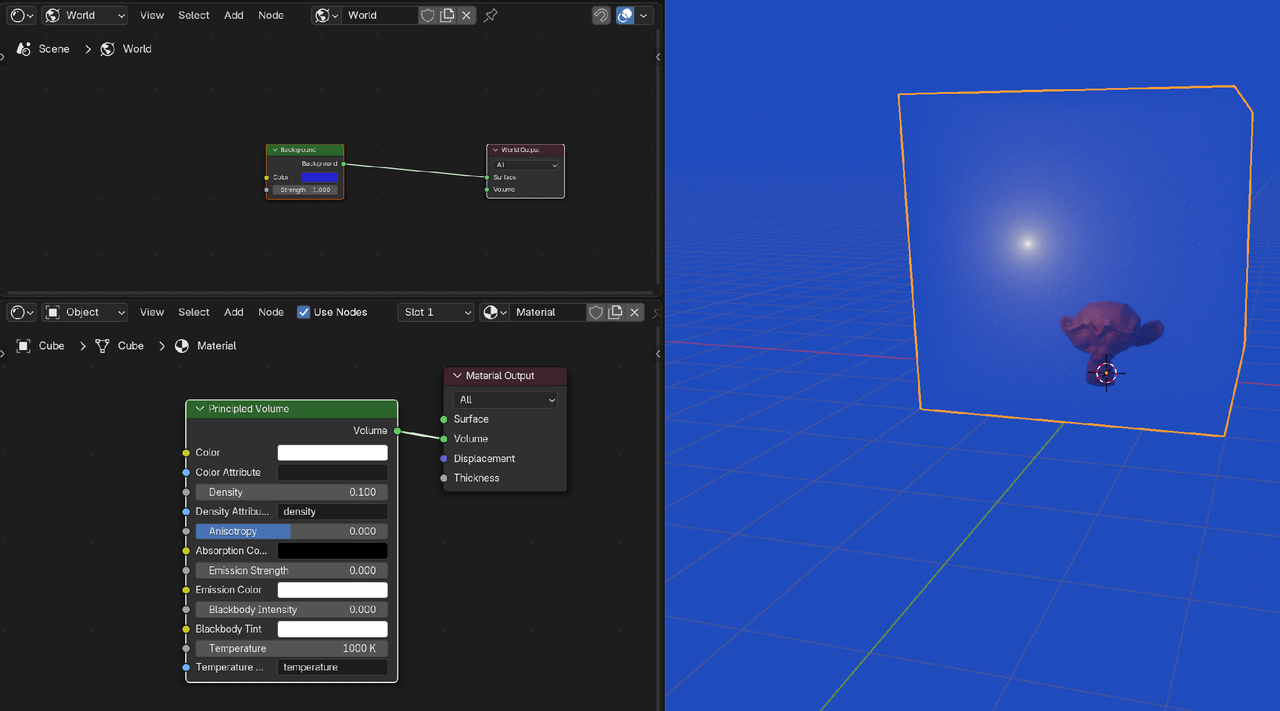
I'm not sure what happened, I used to be able to somehow make a volume of smoke look mono-colored, like actually look the color you set it as, which is very desireable. But now in 4.5, I can't reproduce this, no matter what I do, the volume won't match the background color even though I'm literally copying and pasting the hex code. I tried the "add shader" trick with volume absorption and scattering, and it still didn't fix the problem.
How do I make a volume be the color that I actually tell Blender to make it, and not some weird darker color that I didn't ask for?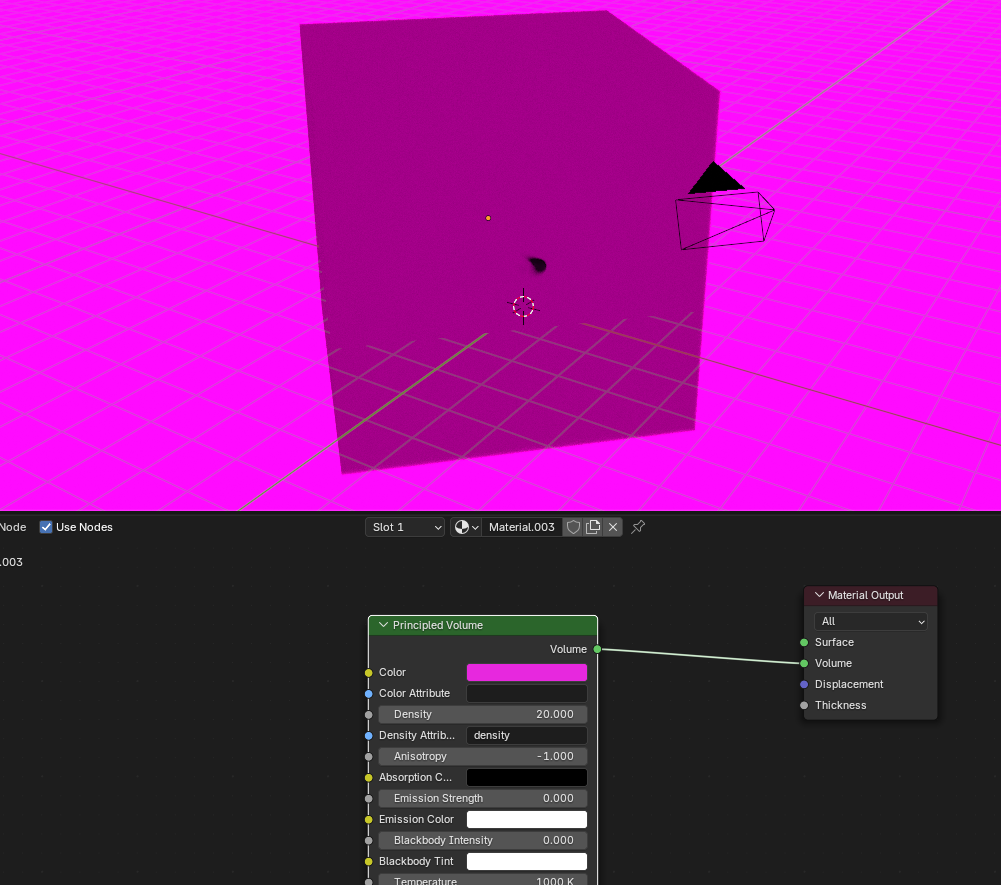

Hi Sid
your Volume is getting dark, partly because your Density is high (high Density makes the Volume turn dark grey). Also, the Absortion part absorbs light, so the Volume gets darker,
This is how the Anisotropy affects the Scattering (from the Cyles Encyclopedia by Frederik Steinmetz and Gottfried Hofmann):
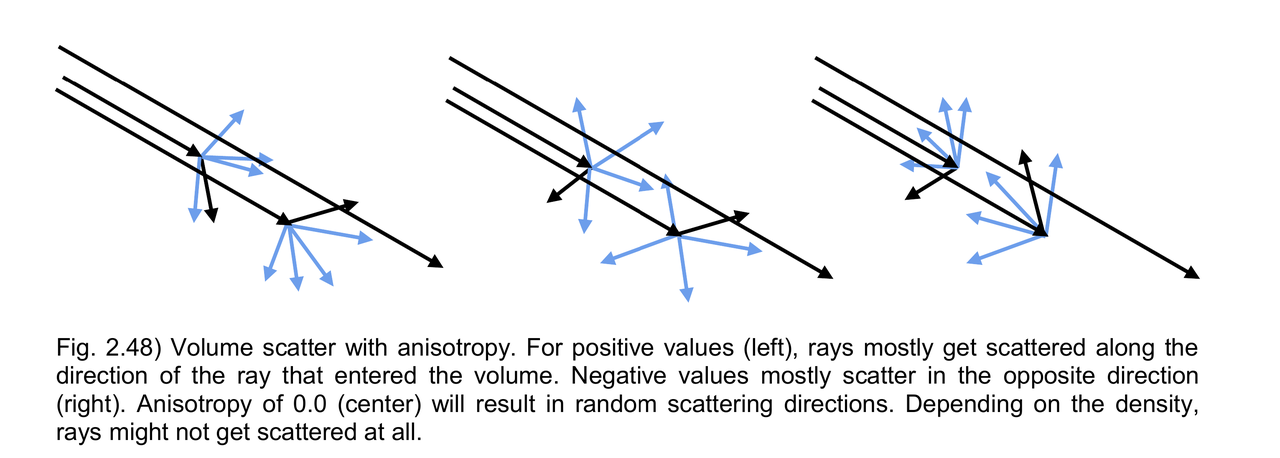
In practice:
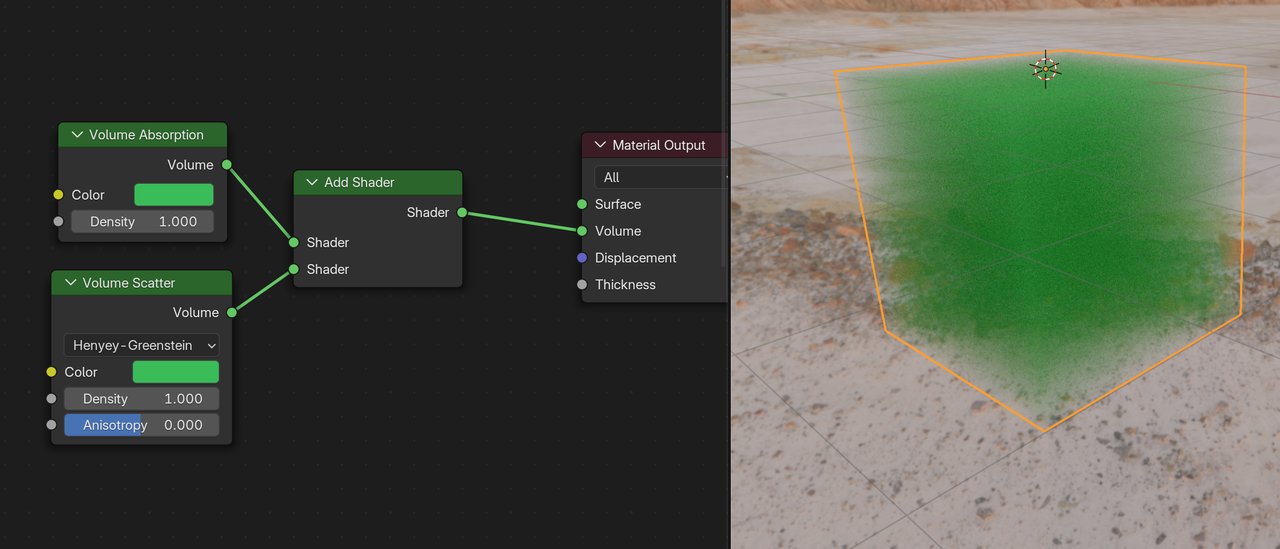
Yeah I tried the add shader trick already, but it didn't resolve the problem.
Just to be clear: using a Volume Scatter and Absorption together is not a 'trick'; the Principled Volume BSDF does that in one Node, with some added benefits, (like the Emission for instance).
Volumes always get darker. Again, this is mostly, because of the Absorption; light that gets absorbed, doesn't reach your eyes (/the Camera).
Thanks for responding, so okay, the volume get's darker, but then how do you back-propagate the calculations in order to make the end-result the exact color you want? Isn't there a node setup that would give people what they're looking for? I've seen vibrantly colored smoke, white smoke and dark charcoal smoke all in real life, it seems feasible Blender can achieve a controlled color like this.
Well in the work I do, just your eyes isn't enough when specific colors representative or requested, but I guess it's just a limitation of Blender I'll have to take care of in photoshop. It really does seem like there should be a nice simple way to achieve this in Blender though, maybe one of the CG Cookie video producers has answers.
Hey Sid,
Blender is not some sort of 3D Photoshop!
The color you set in your Shader is not what you see in the Render (luckily). Not only with Volumes:
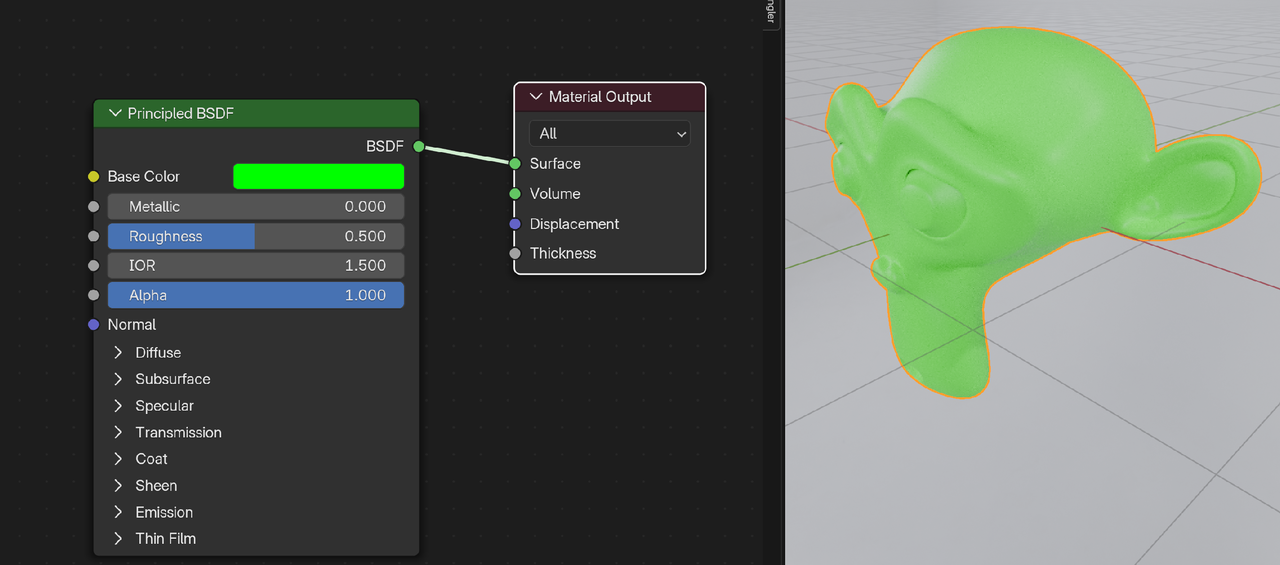
You can of course do that, but then you'd get something like this:
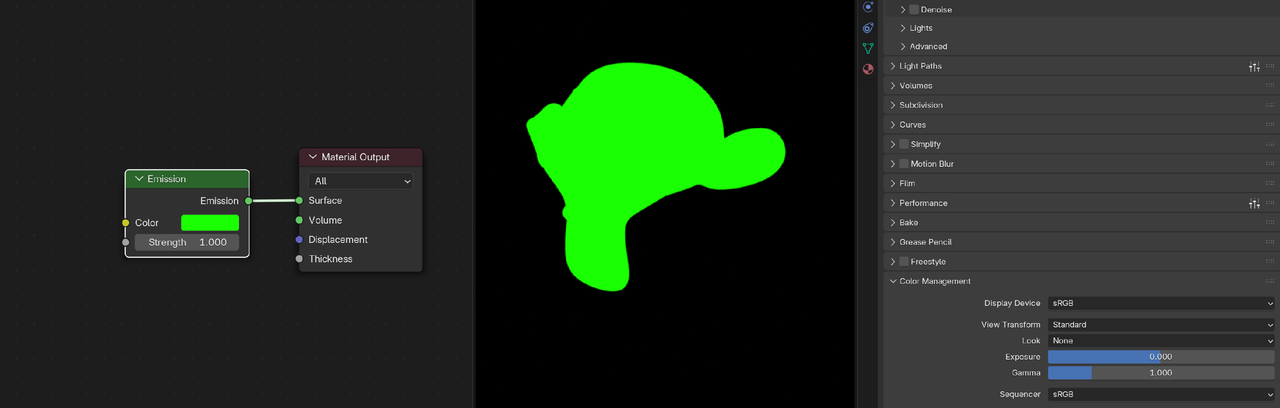
Not sure what you (and your highly demanding customers) are expecting, really.
They're expecting the colors to match, that's all, the rest is up to me and watching CG Cookie videos.
Think of it this way: if you spend $2000 for someone to develop a Sky Blue logo, do you want someone to come back and start branding everything with Turquoise or Purple? Not generally, no. There are specific, well-thought instances where you don't follow the beaten path, but this isn't really "highly" demanding so much as just an average expectation when doing work for a professional business. Sometimes it's even worse than that, sometimes businesses spend something like $30,000 paying a marketing agency to develop a brand guide or logo based around market research, so there's potentially a lot invested in maintaining very specific qualities.
But, I think you're right to some extent too, if I can fake the lighting so that the human eye can't see the difference, that's often good enough too, as long as there's a record of what the right color should be. But, really, it's less desirable because the settings change from color to color, I was hoping there was just a single streamlined way to get volumes to appear as a certain color.
Also, look at CG Cookie. You notice how most of CG Cookie's usage of color is the same (or similar to) as Blender's orange? That's not a coincidence, CG Cookie WANTS you to know that they're associated with Blender because it's the basis for the whole platform. If you use a significantly darker or lighter orange, there could be a case for that, but honestly it might just be annoying or incongruent to notice that difference unless you built your platform around distancing yourself from Blender in some way. I do actually see a couple other oranges used too, I don't know if that's intentional or not, it might be worth unifying but maybe CG Cookie does want some distance from the Blender foundation too, I don't know.

Hi Sid,
I think it would be a better approach to first design the logo and branding with vector-based tools like Adobe Illustrator / Affinity Design. Then you will have 100 % control over the colors along the entire logo. This logo can now be used on websites, on printed media in any size, expressing and making part of the companies branding.
When the customer is satisfied you could bring the vector design (SVG) to a 3D environment or design it from scratch. At that point it is perfectly normal that colors over the object change based on lighting, material properties and camera angles. I wouldn’t expect otherwise.
That is why you see CG Cookie logos with different orange colors. Probably 3D models with the exact same orange base color, but due to lighting and material properties slightly different.
What specific 3D requirements does the customer have? For now, if it’s only for a logo I would say Blender is not the right tool for the job at this moment.
I appreciate people trying to help, but it doesn't seem like people know what I'm doing. I'm just trying to get volume to match the background, I'm trying to make the volume be a specific color and only that color. Why? So I can control how much any given object blends into the background as a practical design tool for 3D art, in a realistic way. This on its own has nothing to do with logo design, I merely referenced that as an example scenario of why specific colors are important to businesses, non-profits, universities/colleges and government agencies.
If you can think of a better way to make an object blend into a background, besides volume scatter/absorption being added, feel free to recommend it.
How do I make a volume be the color that I actually tell Blender to make it, and not some weird darker color that I didn't ask for?
I think Martin explained very well in detail. Hence my suggestions about other tooling when you spoke about logo’s.
So my question is, what are you trying to accomplish? A question Martin allready asked.
CGCookie is a place with dedicated industry professionals but you have to be specific in your questioning. Even add screenshots or examples.
I have never had an open question and allways get great feedback.
Hi Gerard, even before asking, I had already tried the volume absorption and scatter trick with the add shader, this what Ewa showed in one of their CORE Material videos. Unfortunately though, it still didn't do the trick, and after playing around, I still couldn't find a predictable method to control the volume color, hence I'm asking here.
I feel like I've already explained what I'm trying to accomplish. I'm trying to get the volume to be the exact color I set it, so that it gradually occludes objects in a controlled way that causes them to blend seamlessly into the mono-color background.
Like I said, if you know of an alternative method to accomplish this, feel free to recommend it and I can play around.

I guess it depends on the type of effect you are looking for. For fading into the background you can use a principle shader and using a mix of Transmission, alpha and IOR you can create a decent fade to background. You could add some textures and color ramps to feed those setting and create even more exotic fades. Then combine with a mix shader to transparent or translucent node depending on how invisible you want the object.
If you're set on Volume(Again it would help to know what kind of effect you are looking for) you can set the emission color to the same as the color in the principle volume node. Set your Anisotropy to -0.5. Emission setting is going to be different depending on the color pallet and the affect, but usually somewhere between 0.001 and 0.2. If it's a solid color then usually 0.05 to 0.1 work. As always other lights and background lighting will affect the color, but it gives you a good base.

All object colors, including volume smoke, will be affected by the ambient light color.
Also the object itself will depend on how much of the ambient light is reflected, thus distorting the object color.
In your example you set the density to 20, this is not far off looking like a solid object.
If you need the density that high for any reason, try setting the emission color exactly the same as the main color (and the ambient color if necessary),
and the emission strength the same as the density.
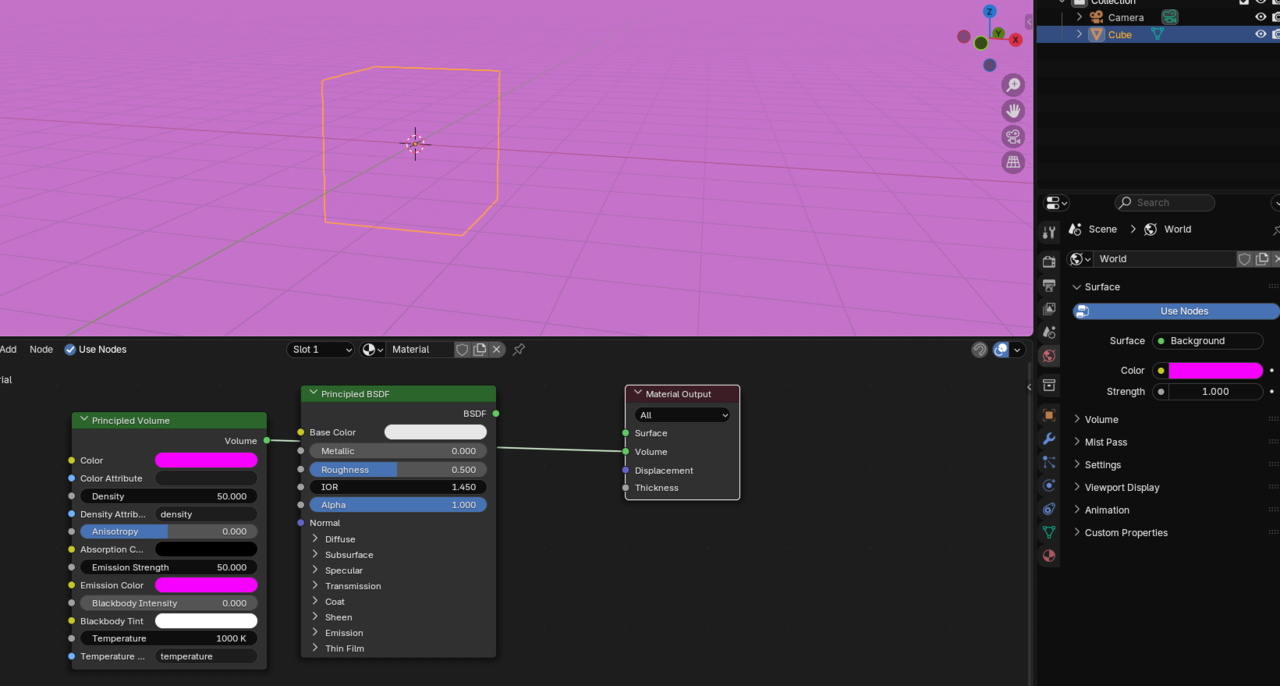
Zero emission strength results is black, anything higher than the equal value will result in a lighter shade and the higher you increase the emission the closer to white you'll get.
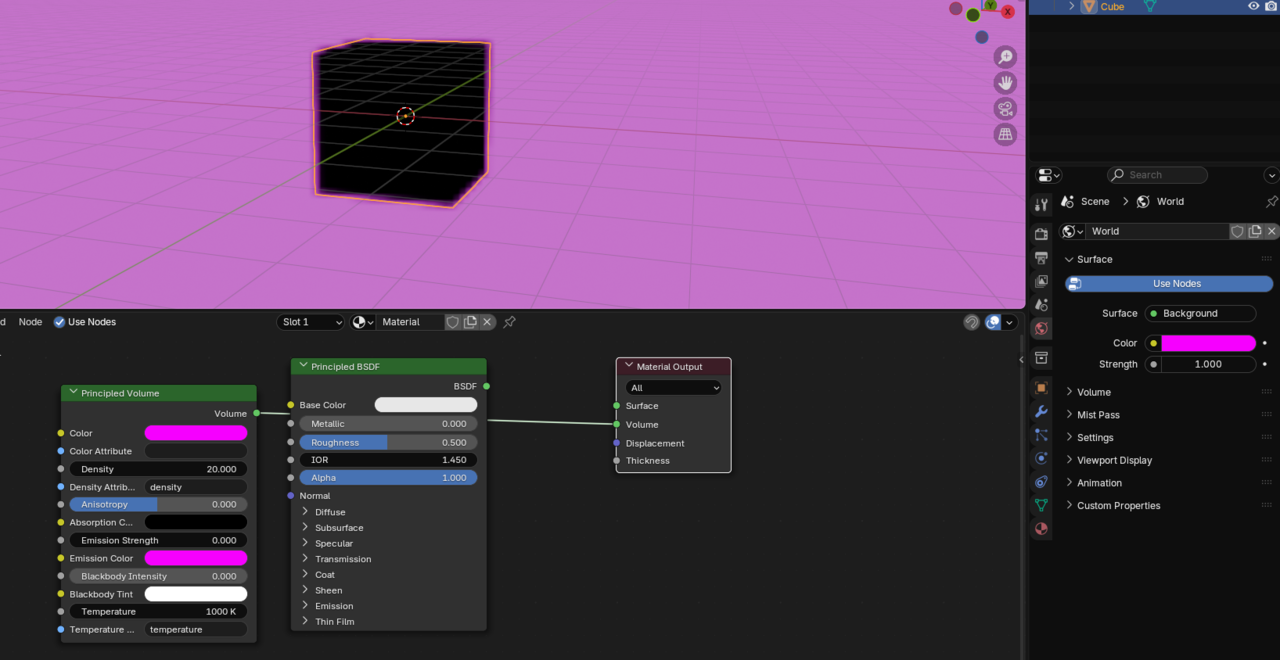
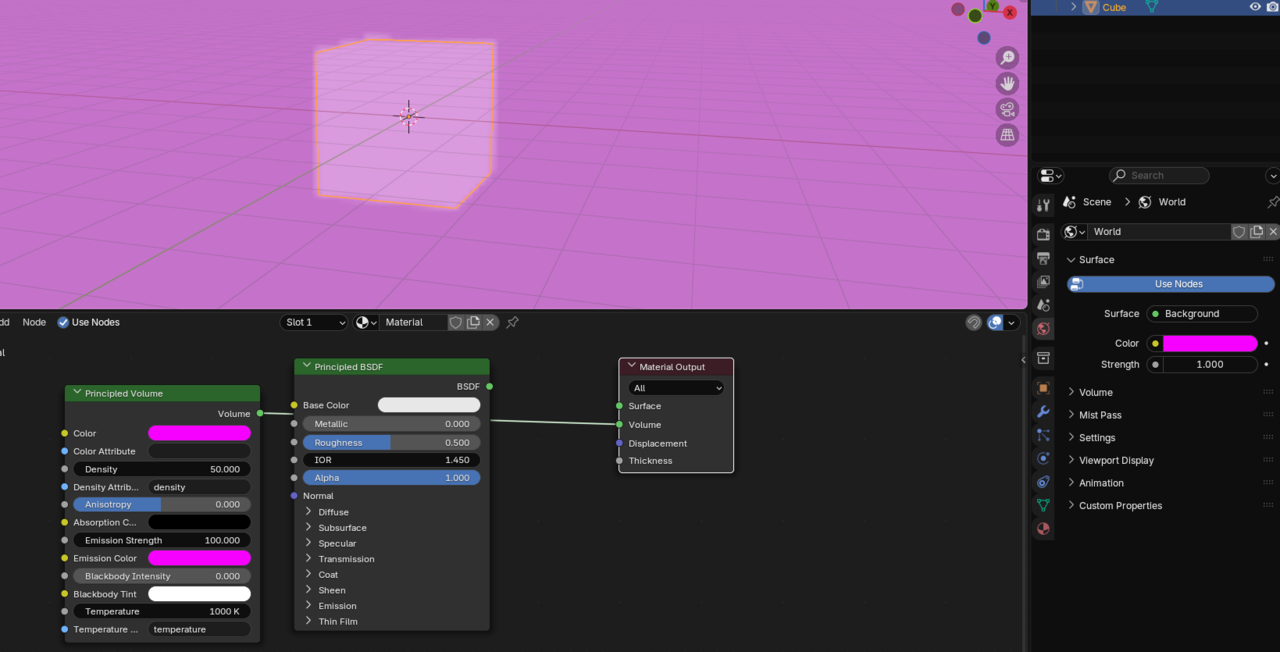
Color in Blender, and other 3d software, considers more factors than just the individual color set on an object. The ambient color, light color, bounce light from other objects in the scene, all effect the color of an object.
When using software such as Photoshop which is ultimately 2d without using any other light source or color, setting the exact color is easy.
Blender is different, there are more factors to consider, like those mentioned.
3d isn't, do this and do that and you get the expected result. We can try and predict the effect of all the factors together, and with experience those predictions can be more accurate, but rarely perfect. Some amount of tweaking is always needed.