
I'm running 4.5.1 LTS.
When I switch bevel limit method from angle to weight, the bevel disappears. When go into edit mode and set bevel edge weights [.25 for the cabinet perimeter and 1 for the face perimeter as shown], nothing happens, even though there's a blue outline around the face indicating edges are set to full weight. I checked several times to make sure my settings are exactly as shown in the video, and also increased the bevel size all the way up to 40mm, and yet no bevel. I even closed and reopened Blender, to no avail.
Another minor issue: His oak material color shows on his cabinet face in solid view matcap, whereas mine will only show in material preview; is that something that has been changed since ver 4.2 that he's using?

Hi Shale,
None of this should have anything to do with the version number. So don't worry about that.
Let's eliminate the usual suspects first to tackle the bevel issue. There might be a leftover double vertex somewhere. Have you tried in edit mode A to select everything and the M -> Merge by distance? Also make sure the scale is applied: In object mode CTRL+A -> Apply scale.
If that doesn't help could you upload a screenshot of your cabinet in edit mode (vertex mode is perfect) and the settings of the bevel modifier?
That could help narrow it down further.
As for the material colour: Make sure your solid shading view is set to texture.
Also make sure you've given your material the colour under viewport display:
If none of these solutions help, you can always upload your .blend file to dropbox or google drive and post a link here and I'll have a look at what might be going on. :)
Hi Sascha,
Thank you for your prompt and detailed reply!
Sorry I just saw it, I was expecting an auto notification that never came.
None of the problems with the cabinet you mentioned are in my model, so here's a link to download:
https://drive.google.com/file/d/1_d_z85oglgBgGMXF9Wl4-Hoz4IFqqc6v/view?usp=sharing
You were right about setting the viewport color, I didn't know I had to do that!
Once I changed that, the color was visible in solid view, regardless of matcap object color set to material or texture.
I appreciate you taking the time to look at the file!
- Shale
Alright, I found the culprits: There are a couple of edges left, which interfere with the bevel. The ones with the red X are the bad ones. Once you select and dissolve them via CTRL + X, the bevel works fine on my end. Then you can also reduce the bevel amount back to 2mm. And don't forget to activate "harden normals" under shading in the modifier. ;)
You can also dissolve the ones in the green circles for making the model more readable, same goes for the couple on the underside. Although those do not interfere with the bevel.
Hope this helps. :)

Hi Shale CCookiePuss ,
Disable Clamp Overlap in your Bevel Modifier (another one of the usual suspects).
Wow, thank you! I had no idea those were interfering, because bevel by angle works fine. But I did what you said, and it worked!
[and I set the hardened normals, thanks]
Do you know why that happens with the loop cuts?
Thanks Martin, I just disabled clamp overlap before setting the corner-inset edges to bevel .25, and it looks good!

Yeah I find that weird as well, that those edges were interfering with the Bevel. But it's always some super technical explanation that you have to be really deep in Blender development and text book answers. So I just want to say, there's a lot of quirks in Blender and you'll begin to develop an intuition and possibly without knowing exactly why, but you'll know what causes trouble and what not. It's like your weird uncle at the family gathering, you don't know what's wrong with him but you know he's always causing a mess.
Unfortunately I have no idea why Angle works and Weight doesn't.
As Omar says there's a lot of stuff going on under the hood of Blender and I don't have enough technical understanding of those things.
That's why as a general rule of thumb I keep my meshes as "clean" as possible and get rid of any edges I don't need, like the ones we had here. Aside from readability.
Okay, I had another look...
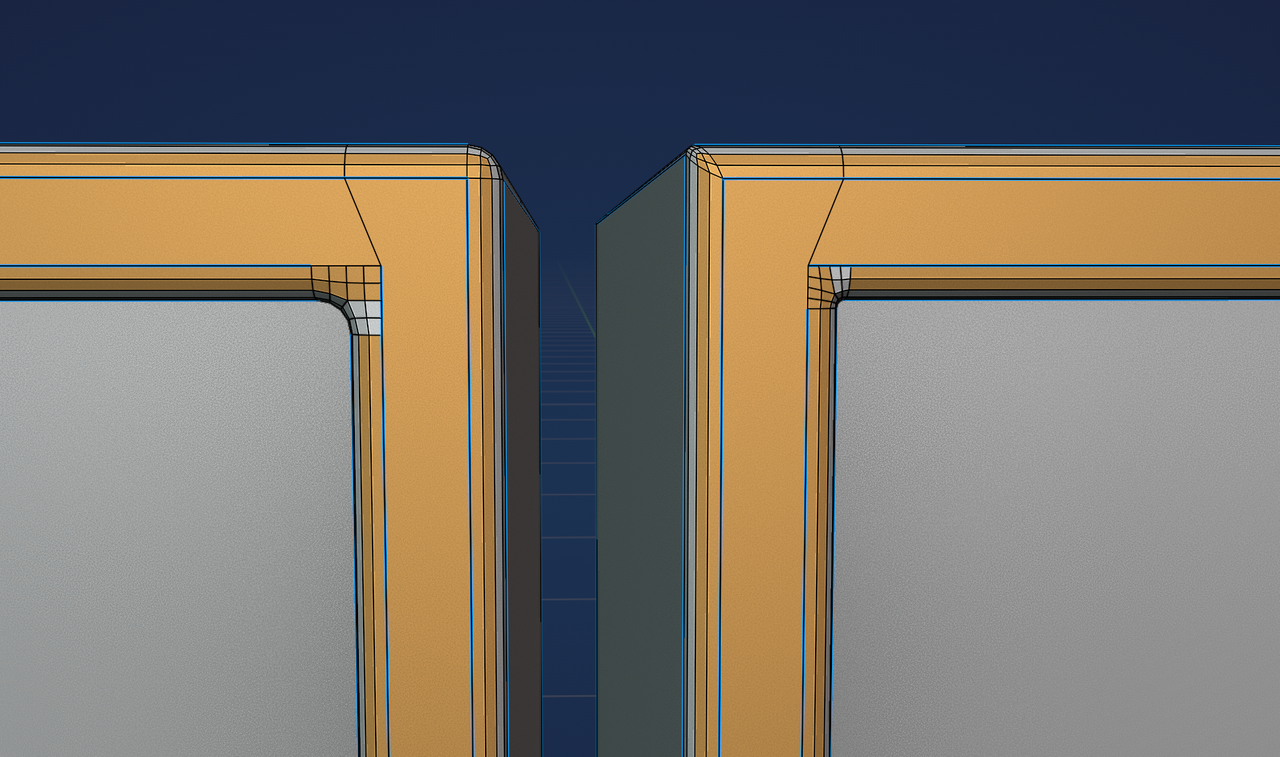
The problems, I believe, are these corners: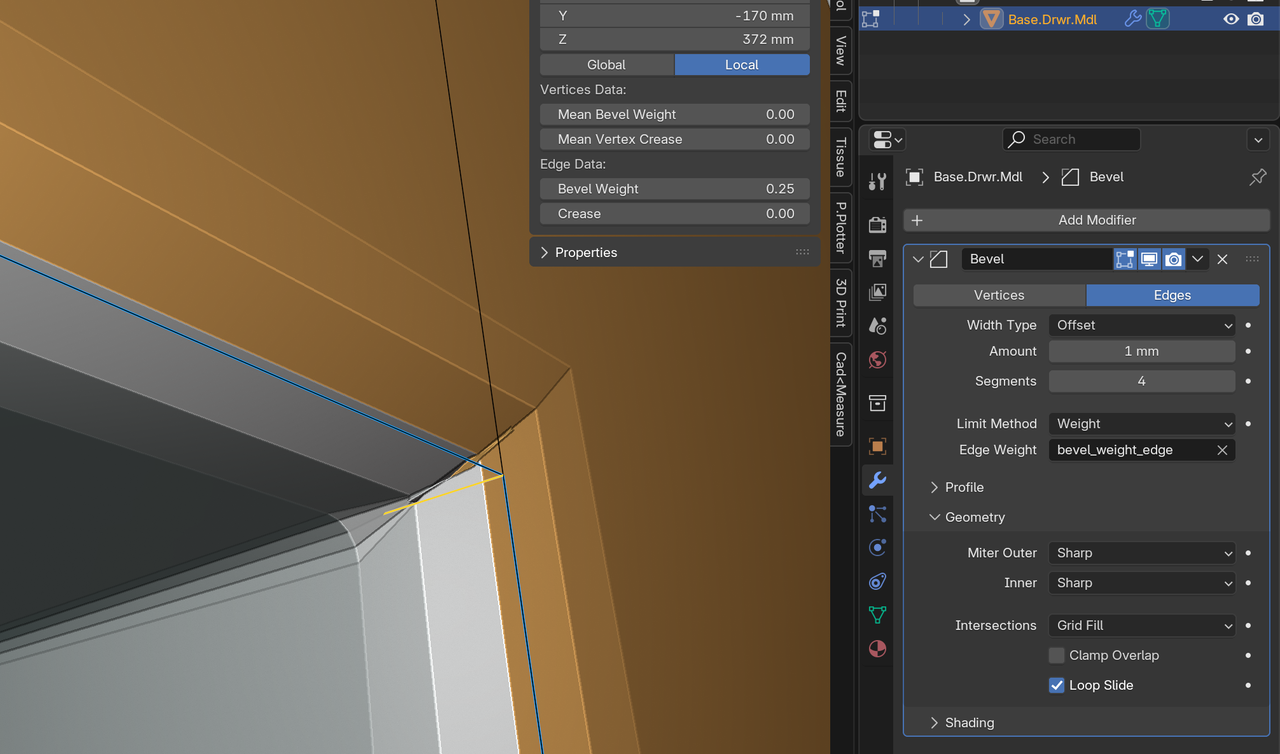
(I changed the Miter Outer to Sharp, for testing.)
Adding a tiny Bevel on this Edge, improved the situation somewhat:
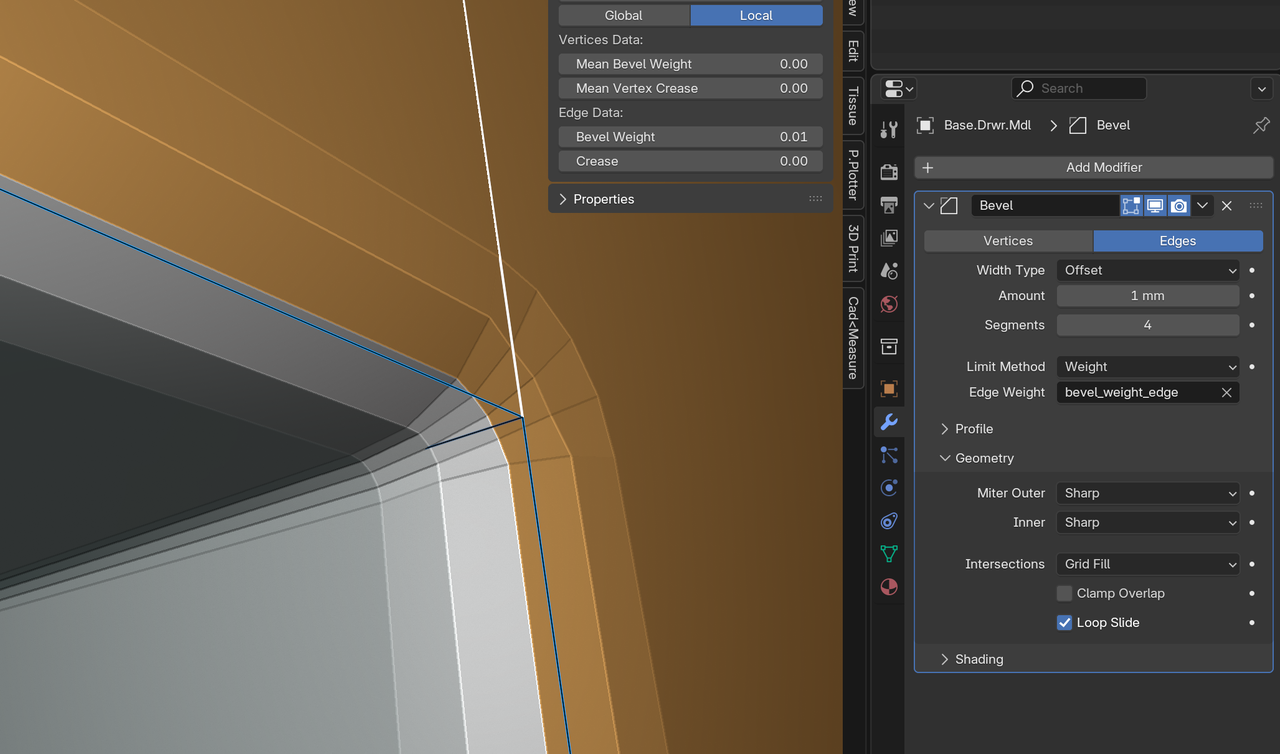
But the Clamp Overlap still had to be off, even after taking care of all those corners.
This can be seen, when you Apply the Bevel in that situation and went into Edit Mode:
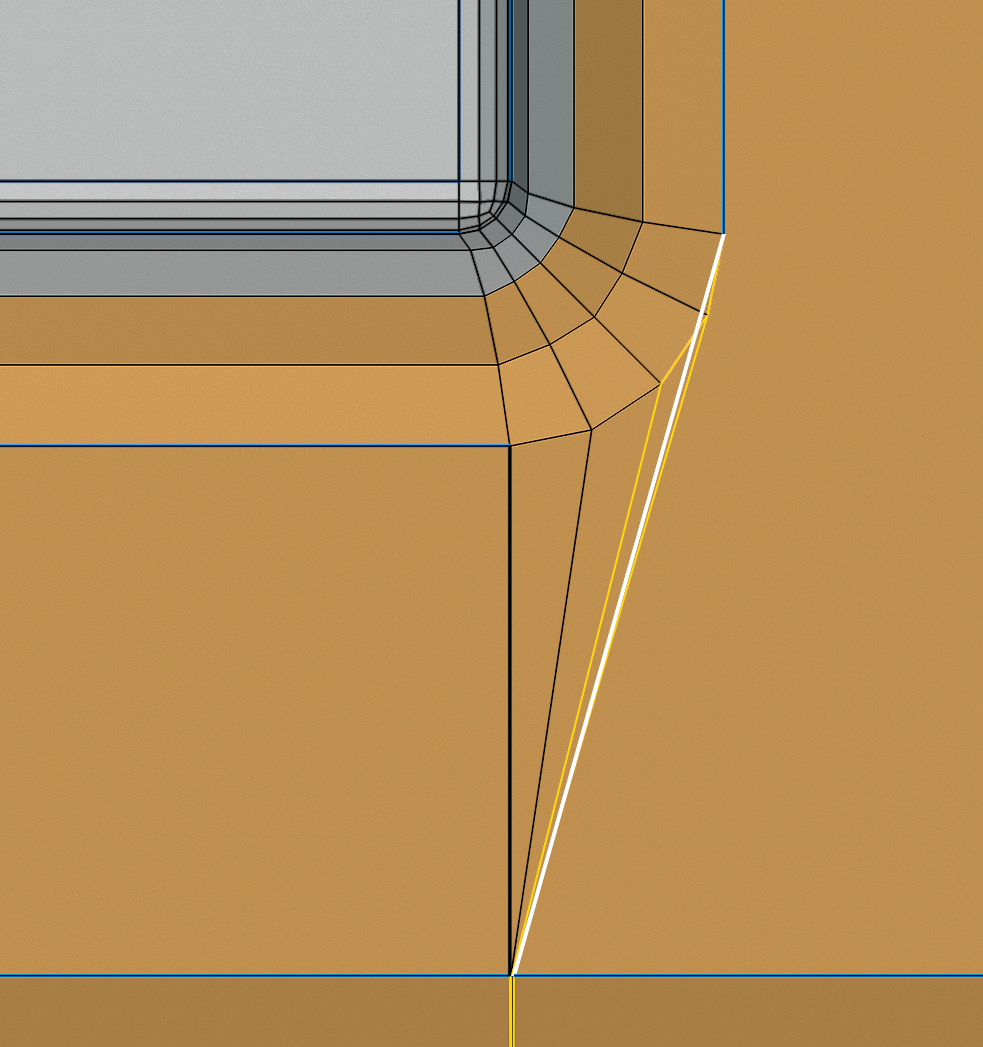
The best thing, might be, to disable the Clamp Overlap and use Patch for Miter Outer.
Here's the difference between Sharp and Patch, after Applying the Modifier. Patch has some Material Assignment problems, from fixing the Overlap, but looks much nicer, I thihk:
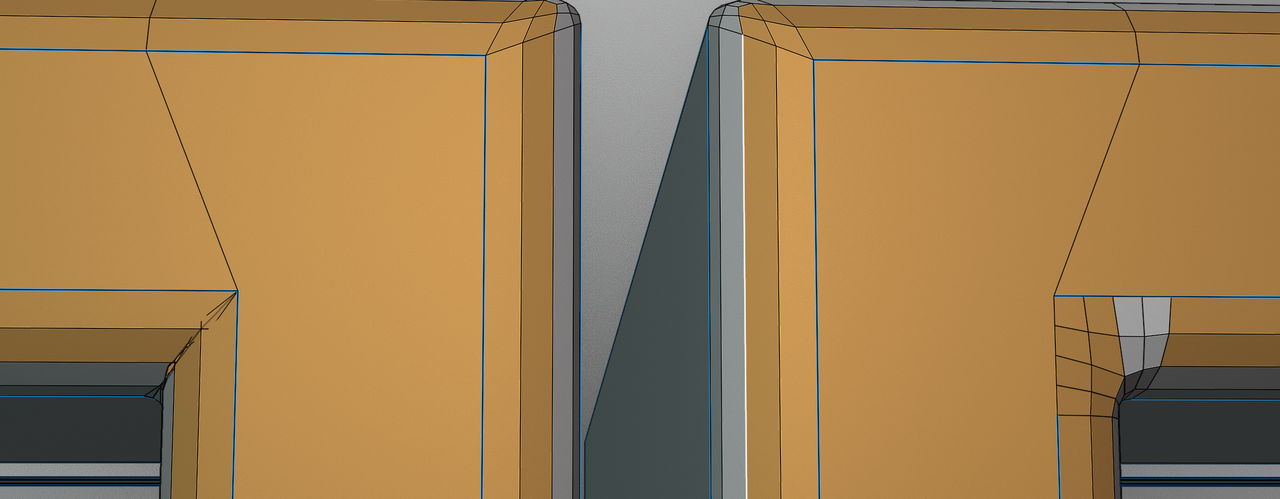
And finally, Angle vs. Weight:
Thanks for adding those screenshot, Martin. I think they're helpful in conjunction with the video.
Just for clarification:
All the things Martin pointed at are correct and addressed in the first 2/3 of the lesson, including different corner geometry, adding .25 bevel weight to all edges and why ( including between flat faces ), and turning off clamp overlap.
Those solutions are also aimed at fixing the material issue.
The only thing we don't do in the lesson is applying the modifier, so we can stay flexible. 😉
Thank you for that extra detail, Martin!
And thanks for following up, Sascha!