Can anyone explain the logic behind this? I was having a bad shading issue, but then I created and joined these vertices, added three edges, and the shading issue kind of disappeared from the actual mesh side not totally from the mirror side. I know that sometimes shading issues go away when we add more edges, delete some, or dissolve vertices — I've done that before. But in this case, it felt kind of random and the place feels random to me because one side issue kind of solved but not on the mirror side, also it's not even quads, just triangles. So what's the logic here? Can anyone please explain?
What could i have done better? or what should i do to fix this issue? Trying to solve this for 7 hrs by myself but i give up..with the little knowledge I have I cant atm.


It has to do with the normal to surface ratio. This is why in quad modeling you they say to try and keep it even spacing with square faces. Think of it like this. from each vertex to the center of the face(The normal's tangent point) is used to calculate the shading. When using smooth shading it creates something similar to a gradient. Not really, but it makes it easier to visualize. Thus long rectangular face that is inset will cause shifts in the shading. In most cases this can be hidden with textures and is more noticeable with a MatCap. You could remove the the 3 edges you added and add a few loop cuts. Something like this: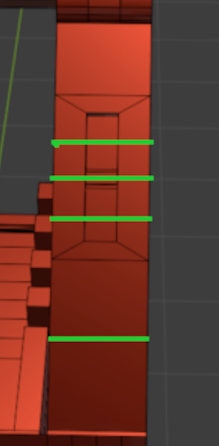
Also make sure you don't have doubles.
dillenbata3 Thank u mate for this solid info.. spikeyxxx Thank u too mate...u always help...

Solved
Thank u very much guys dillenbata3 your knowledge really help me a lot
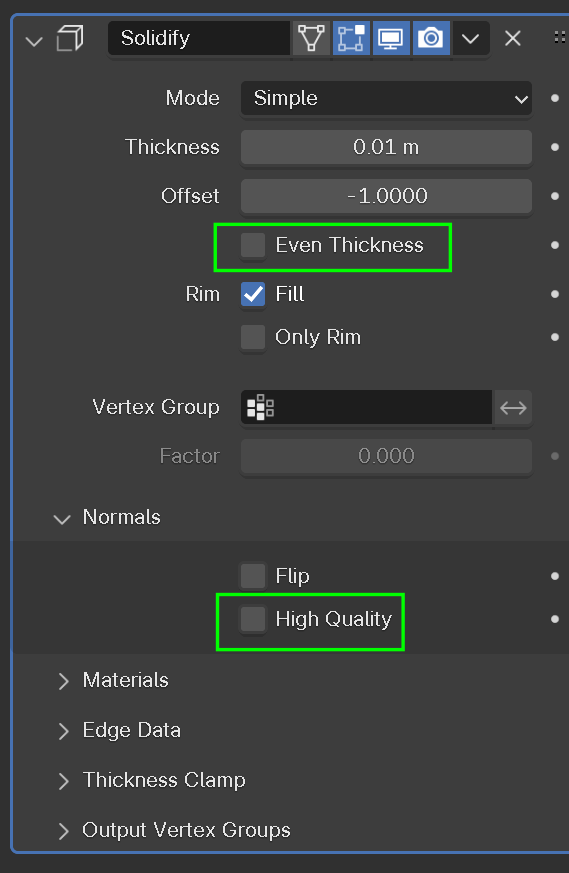
also spikeyxxx mate...damn that was solving the issue by one click but I am using a solidify modifier that's causing a different problem in another area after using harden normals..thank u
I just add these edges and it solved 99.99%
spikeyxxx I tried those but not worked in my case...but thank u anyway for showing me some very useful settings....😊😊
spikeyxxx Okay noted will try it too...Thanks a bunch...
spikeyxxx I haven't used Harden normals before. I'll have to play around with that.
Dwayne dillenbata3 ,
Jonathan Lampel mentions this in the Fundamentals of Mesh Modeling: https://cgcookie.com/lessons/the-3-ways-to-bevel