Hi,
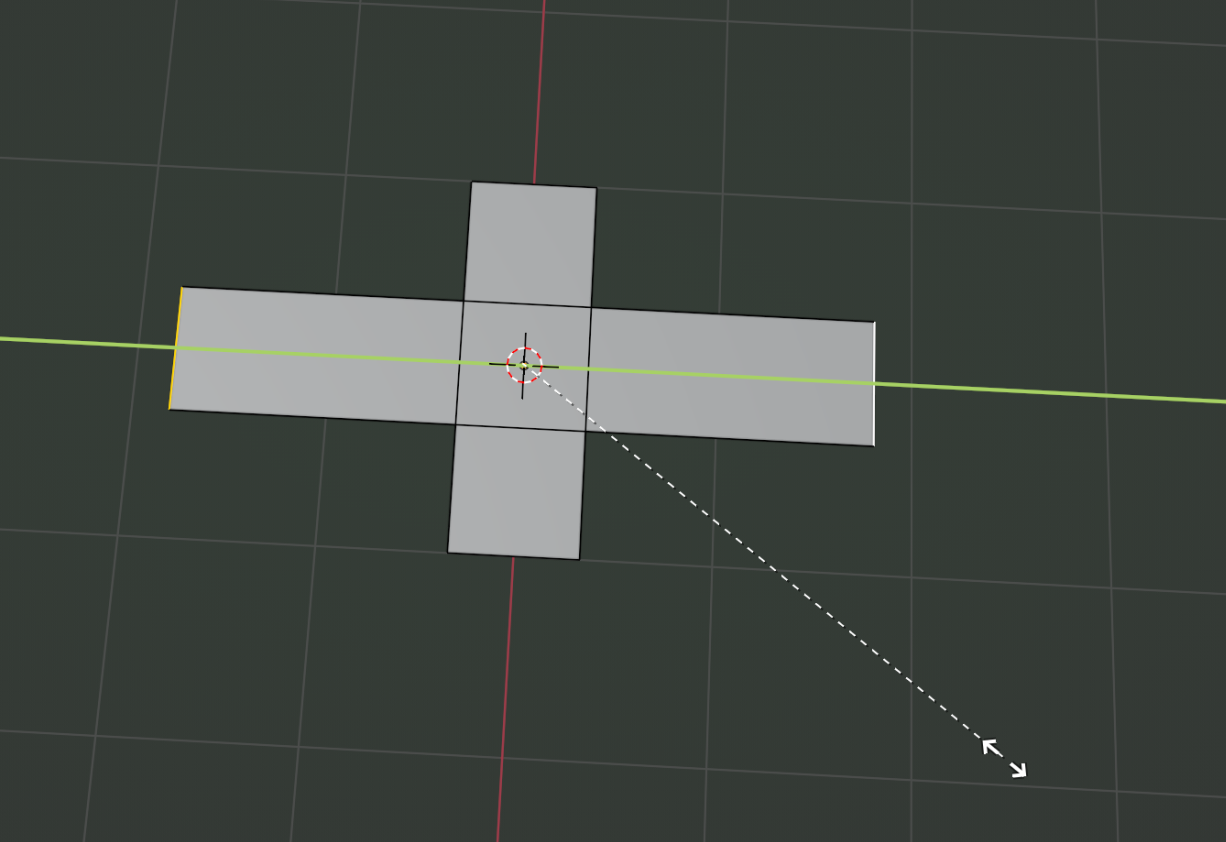
I was trying to extrude edges individually — for example, I want to select the 4 edges of a plane at once and extrude them separately. Is there a way to do that?
Also, I was trying to offset edges outward from the shape while keeping the same distance around it. I can use "Inset" to go inward, but I can't figure out how to do it outward.
For example, if I wanted to select the outer edge loop of a star-shaped mesh and scale it outward while keeping the same spacing, how could I achieve that?
Thanks

HI @Blendash ,
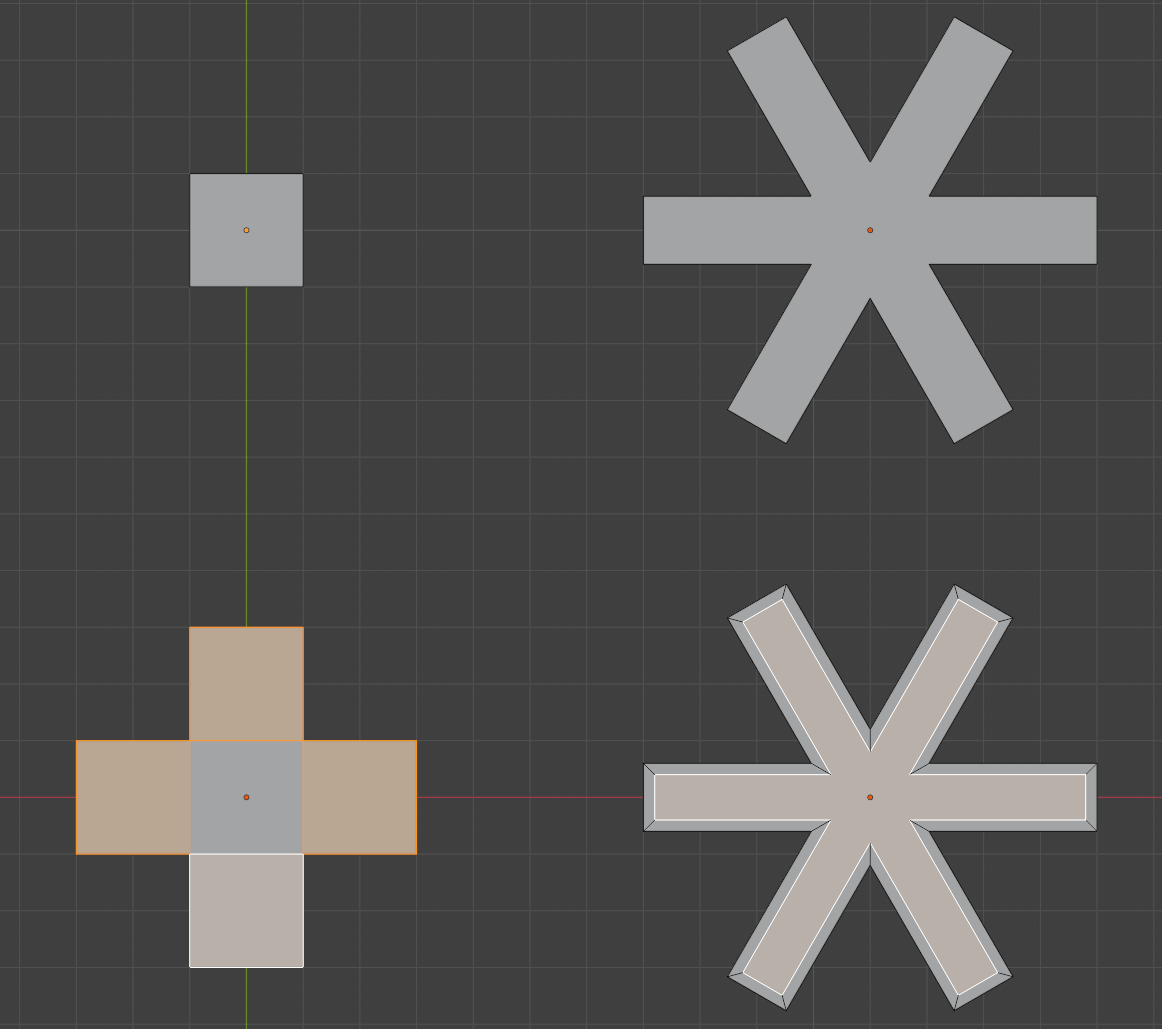
In the case of the Plane, I'd Subdivide it (2 Cuts) and Delete the corner Vertices:
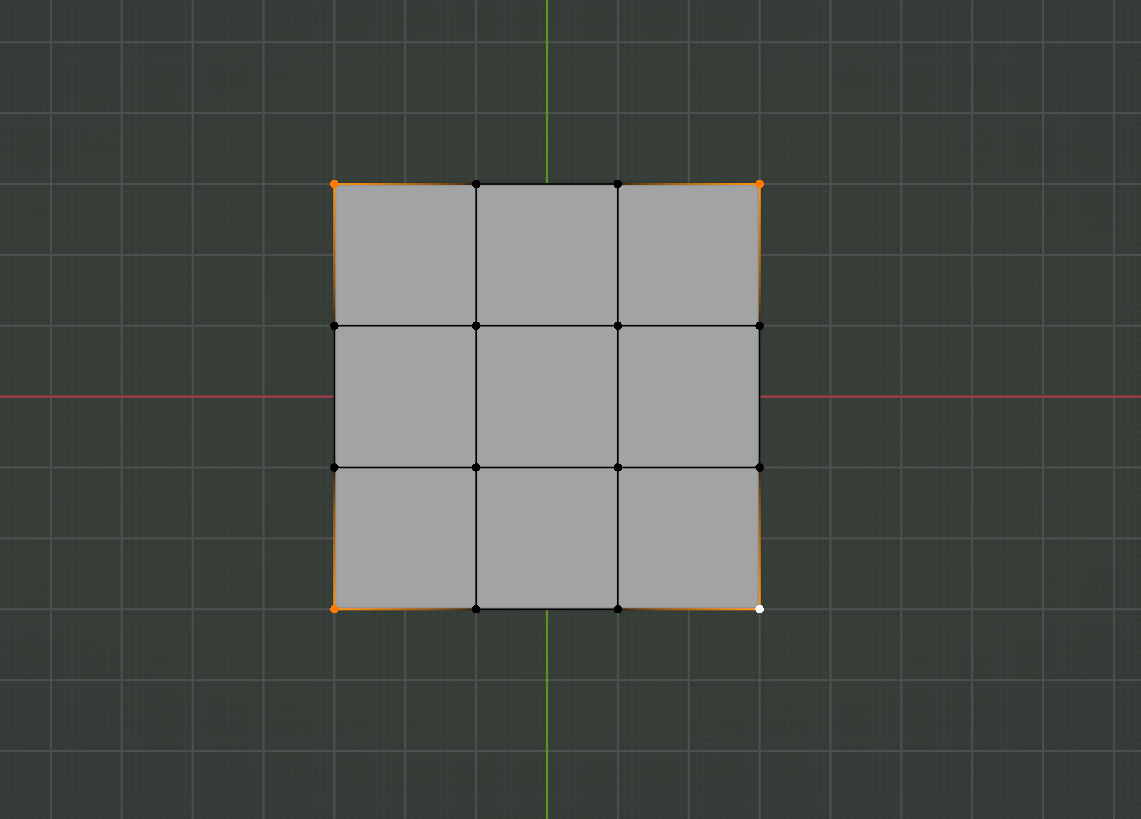
You can also temporarily give the Plane some Thickness and then you can Extrude the side Faces (individually).
With the other figure, you can also give the Mesh Thickness and Extrude the side Faces.
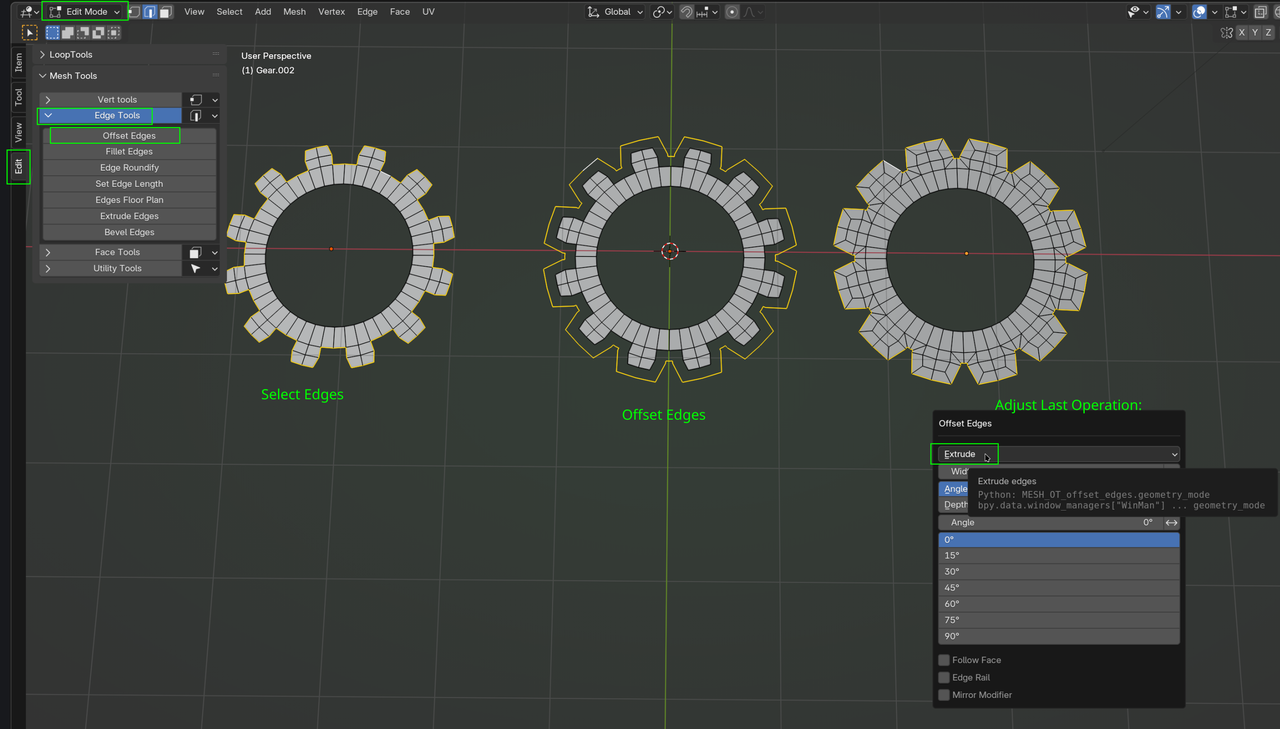
Or use the Edit Mesh Tools Addon:

If you press ALT + E you get the extrude menu and it changes if you're on vertex, edge or face select. You have a couple of options. But I guess the way I have always done it is to extrude and right click to cancel, then ALT + S to scale along the normals. Or maybe even the scale cage, if you click and hold on the scale tool, you can use the cage which lets you scale in different ways.

It depends, Omar, how much you are going to do, modeling-wise, if this is the only thing, it would be more work to set up a Mirror Modifier, but in other cases it might save you 99% of the work, or more.
@Blendash , you can also first Scale these Edges:
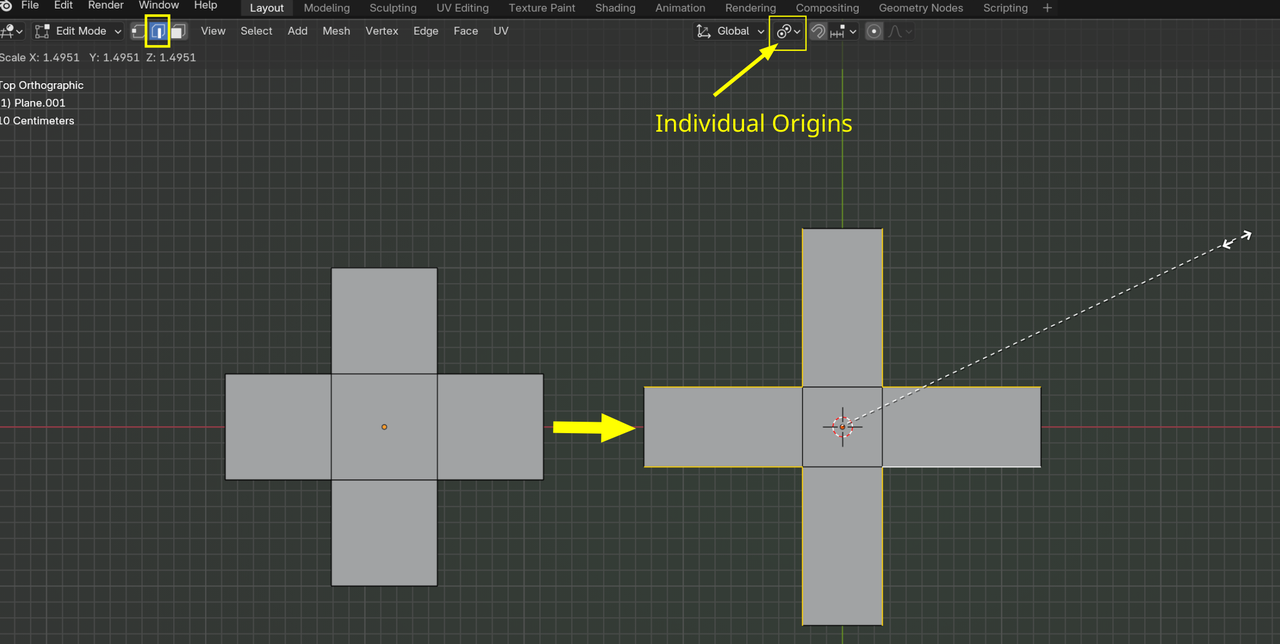
and after that, Scale the whole model to get the center square back to its original size.
And there's probably 50 more ways to do this 😉