

I am doing the shading exercise in the CORE Fundamentals and Shading and I have a problem with the dices. For one dice, I can't select just the dots or just the box in order to give each a color. I succeeded for the others but... I don't know why! Also, I would like to know how to duplicate a material in order to apply it to another object in the same Blender file. Thanks!
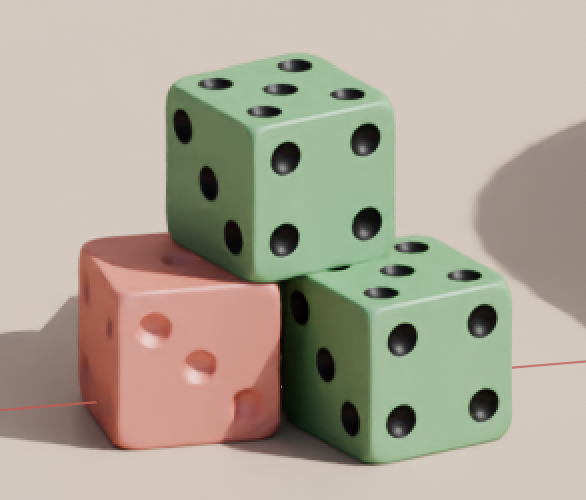
The first picture is where I am now and the other what I try to obtain.
.
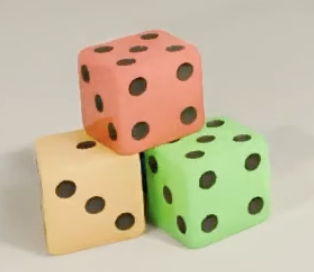

To duplicate the material you just have to click the number of users here:
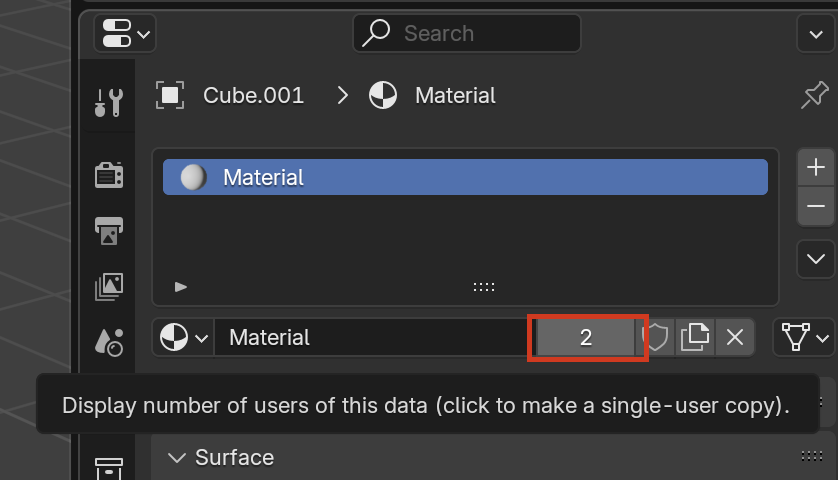
When you click there it'll create a duplicate material of that same one, which you can then rename and apply it to another object.
I'm not sure why you can't select the circles in the geometry. Can you post screenshots and further describe what you are doing to see if we can identify what's going on?
Here's what happens when I select the left dice in Object Mode and than Tab. I did the same procedure for the right one and obviously, it's not the same...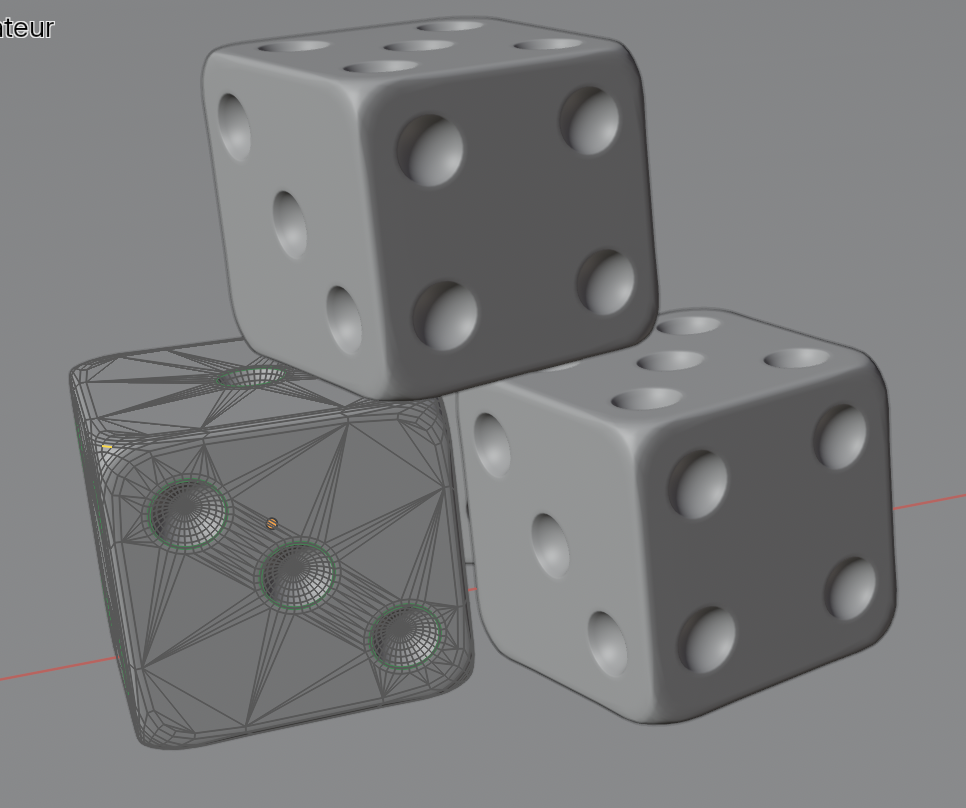
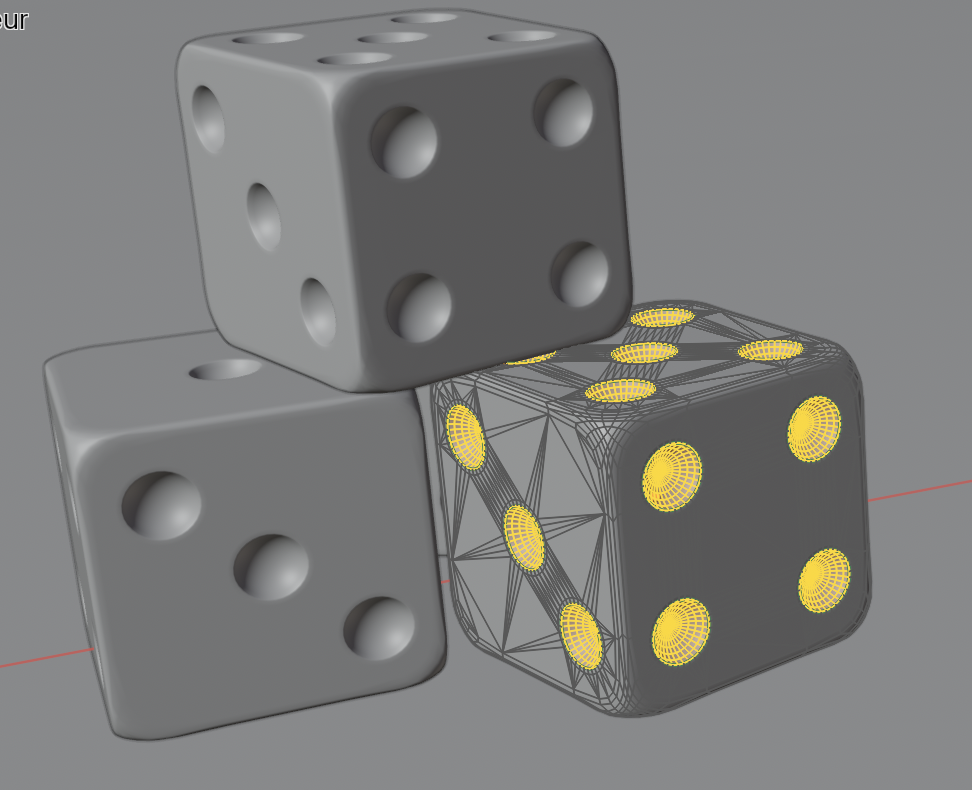
If you want to see the original exercise file, you can find it in the courses files (chapter 4) of the CORE Fundamentals and Shading.
But are you saying when you tab into edit mode the selection is already made in the other dice and in that one there is nothing selected? You can manually select those faces, you can select the little ones that are right in the middle and then grow your selection with Control Plus (meaning the + sing) in the numpad. Or you can just circle select them with the circle selection tool or just select them one by one even.
Well... I understand (I think!) what you mean. But it's just that for the other dices I had no special selection to do. Thank you Omar.

Hi Marie delama ,
In that file, the 'holes' were already Selected on all the dice, but if not, you can go into Edit Mode and Select one of the two Materials and then click Select:
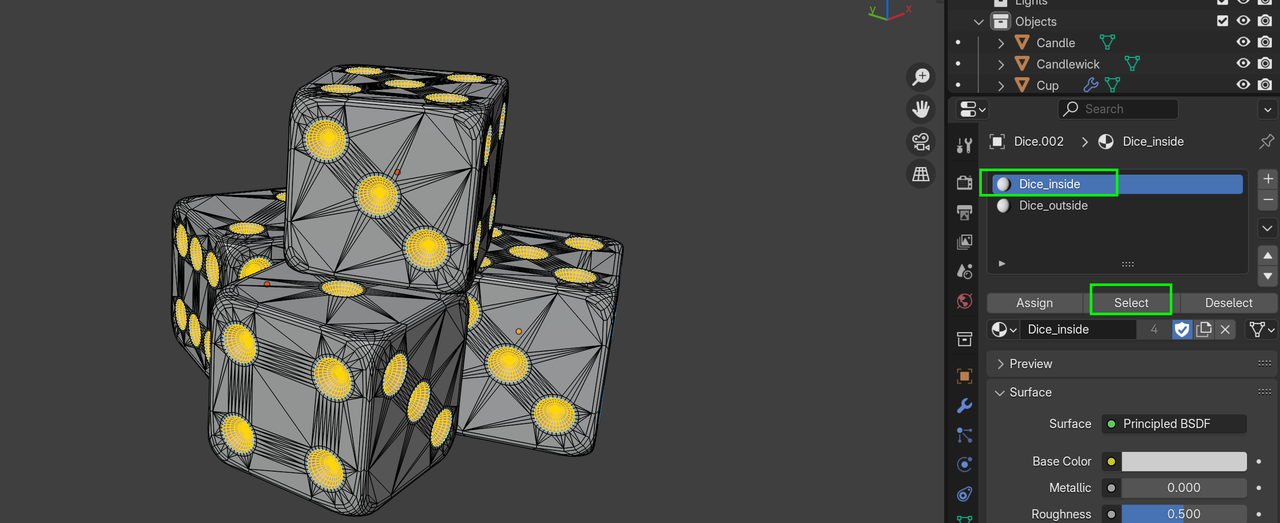
Or more general, you can Select the middle Vertex (in Vertex Select Mode) of one of the 'holes':
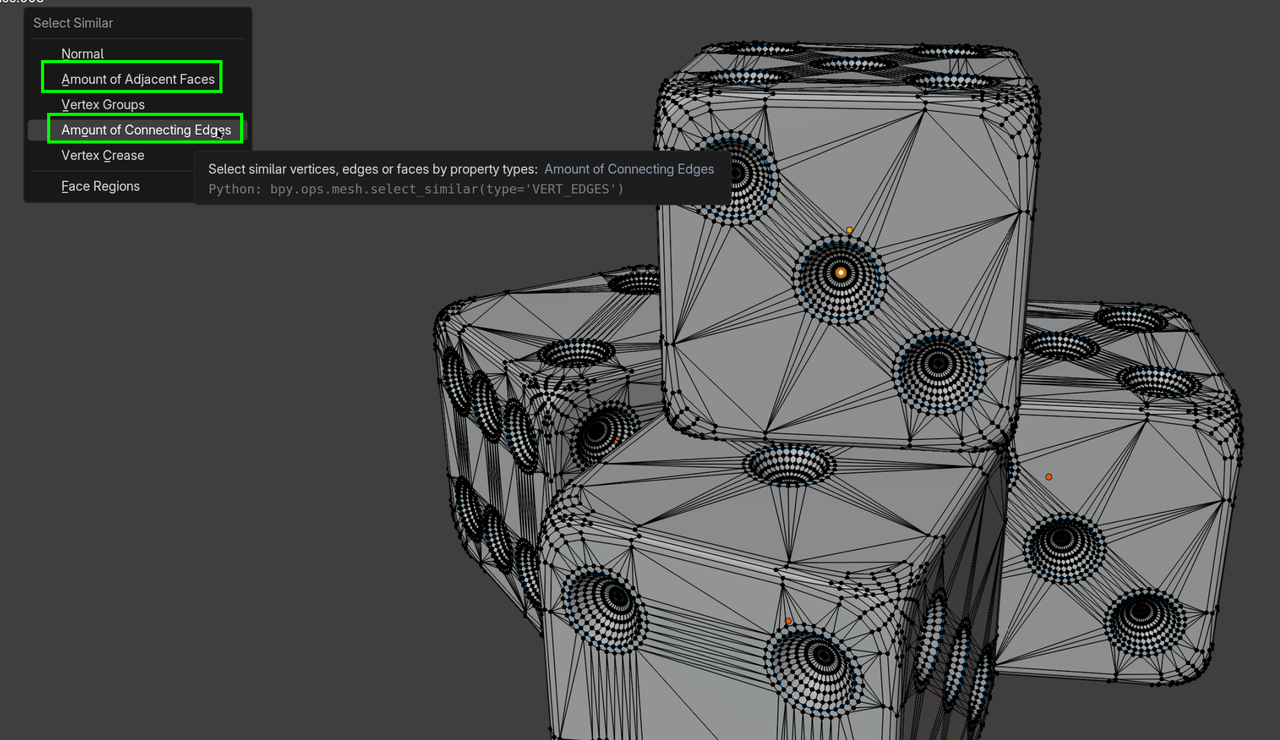
and then go to the Select Menu, or use SHIFT+G and Select Similar to get all the middles of all the holes and then CTRL NUMPAD+ a few times, like Omar said.
It works! 🥳 (Because I don't have a numpad, it's boring to go to Select > More many times but the result is there.) Thank you Martin. ☺️
Hi Marie,
As this is such a handy operation, that you might use a lot, it can be helpful to change the shortcut to simply CTRL +, if you don't have a NUMPAD (they are not being used anywhere else yet, so that's safe to do) and (similar for CTRL -:
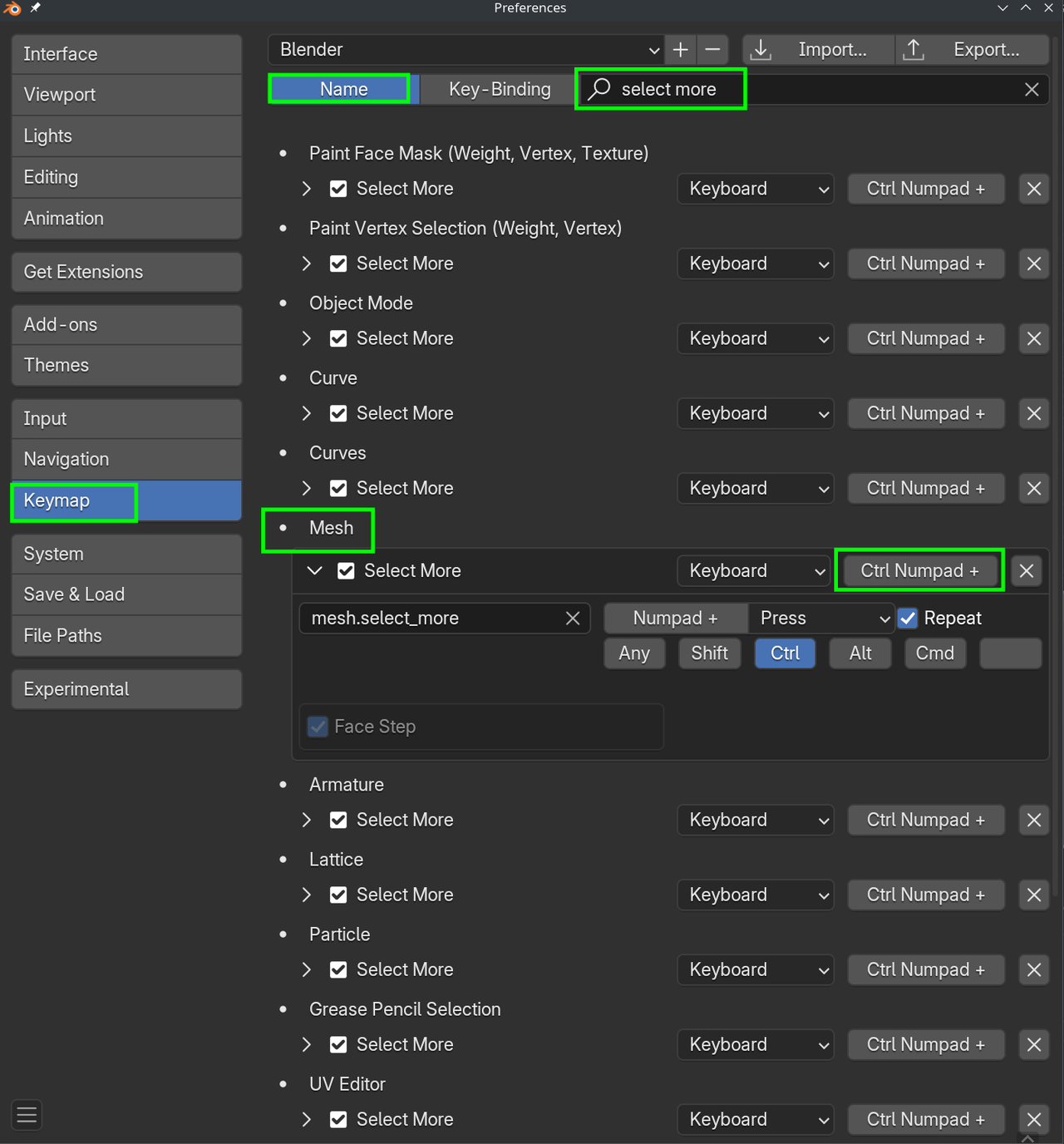
(Of course you can also change this for the other Select Mores).