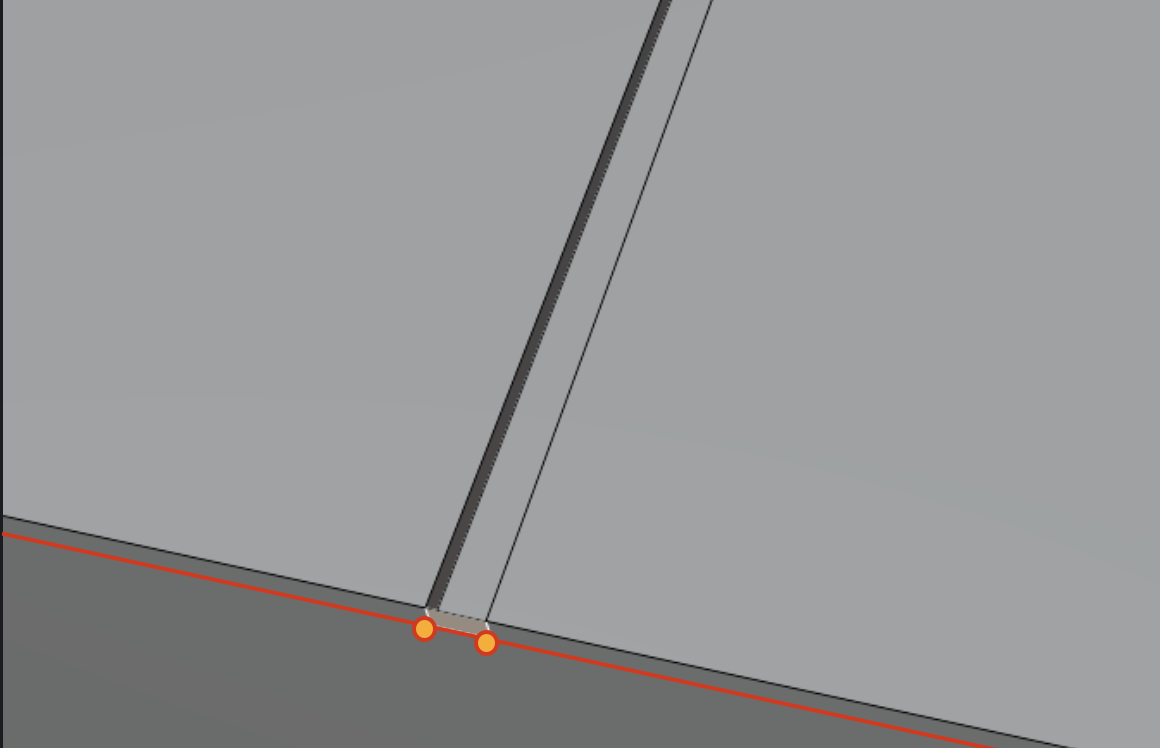
GOALS


I am still new to Blender. I finished the Scifi crate and now I'm trying to create these four simple designs.
1. Circle: Looks like an indented screw hole
2. Rectangular vents
3. Panel line cover design
4. Parallelograms
=====================================================================
PROBLEMS
I can't delete these panels.


I would select the panels and then right click and dissolve the panel but they won't dissolve.
Update:
I was able to delete them but I am still somewhat confused as to why I couldn't before. It seems to me that when I used a knife to cut and create the new panel line designs it didn't create panels in between? Or is it because it's a plane on the top right corner of the picture? I did start with a plane and then tried a cube.
=====================================================================
MY SOLUTIONS
Hole in wall
I subdivided panels until I got to the size I wanted and then used those 4 last squares with LoopTools Circle to create a circle. Subdivided some more vertices and re-circled them. This seems very inefficient but the best I could come up with at the moment. What is a faster way to do this?
Rectangular Vents & Panel Line Design
Parallelograms

I just created new edges with the last two points of the plane to create a diagonal edge and manually did the rest. I saw an older offset edge slide tutorial and couldn't find the tool in 4.2. I saw a video showing crisscross trashcan but I couldn't follow along.
I'm open to suggestions for my workflow to be more efficient. Thanks in advance.

Hi ttthao ,
First, don't worry, you will learn these things soon, if you stick with a few Courses (Fundamentals of Modeling, followed by Press Start, for instance)
But let me see if I understood everything correctly.
You could Delete those Faces, but you, for some reason, used X > Dissolve Faces, instead of X > Delete Faces.
There are many ways to create Circles. One way, would be to use Knife Project:
If you have a Mesh (here: Plane) in Object Mode, Add a Mesh Circle (still in Object Mode). then Select (only) the Plane, switch to Edit Mode:
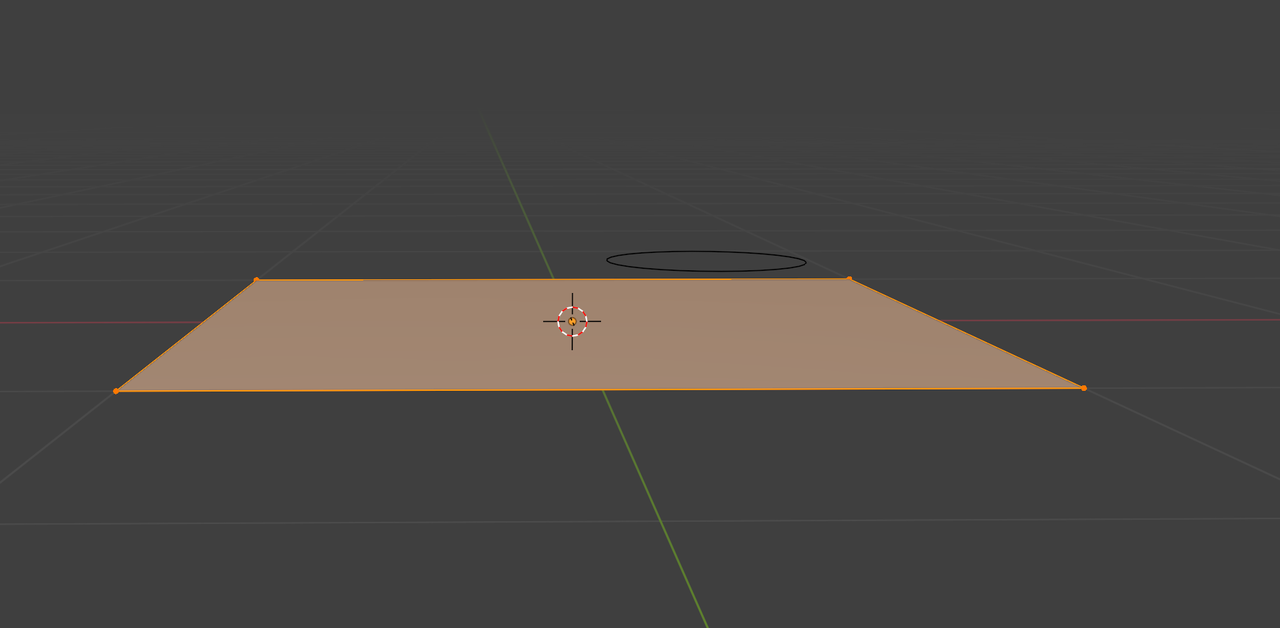
and then SHIFT+Select the Circle in the Outliner(!) and from Top View (in this case), Search for Knife Project:
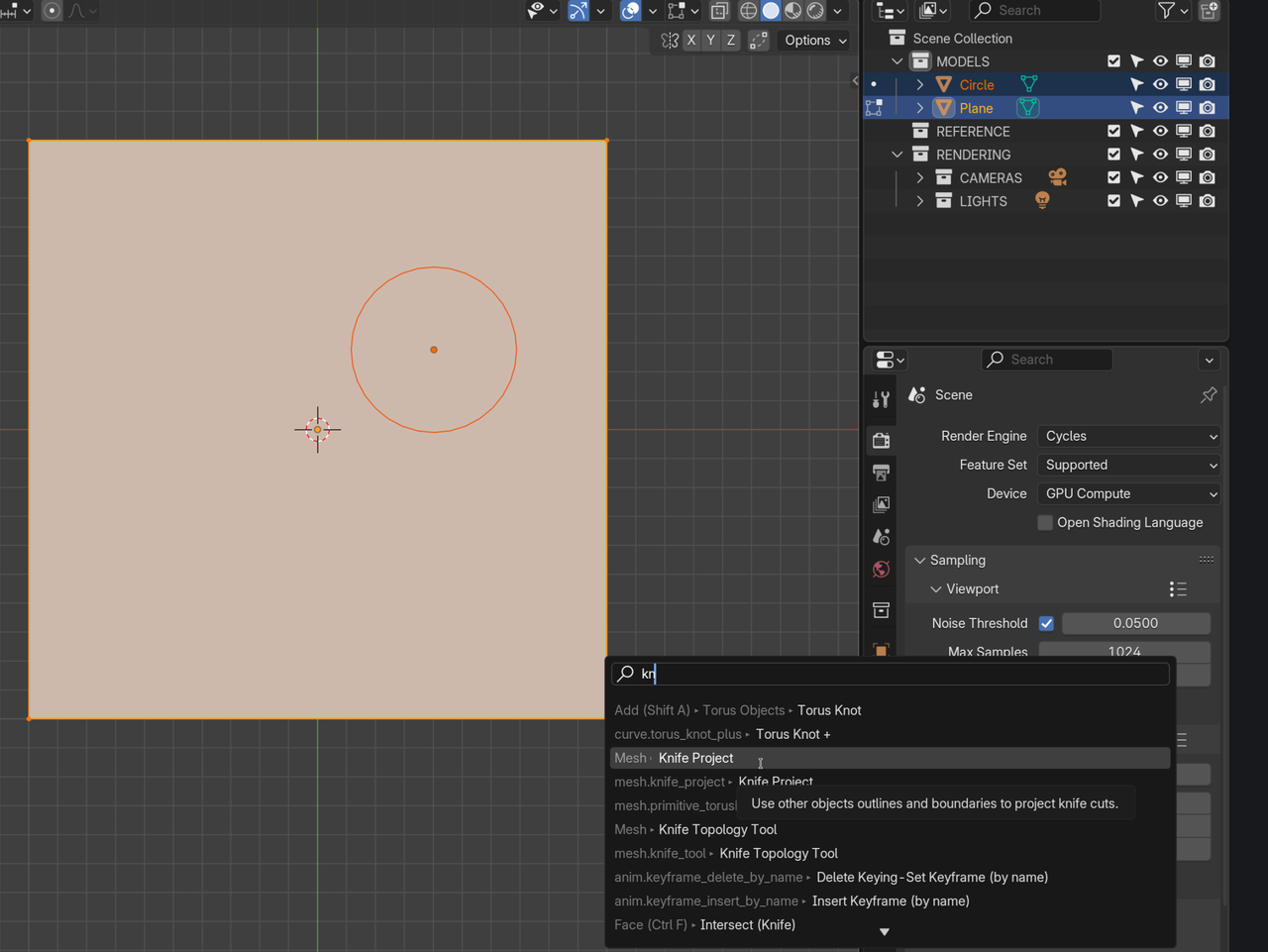
Enter and after that you can Delete the Circle Object.
You could also use Booleans (with a Cylinder).
The thing you were looking for with the Paralellogams, is in the Edge Menu (CTRL+E):
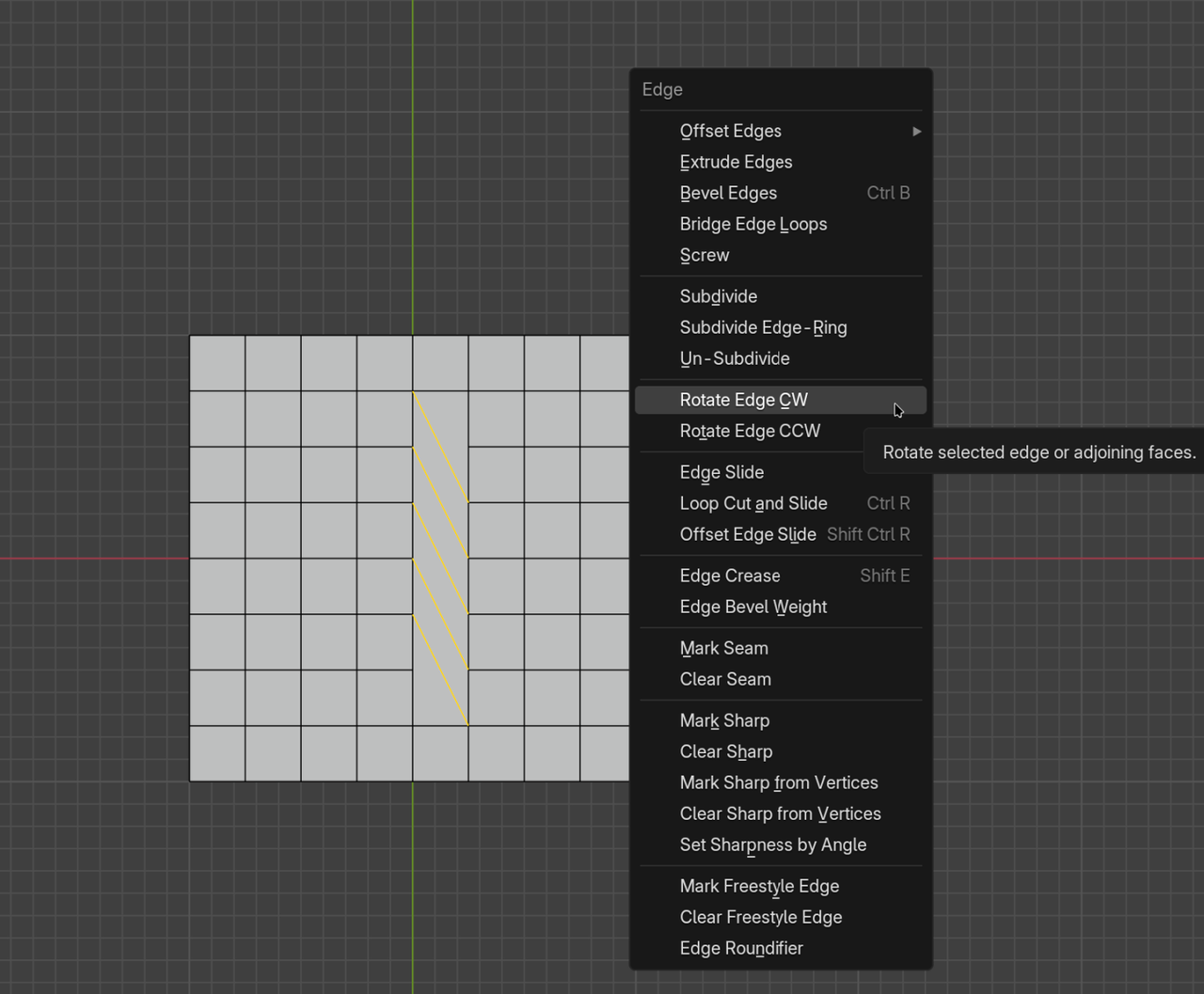
(Clock Wise and Counter Clock Wise, in case you were wondering).

This course might help you out. I think there was a lot of paneling done in this one:
https://cgcookie.com/courses/animated-sci-fi-game-environment-creation-in-blender-2-8
Also for this type of indent, you need the corresponding supporting loop, you can't leave that face floating: