

I'm doing the Robot Texture Painting exercise, and i am having an annoying problem with a custom brush i created, a "Line" stroke method, in order to paint stripes.

Some stripes are perfectly fine, with a "straight edge", while other have very jagged edges.
Do you know how i can avoid this problem ?
(i thought it was a texture resolution problem, and deleted my 2K texture to create a 4K one, but this didn't help).

I'll let someone else correct me as it's been a minute since I last did any texture work. I think you're right in it not being the texture image resolution itself. And instead it might either be the brush resolution, the UV island size in comparison to the texture image's resolution, or the placement of the island - ie the rotation at which it is layed out. I think I recall it being mentioned in the Pothead course that it's ideal to align your islands as best as possible with the U and V axis (in the case of 2d it's X and Y). Again, I'm reaching into the back of my memory so I might be misleading you (sorry if I am woops). But I'm going to place my money on it being the UV island scale. (edit: the placement of the offending island looks perfectly fine so ignore that part)
Could you upload a screenshot of the texture image with the UV's unwrapped and unpacked so I can see if they ought to be scaled up?
Reason being is that I can see a fair bit of empty space (the black space) around the islands in your texture image - which leads me to think they're too small.
When unpacking UV's you want to take up as much space as possible, while considering the which islands needs to be bigger and which others can be smaller. There are tools and addons which can optimise this for you, but of course it always helps to go in and do necessary touch ups!

Front face and back face are here.
I have just redone my UVs and aligned them all with the texture, preventing blender to change the rotation while packing. This doesn't seem to help :/
The shoulders are not the biggest part of the robot indeed...
how do you change the brush resolution ? 🙂

It's the Image Resolution and this is perfectly normal:
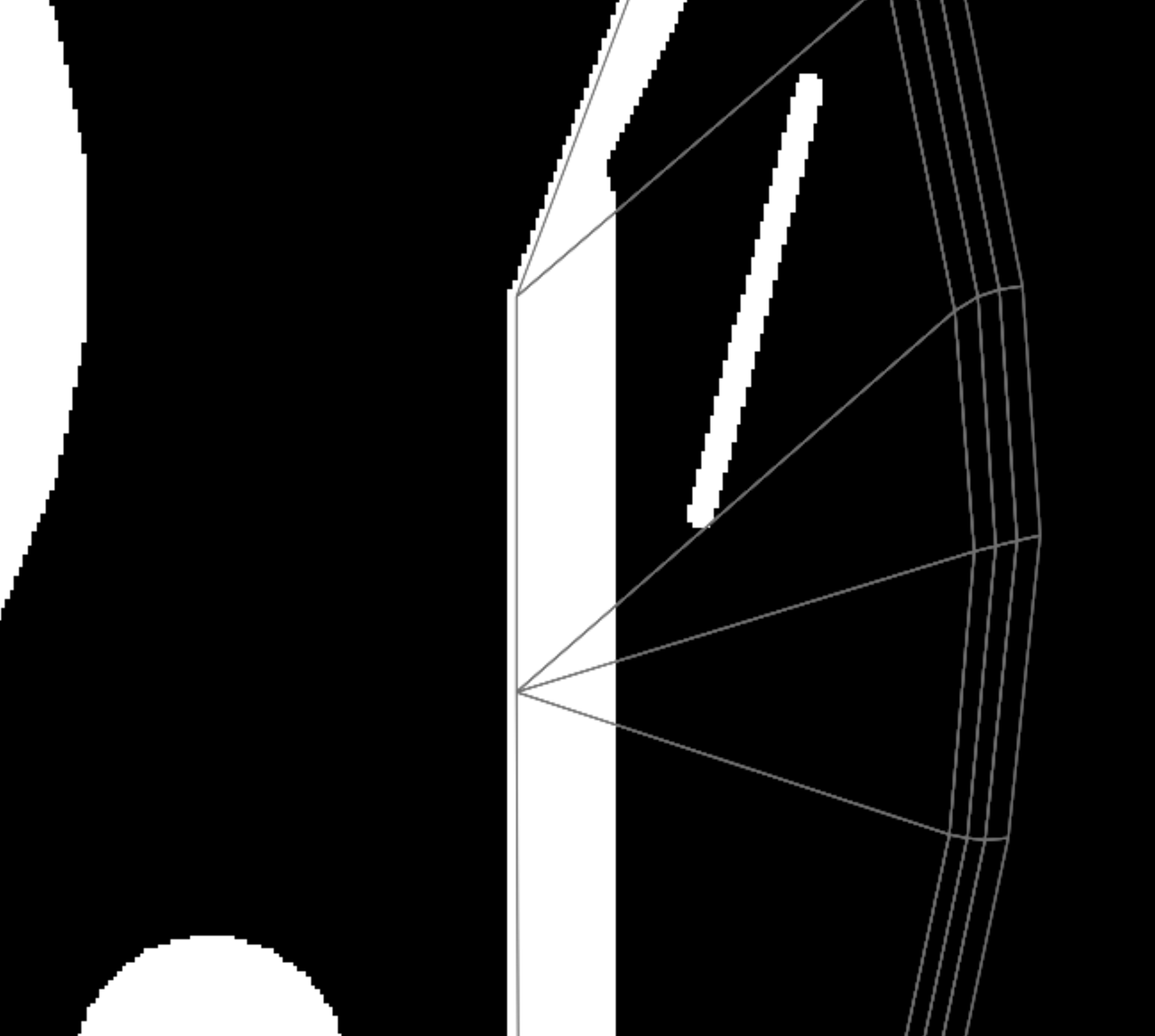
Even the UV lines have this.
The only thing is, that there is no Anti Aliasing on your Brush Strokes. Can that have something to do with your 'custom Brush'? I don't even know why you'd need a custom Brush for this.
Dang I thought it was the island scale. I was looking back through this post if you remember  spikeyxxx when I was having a similiar issue where I was trying to bake my textures. The second page is where you pointed out that some of my islands were far too small compared to the mesh size and it was giving me a harsh pixelated result
Yes, you're right Harris Yeehawcowboyletsgo ,
It's actually a combination of the Image Resolution and the size of the Islands.

Maybe you need to have more steps in your brush? If the steps are too low you usually don't get a smooth transition. Also have you tried painting with a normal default brush, one that is not your custom one to see if it paints better? That way you know for sure is a setting on your custom one.
I went "texture size overkill" and made a 2x2 UDIM with each tile 4K.
It looks better :)
(by custom brush i meant only that i created a new brush asset with "line" as a setting. It's not a "directly in the shelf" asset :-) )
