
I made a tool for creating feathers via geometry nodes that I have posted as a product for others to purchase and download. Part of the tool references the geometry nodes for hair that come with Blender by default. I thought that those references would be packed within the node graph that I created, however it looks like the Blender file is referencing them from an external location. There's no issue if the person who is using the tool is working in Blender 5.0, but if they use a newer version, it seems that the reference gets broken because it looks at the wrong file path by default. It can be fixed by resetting the path manually, but I would rather people not have to troubleshoot anything before the tool can be used. How can I adjust the file setup so the reference either doesn't get broken, or isn't necessary in the first place?
Thank you!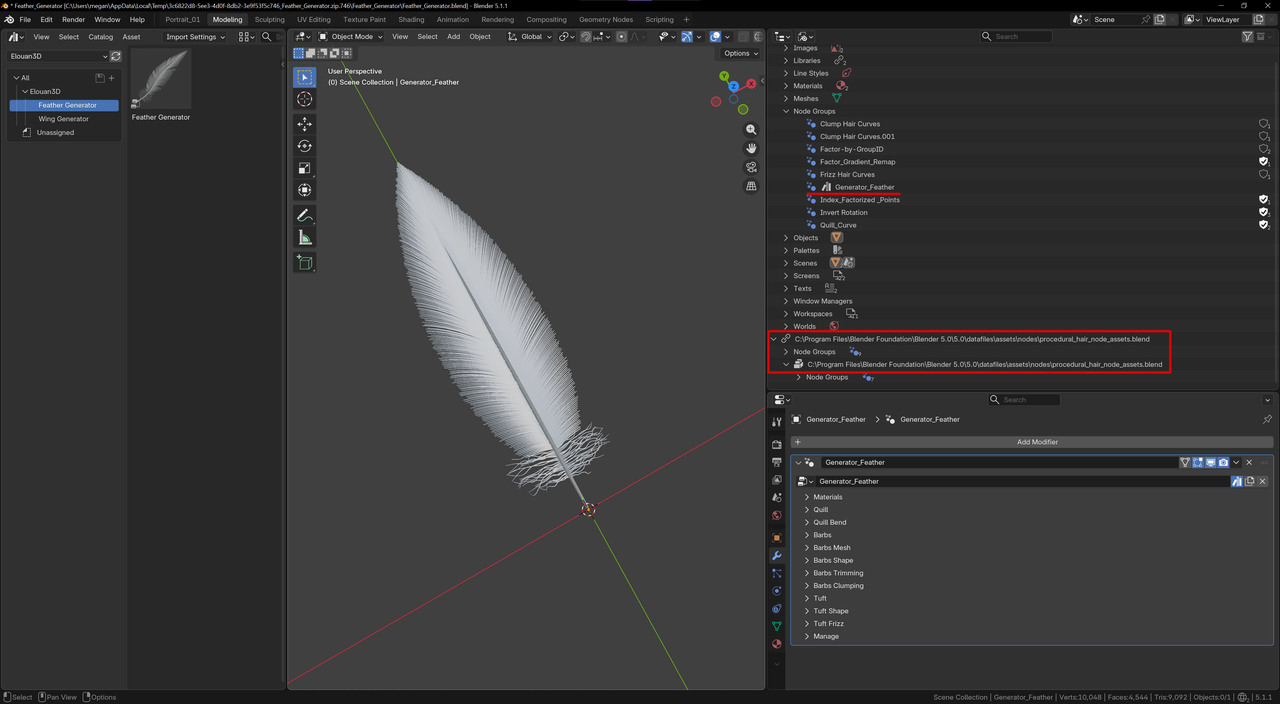

Hello,
To fix this issue and ensure your Feather Generator tool works seamlessly across different Blender versions without manual path troubleshooting, you have two professional approaches depending on how you want to manage the asset dependencies:
The cleanest way to prevent broken paths across major updates (like migrating from 5.0 to newer versions) is to completely sever the absolute file path dependency and internalize the required nodes.
.blend file. Once internalized, Blender will no longer look into the C:\Program Files\... directory of a specific version, and the asset will load perfectly on any user's machine regardless of their install path.If the system nodes must remain linked as external references rather than duplicated inside your file, you should avoid absolute directory structures.
.blend file path, utilize Blender's native Essentials asset library designation if the nodes are part of Blender's default built-in shipping toolset.// prefix in the file path field) rather than absolute local disk paths (C:\...). This tells Blender to search relative to the current runtime environment rather than a hardcoded folder structure.Recommendation: For commercial product distribution, Method 1 (Internalizing the Nodes) is highly recommended. It guarantees 100% plug-and-play stability for your customers, eliminating any dependency on version-specific internal folder structures.
Best regards,


Thank you @Radwan. I will give this a try when I get home later today!
Hmm, well I tried these various solutions, but neither one was what I anticipated exactly.
There was no option to 'make the files local.' I searched in all the places I could find, both in the Blender File viewer and the node graph, as well as the External Data management section, but it was not available. I tried packing the files as well, but it didn't have an effect on the linking in that screenshot I posted at the beginning of the thread.
What I ended up doing was creating a resources folder right next to the blender file containing my product and just placed a copy of the referenced files in there. I relocated their path in the Blender File section to look inside the resources folder, so at least the path would be local. If all else fails, and folks still need to relink some stuff, at least it will be easier to find. So, I'm hoping that works out.
Hi again!
Your workaround of creating a resources folder right next to your product's .blend file and changing the path to be local is actually a very smart and solid move. This is a standard industry practice for commercial products, as long as you zip the main folder and the resources folder together for the customers.
However, to guarantee 100% that your buyers won't have to relink anything on their end, just double-check these two quick things:
1. Ensure it's a True "Relative Path"
Make sure the file path inside Blender starts with // (for example: //resources/your_file.blend). The // prefix is crucial because it tells Blender to look relative to the current file's location, rather than searching for your specific hard drive path.
Quick Tip: To make sure everything is set correctly, go to the top menu and select:
File > External Data > Make All Paths Relative.
2. Why "Make Local" Didn't Show Up
The reason you couldn't find the "Make Local" option is likely because those nodes weren't traditionally "Linked" (via File > Link), but were instead being read dynamically through Blender's Asset Library system.
If you ever want to completely embed/internalize them in the future without needing a separate resources folder, you can do this:
Open your product's .blend file.
Go to the Asset Browser, find the hair nodes from the Blender Essentials library.
Instead of just referencing them, Append them into your file (you can right-click the asset in the browser and choose Link/Append options, making sure it's set to Append).
Once appended, those node groups become a permanent, native part of your file, and you can replace the old externally-referenced nodes with these new internal ones.
That being said, your current resources folder setup is perfectly fine and highly professional. Best of luck with your feather tool sales—it sounds like an awesome product! Let me know if you run into any more snags.