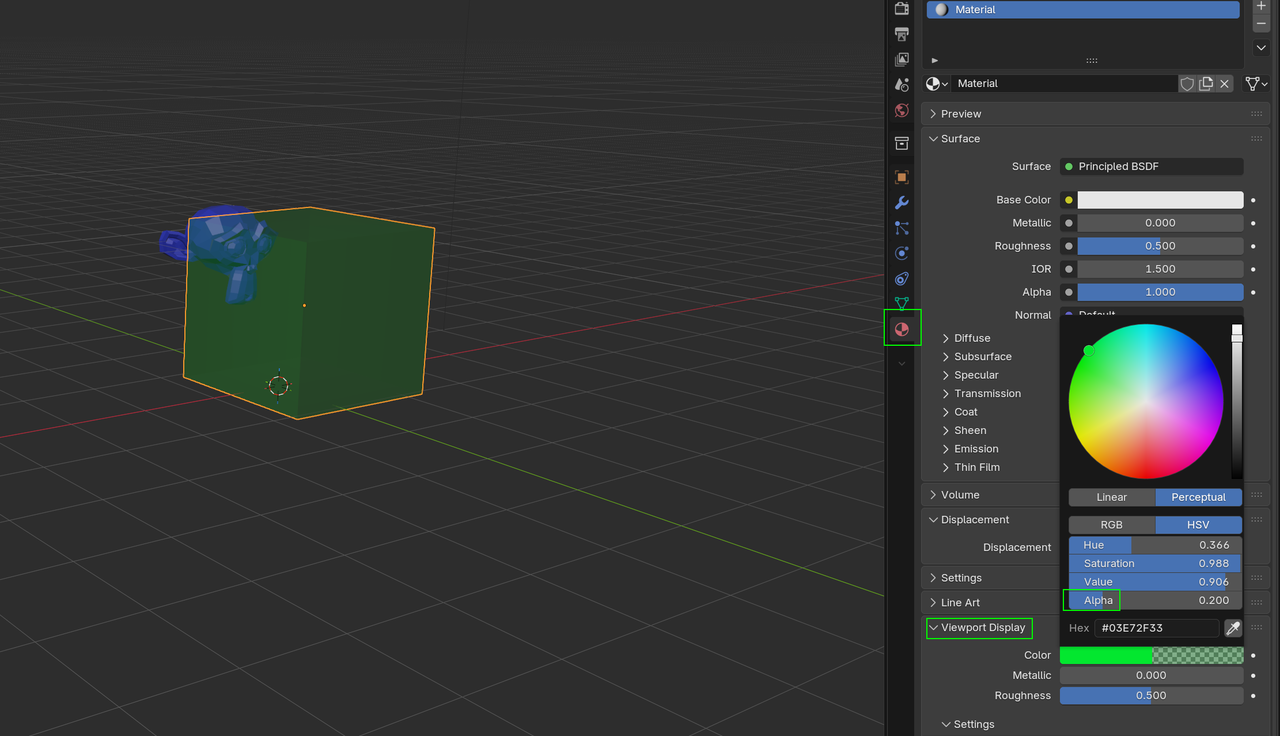
I'm trying to display colors in Solid View, but it's not working.
I know I can change the color in the Object Properties, but that only allows a single color per object.
So it doesn't work well when I want to display multiple colors on the same object (from different materials).
Is there any way to display base colors in Solid View?
Thanks

If you scroll down in the materials property, there's a section for Viewport Display that you can set to give anything with that material a different color. You can just copy the color from the Base Color from the principled BSDF and paste it into the VIewport Display color.

(In your screenshot, the current viewport display color looks to be the default .8 value white.. Change this to the color you want it to be)

Additional note: you can access this thru the n-panel in the shader editor. I find it a bit easier.