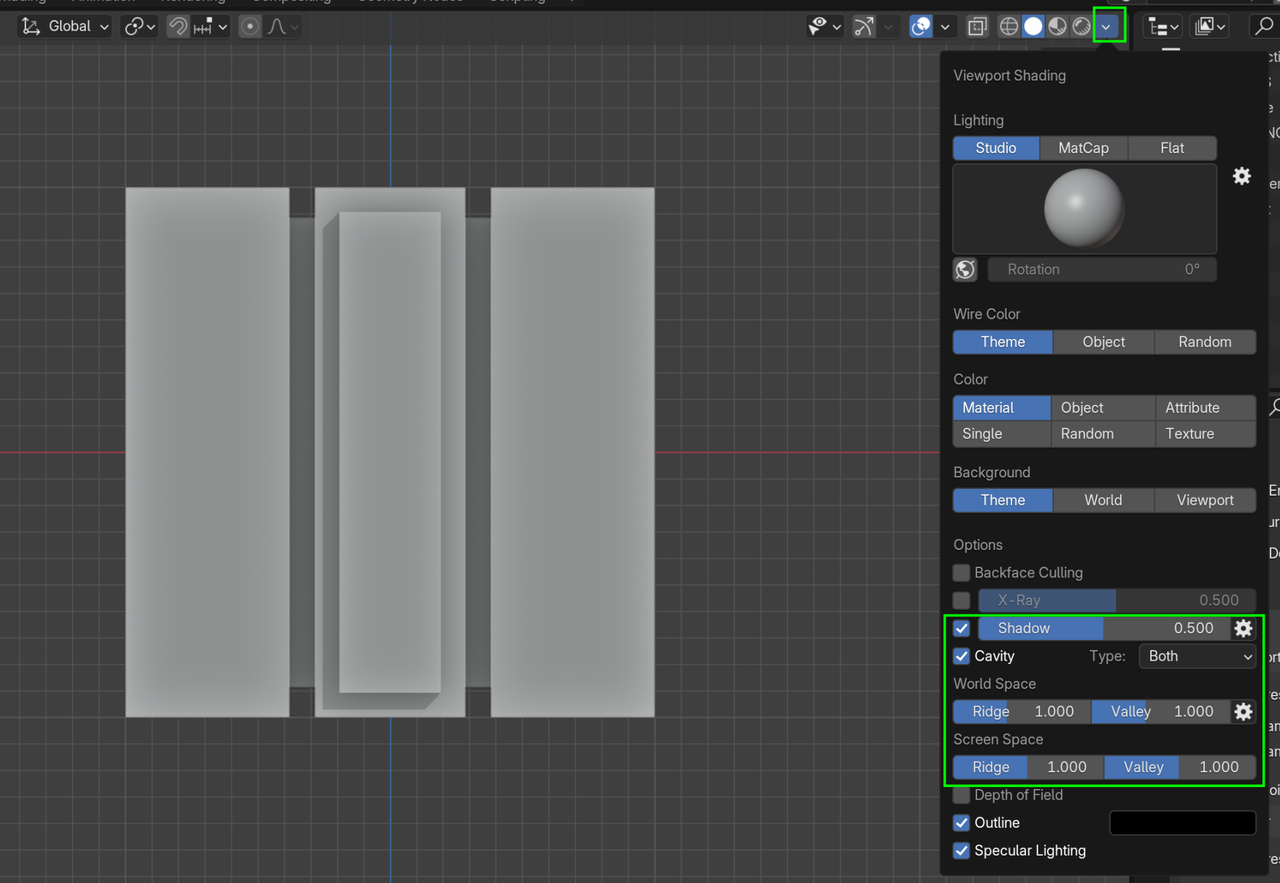
I've extruded my object, but when I switch to the side view, it looks completely flat, which makes it pretty hard for the modelling. I've tried to change the settings in the Viewport Shading tab but none of those work (turn on Cavity, change to Matcap, etc.). How do I make it have more depth like in the lesson?


You can always press NUMPAD 5 to Toggle between Perspective and Orthographic View. Or click on this Icon:
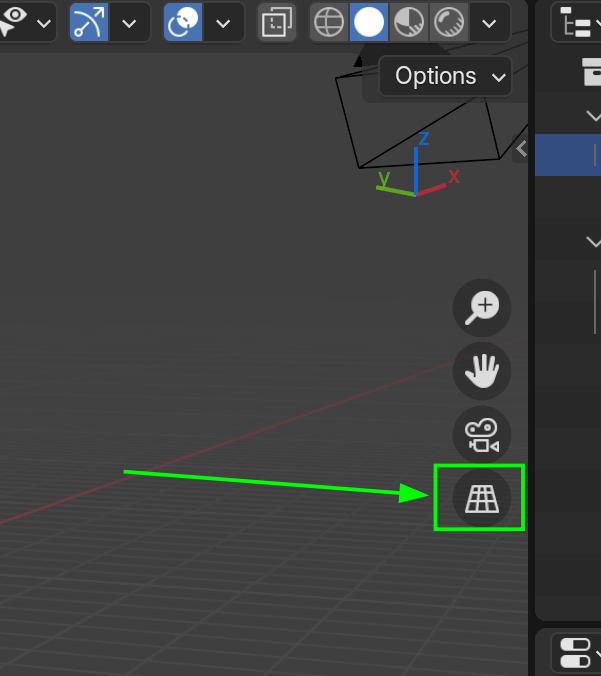
This is also covered in the Blender Basics: https://cgcookie.com/courses/blender-basics-an-introduction-to-blender-4-x

Usually that is all there is to it, enabling cavity and changing matcaps. It doesn't really matter that much how the viewport looks, it helps and it's nice, but when it comes to modeling, it's more about looking at your model from all sides. It takes a while to get used to change from top, to side, to the other side, to the back and back to the top again, all for the sake of working around the places we can't get into from one view or the other. Also changing to wireframe and X-ray back and forth. Really that is all there is to it.
Thanks for your help!
I'm sorry if my previous question was unclear. What I meant by 'flat' is that in the side view, the extruded parts of my model (as shown in the first image) lack the shading effect seen in the lesson (second image). Because of this, I can't see the depth and details of the extruded parts. Are there any ways to fix this?

Thank you all for helping me! I just figured out it's the type of the Cavity shading that affects my object's look. I changed from the Screen to World/Both and it works!